Introduction to the Helical Public Database
Helical is the new AWA database. As we progress through the migration, we will be opening new modules for members to be able to submit data through to the MSO team.
Over the coming months we will continue to work on all modules to enable them to be as user friendly as possible. Please note that as we update modules, we will also work to update any related factsheets to reflect these changes as soon as we can.
Within the Public Database you will be able to search for registered animals, view and filter animals on EBVs and other traits, search for other members, view current sale catalogues, and review the top 100 males for all individual traits.
Navigating to the Helical Public Database
- There are two main ways to navigate to the Helical Public database – via the AWA website, or from Helical when you are logged into your member interface.
a) Via the AWA website.
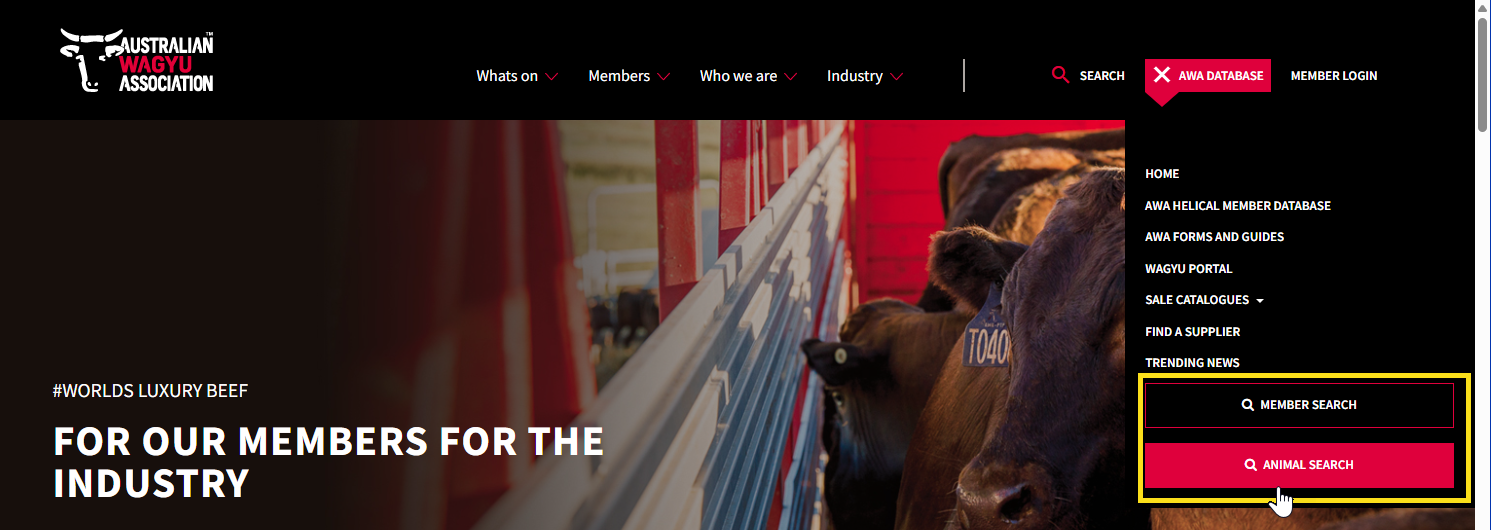
Navigate to the AWA website, click on the “AWA Database” dropdown menu and then click on “Animal Search” or Member Search”.This will open the Helical Public Database as per below: b) Via the member interface.
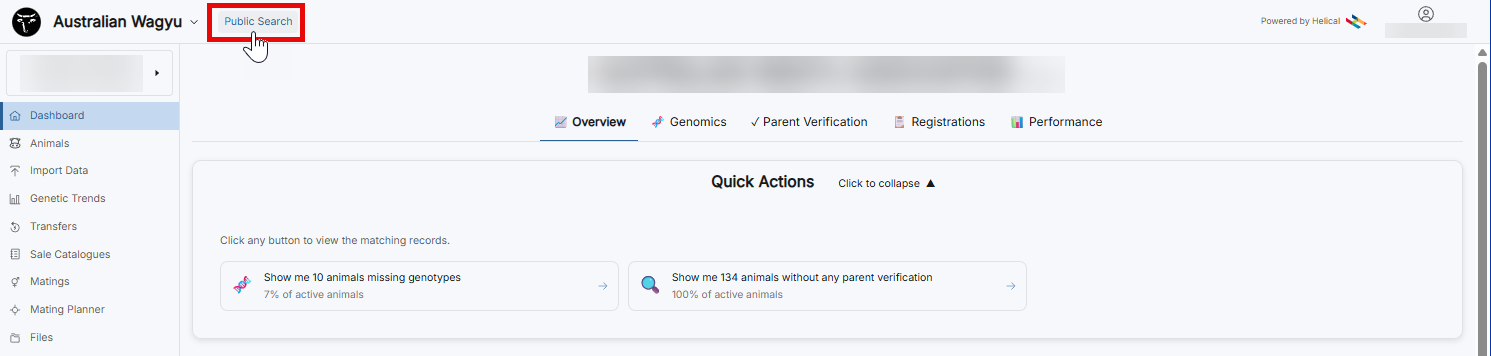
Once logged into your member interface, click on the “Public Search” button as outlined in the top left of the screen.If you are not already logged into Helical, you will need to log in. If you are unsure on how to login, or are not set-up as a user, please refer to the “Login Information” and “User and Policies information” for detailed instructions. If you are still having difficulty, please contact the AWA MSO team directly on (02) 8880 7700 (add in International number as well here), or email [email protected].
Animal Search
The Animal Search page is the default page that will show once you have navigated to the Public Database.
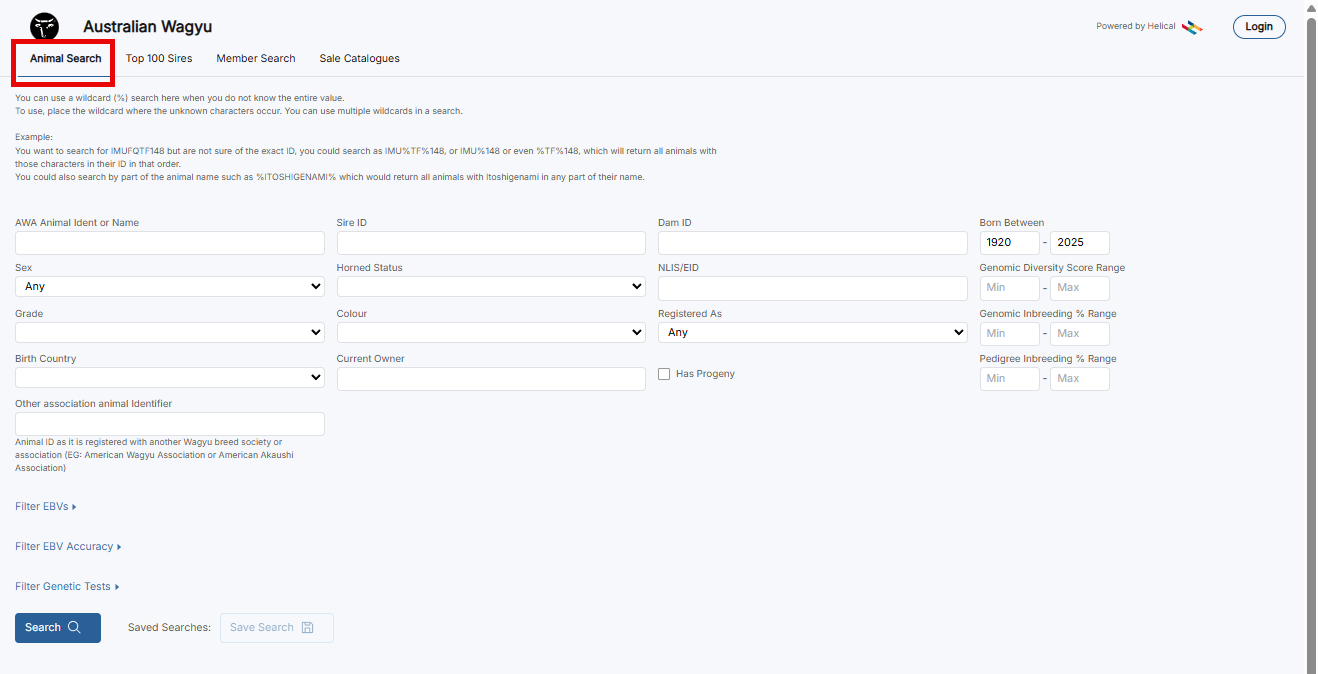
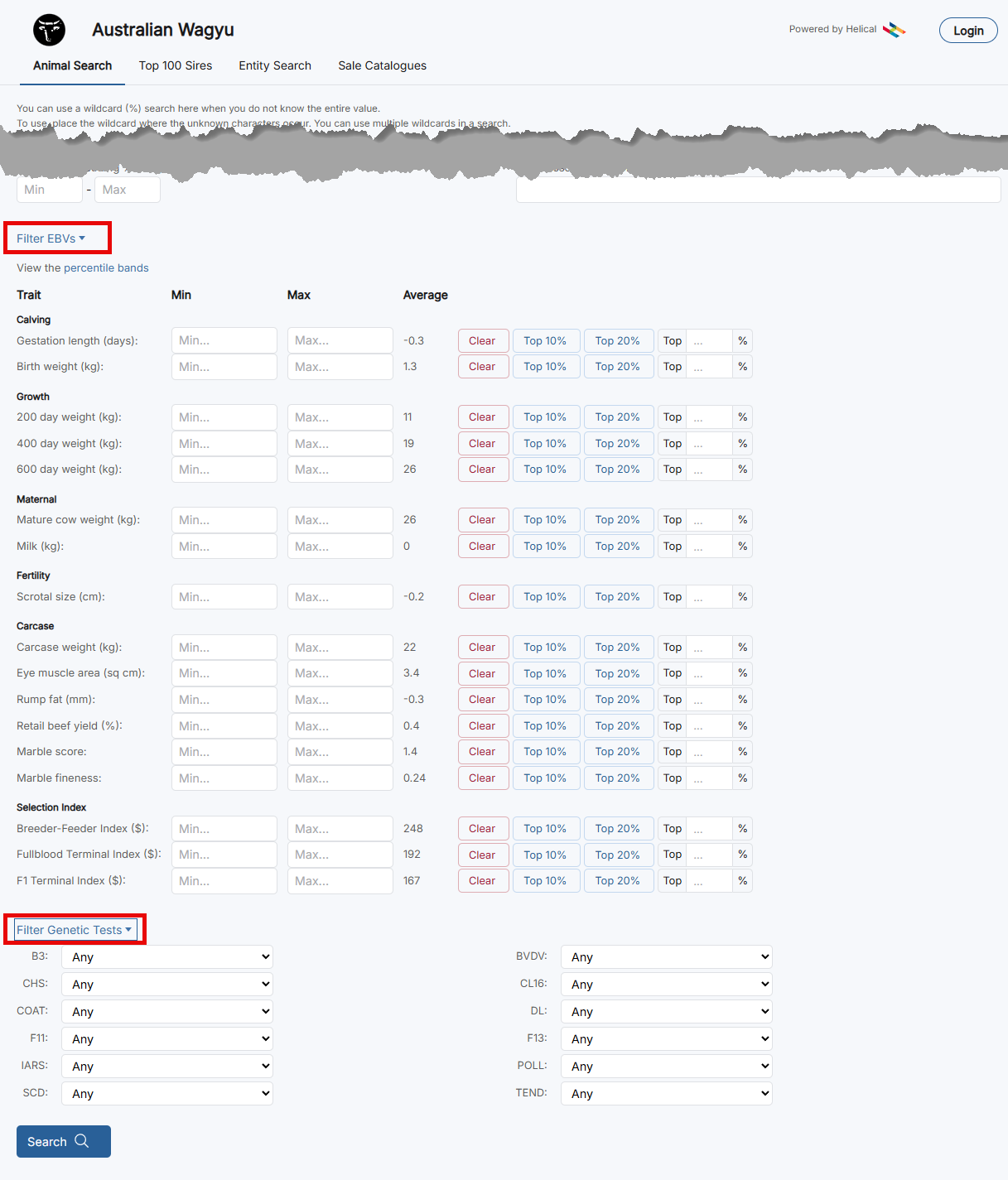
Members can also search and filter animals based on EBVs or Genetic Tests by dropping down the additional drop-down menus.
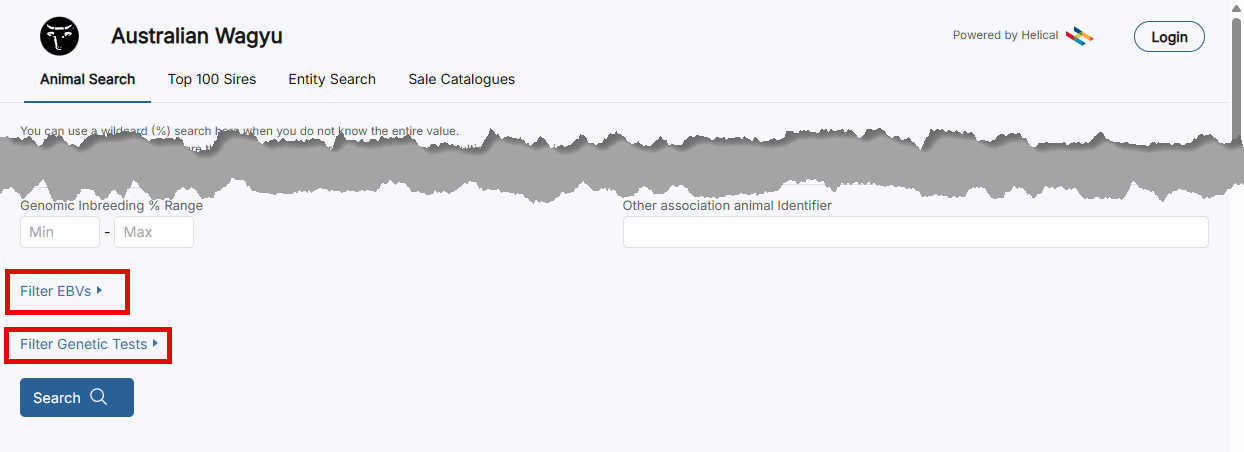
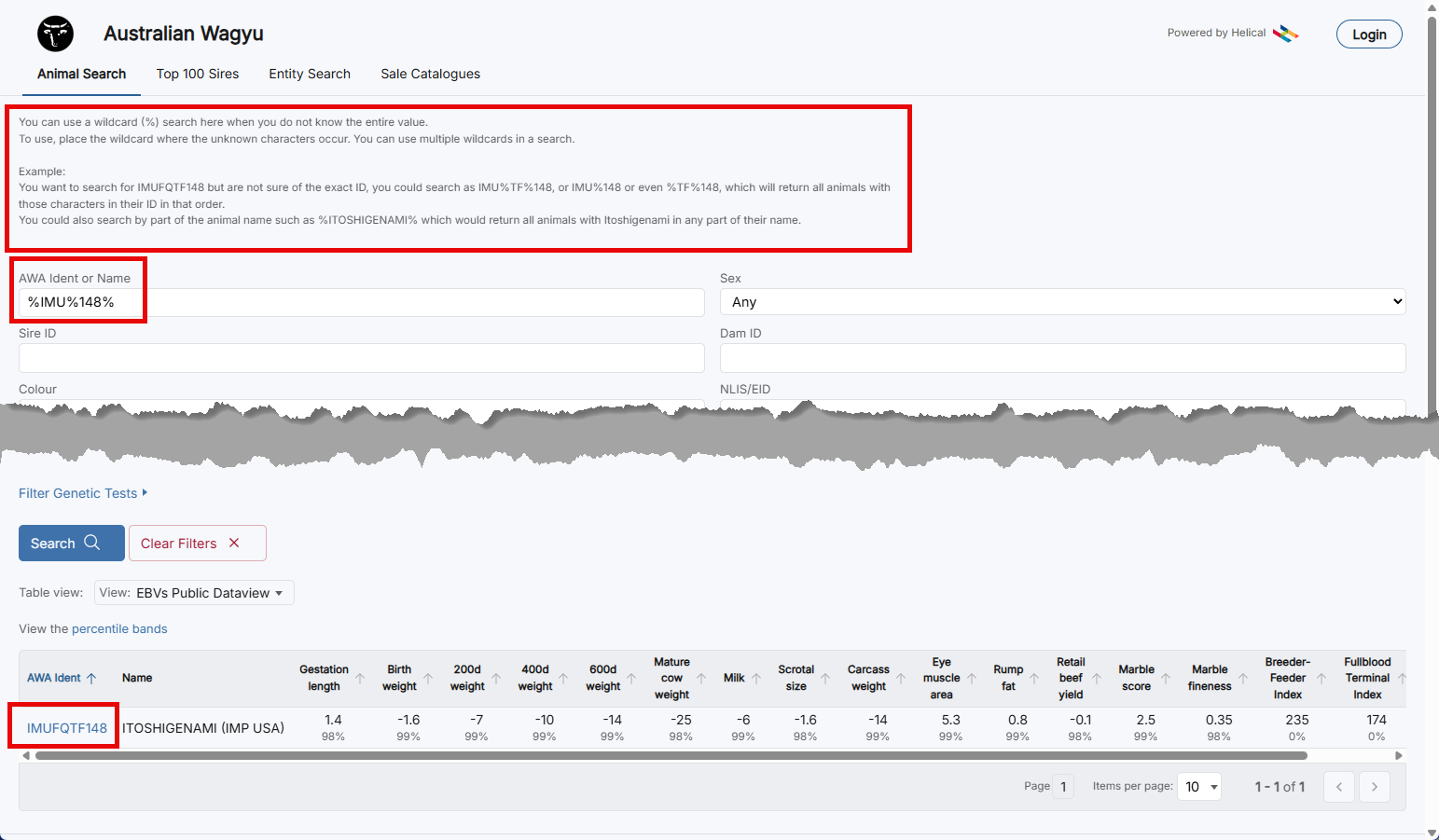
Search for an Animal by ID or Name:
Add the details into the “AWA Ident or Name” field.
If you are unsure of the Animals exact ID or name, you can do a wildcard search – Instructions on how to do this are included at the top of the Animal Search page.
EG: You are wanting to look for an animal and know part of the ID but not the full ID, you would put a “%” around the sections of the ID that you know, and the search will return any animals that have those parts in their ID.
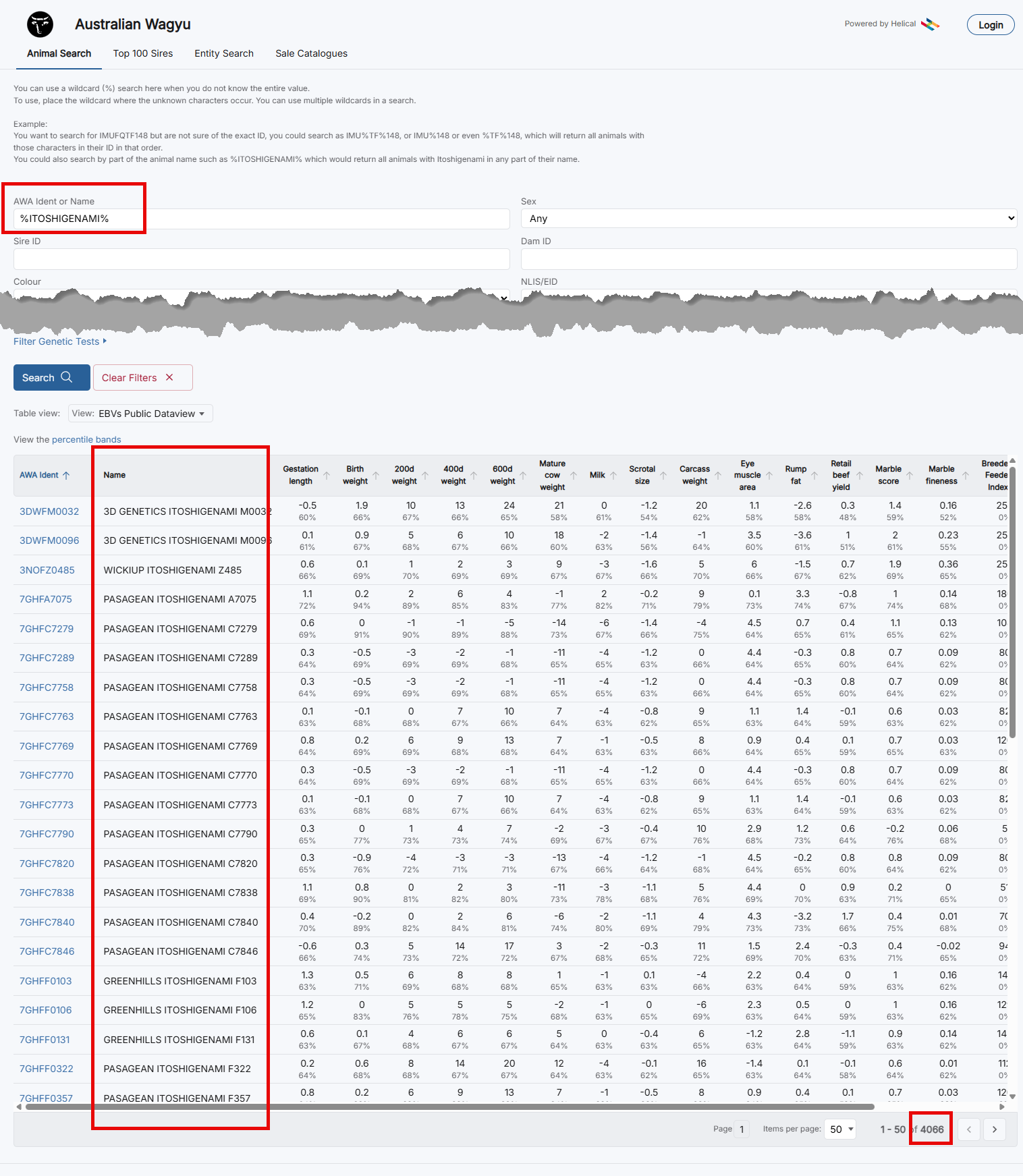
Alternately, you could use the part of an animal’s name that you know and put a “%” around each part of the name that you know.
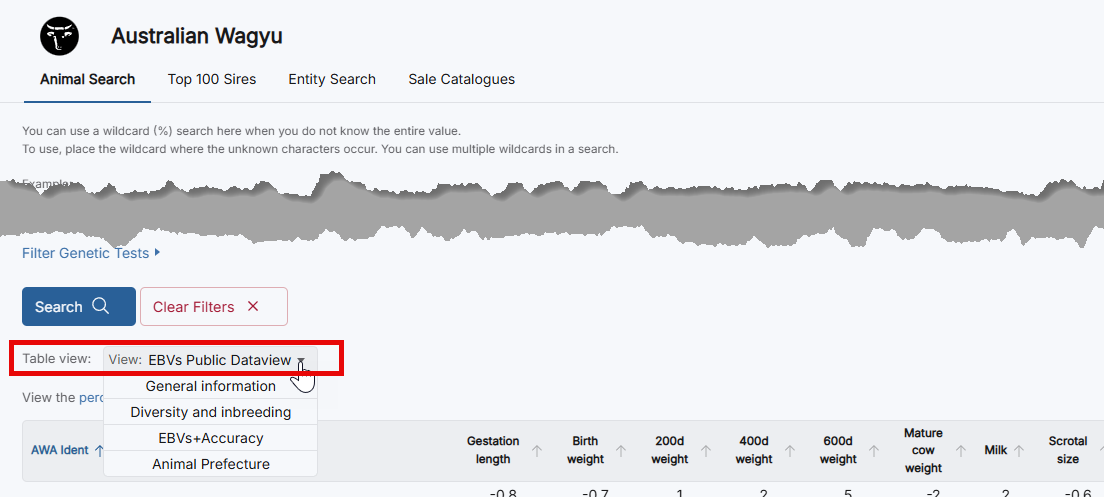
Once you do a search, you will also be able to toggle the data view to display different data depending on what you are interested in viewing – these include EBVs, general information, genetic diversity, and inbreeding and prefecture.
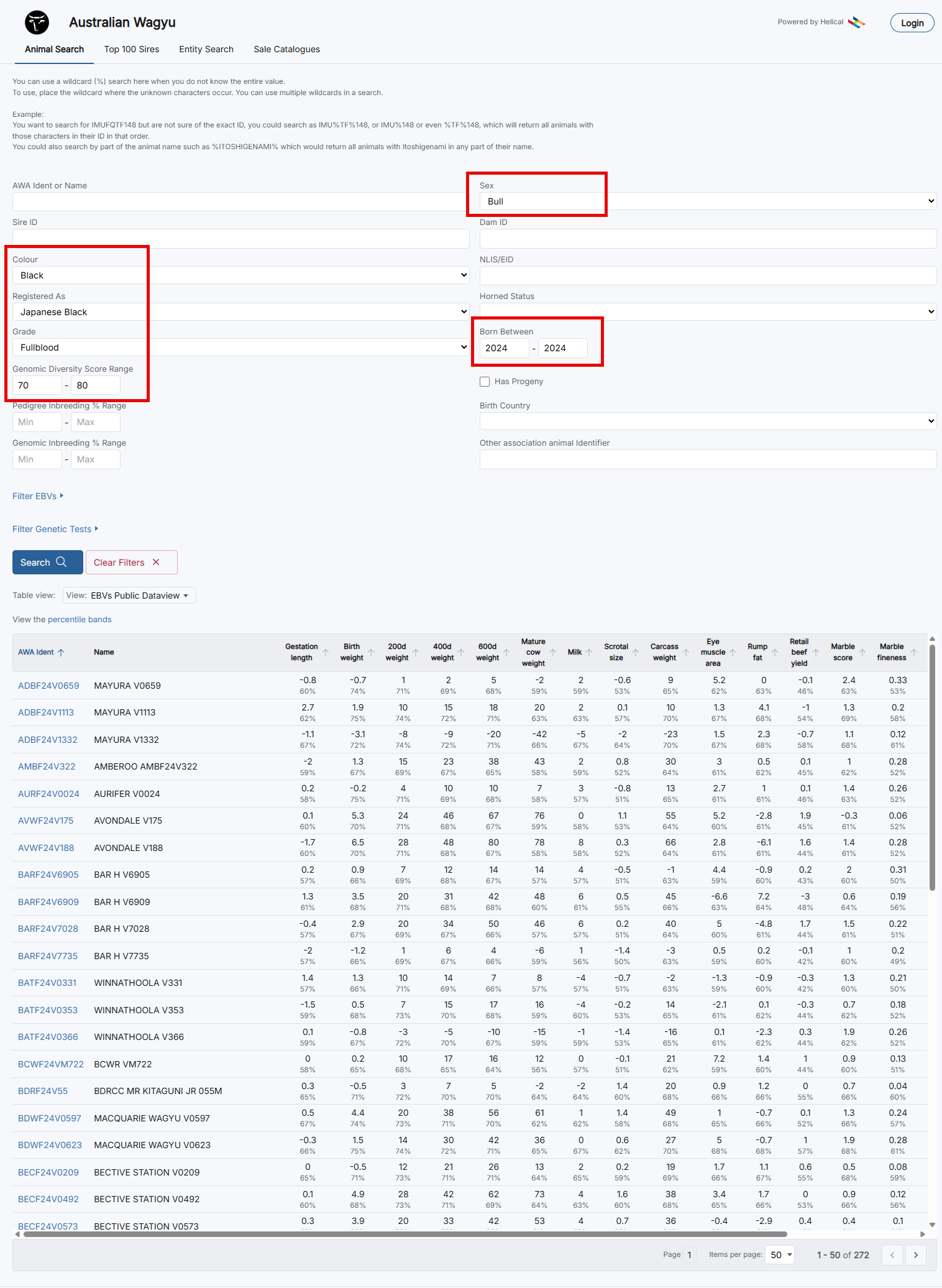
Searching for Animals by Filters:
You can also search for animals that fit certain criteria that you are after.
EG: 2024 drop, Fullblood, Japanese Black Bulls with a Genomic Diversity Score between 70 and 80.
As you can see this search returns 272 animals.
To further filter animals, you can also add in EBV ranges and filters as explained in the next step.
Searching for Animals by EBV Filters:
In addition to the above (or as a search without other filters) you can add in to filter on EBV ranges.
To add in EBV ranges, you can click on the quick “Top 10%” or “Top 20%” buttons to Automatically make that your minimum value, you can add in a custom percentile, or you can add in a Min and Max value.
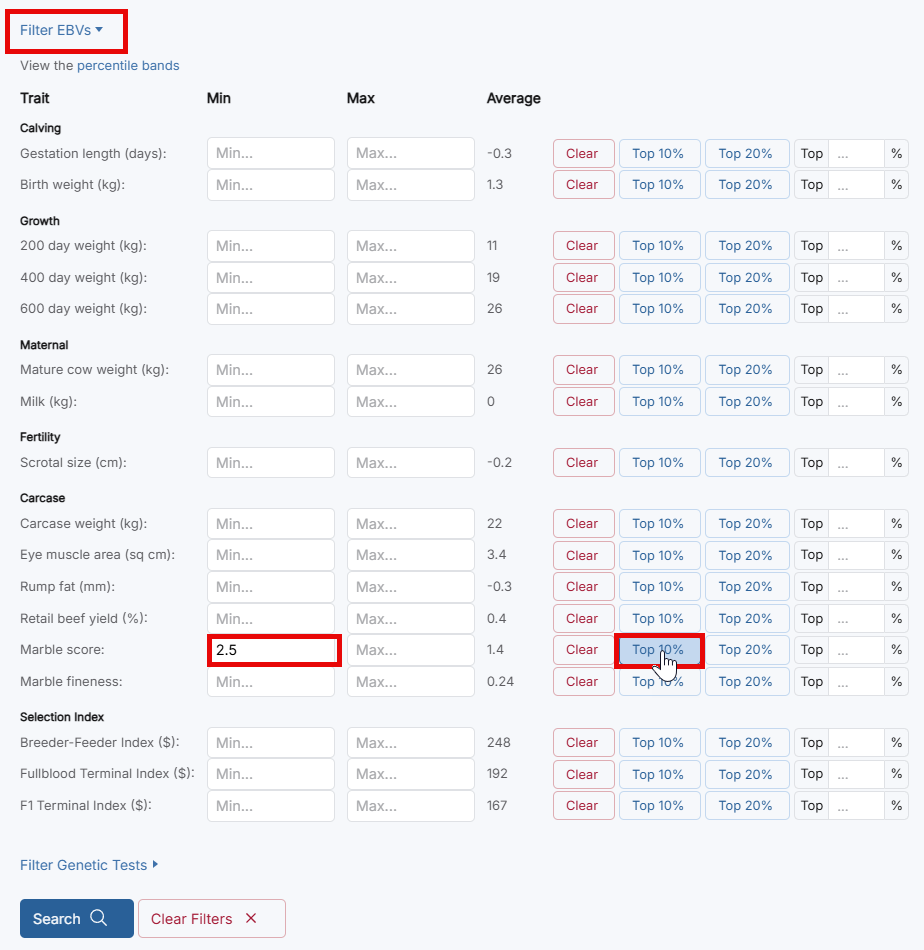
Adding in a “Top 10%” filter
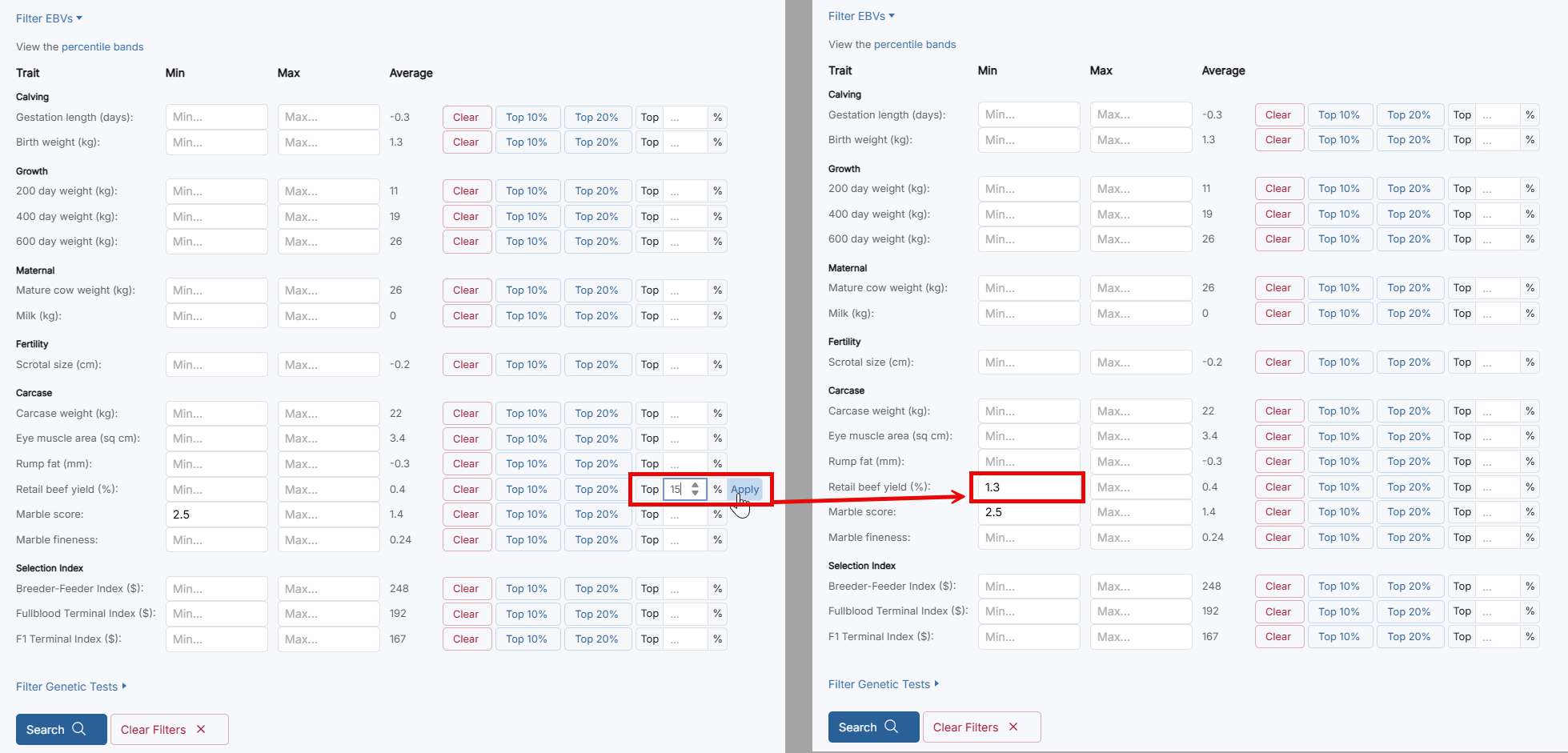
Adding in a Manual “Top XX%” filter
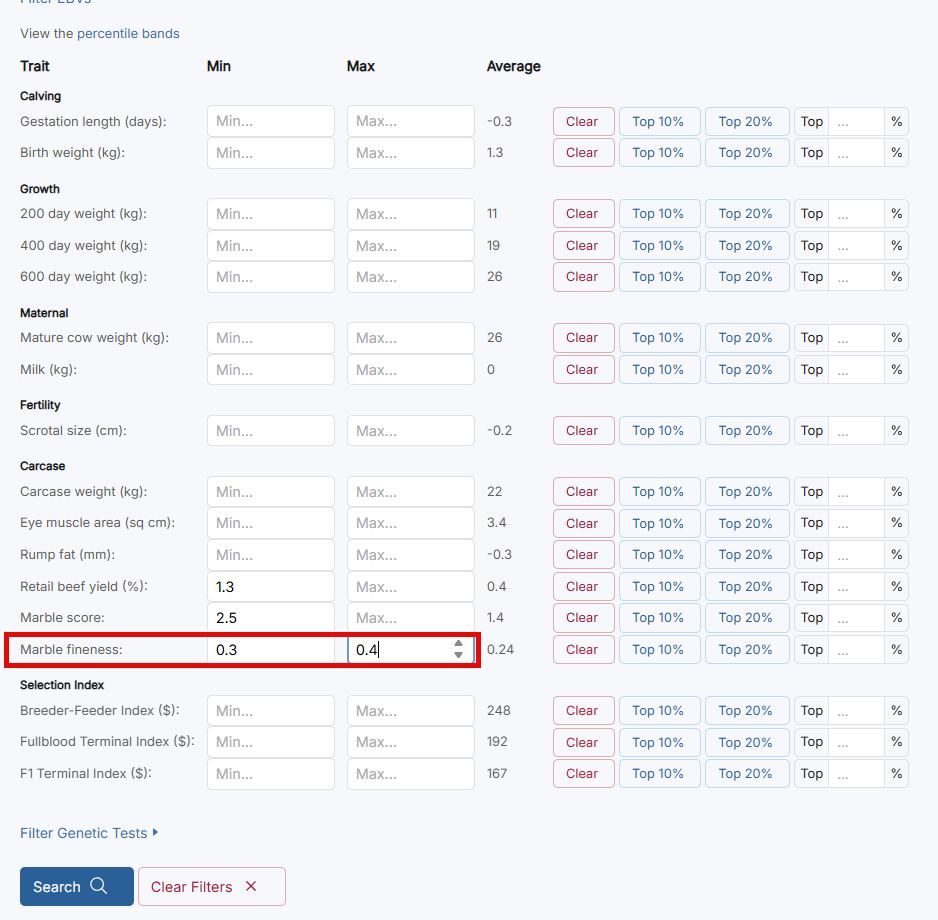
Adding in a filter range
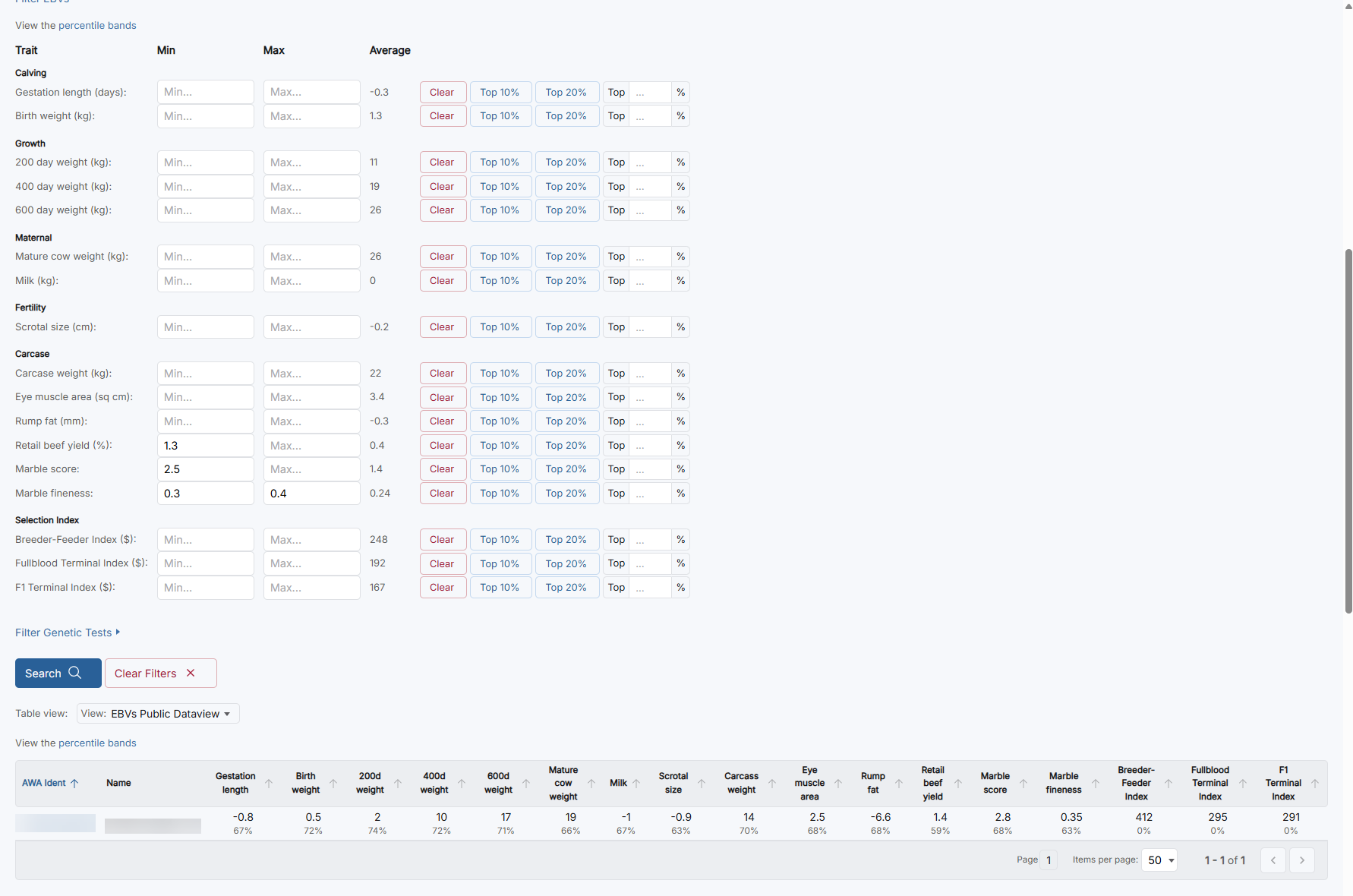
As you can see below, the combination of filters returns one animal – to return more, you would need to widen the ranges on the filters.
Searching for Animals by Genetic Tests:
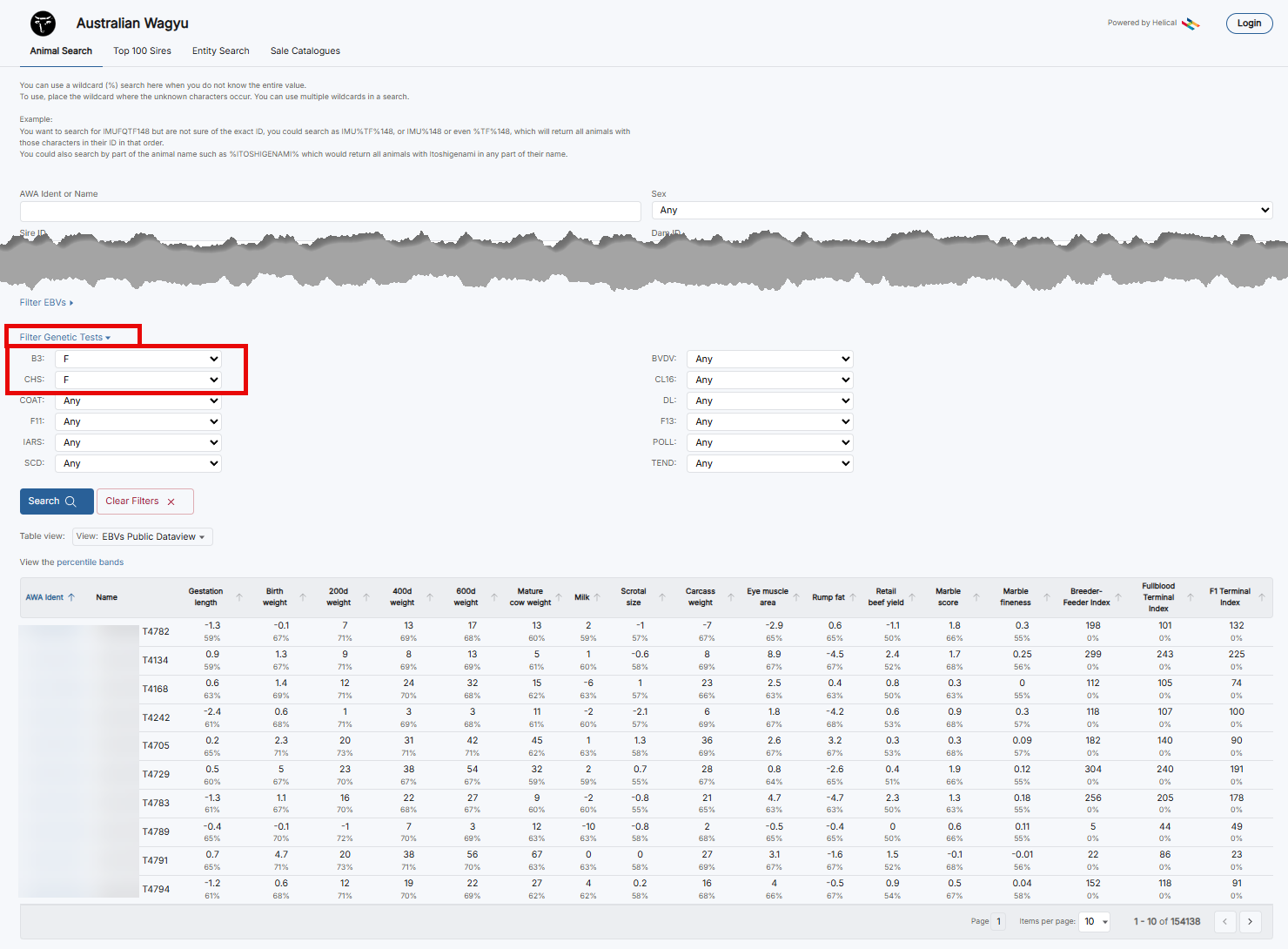
In addition to the above you can also add in filters for different Genetic tests that the animal may have had.
Saving a Search:
If you have a search that you commonly complete on the Public Database, you are now able to save that search.
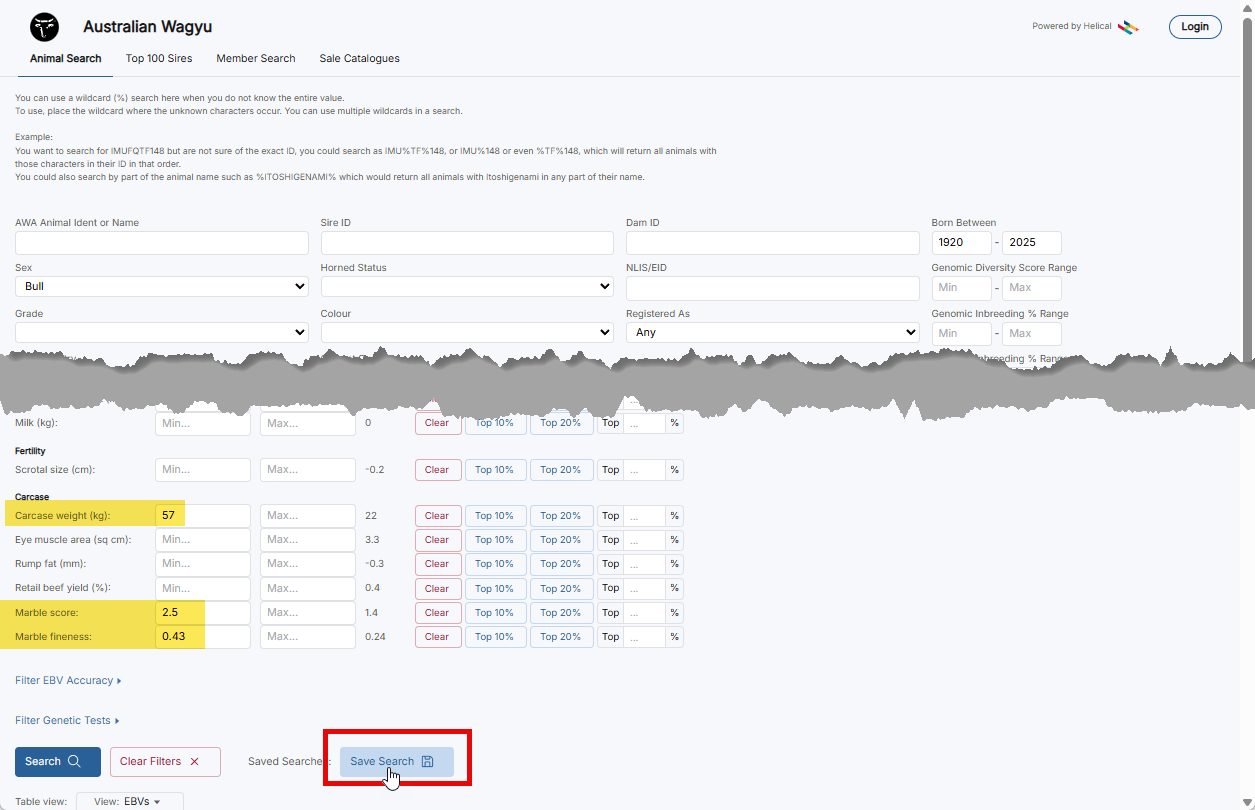
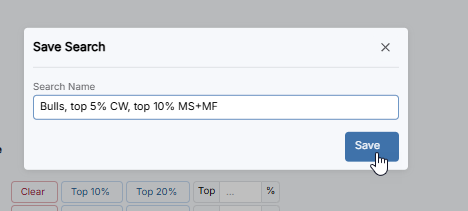
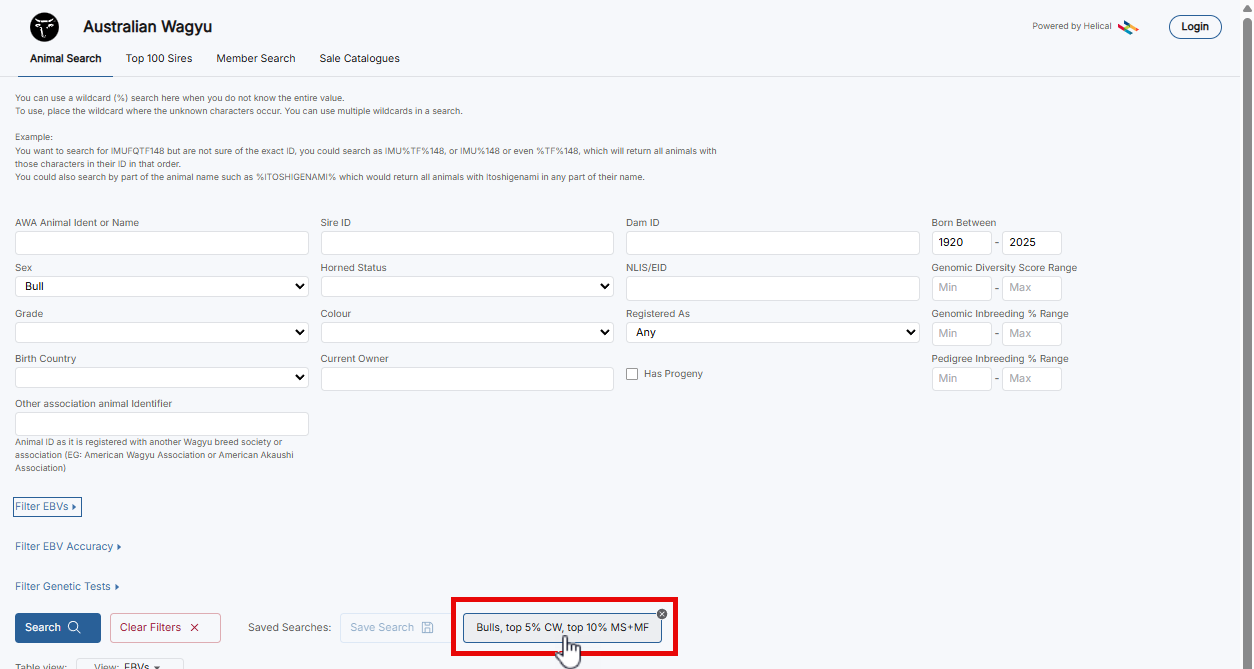
Once you have added in your parameters (EG: Bulls, Top 5% carcase weight, Top 10% Marble score and fineness), click “Save Search” then name your search.
Viewing Animals in the Public Database
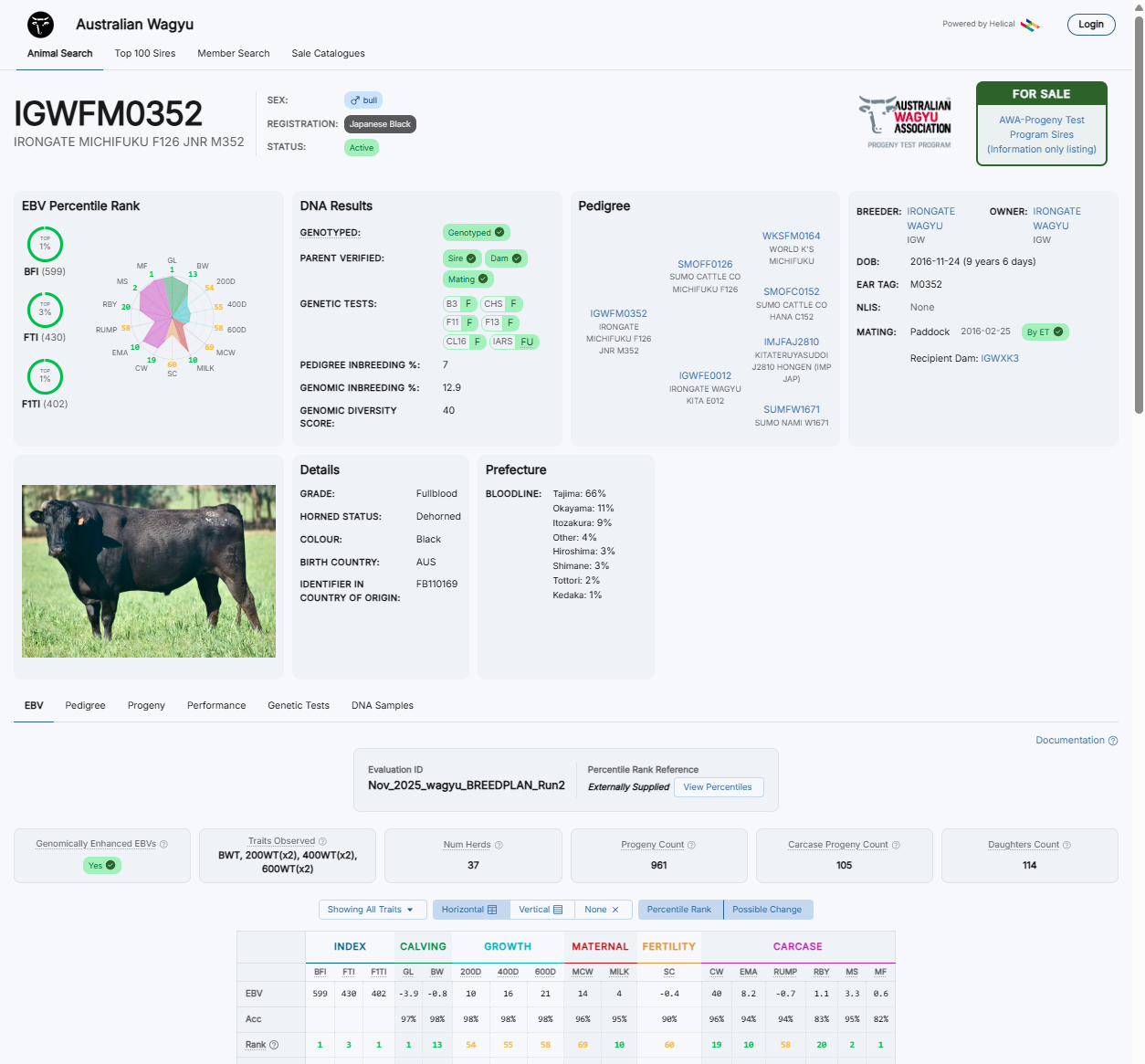
When you click into an animal after completing a public database search you will get a display similar to the one pictured.
If the animal is for sale, or has genetic material for sale you will see a Green “FOR SALE” box appear at the top of the page with the name of the sale that will link you directly to the catalogue.
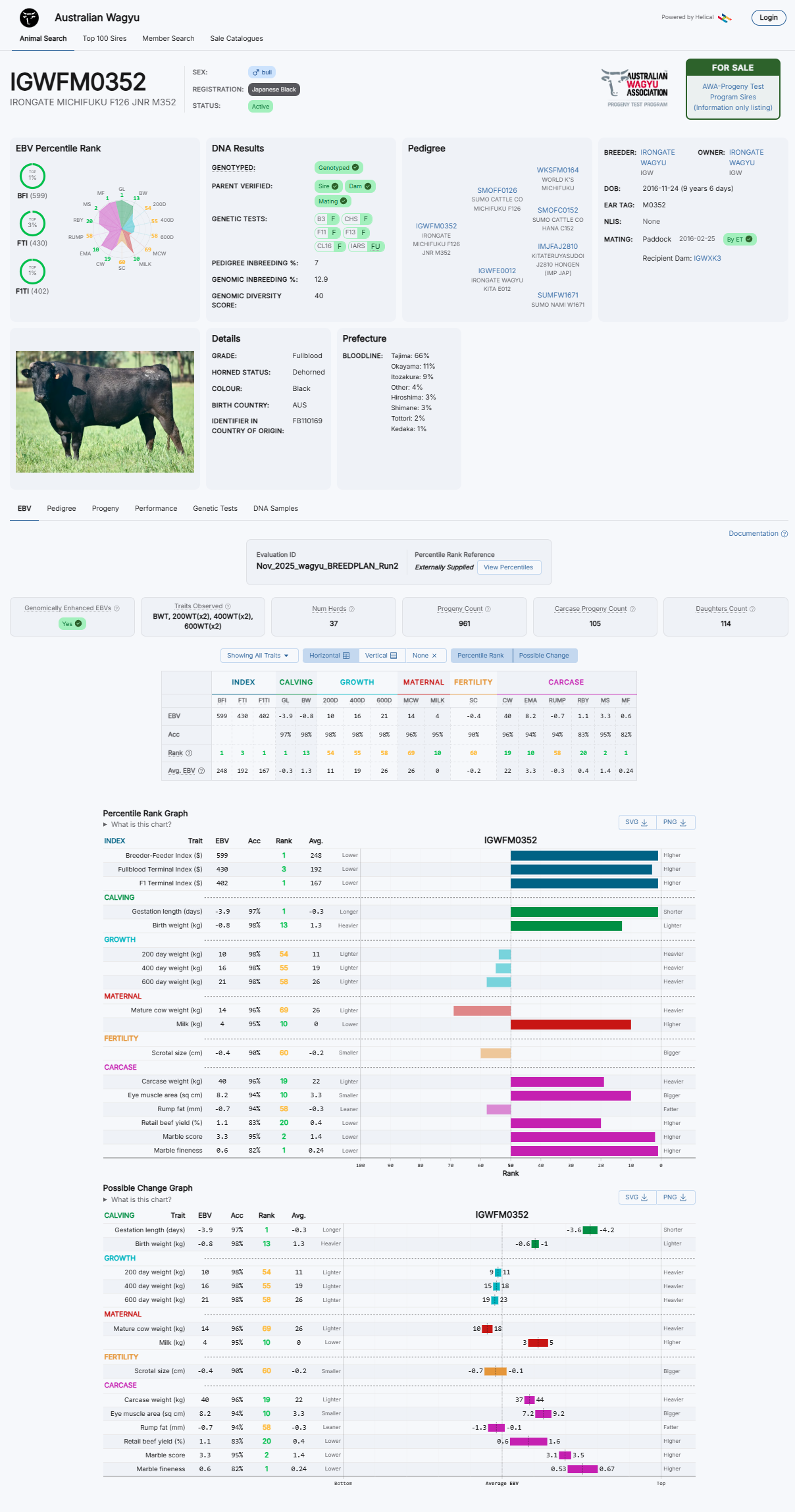
In the EBV tab there are a number of different EBV displays.

At the top of the EBV tab you will see a number of details about the EBV run that is displaying and traits etc that have contributed to the analysis.
Below this there are a number of different “toggles” that will allow you to hide or view graphs and to also display only certain traits as required. The default will display with all graphs and data displaying.
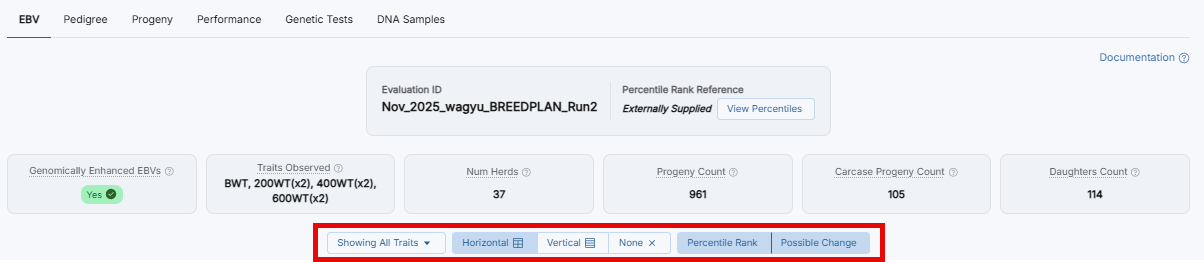
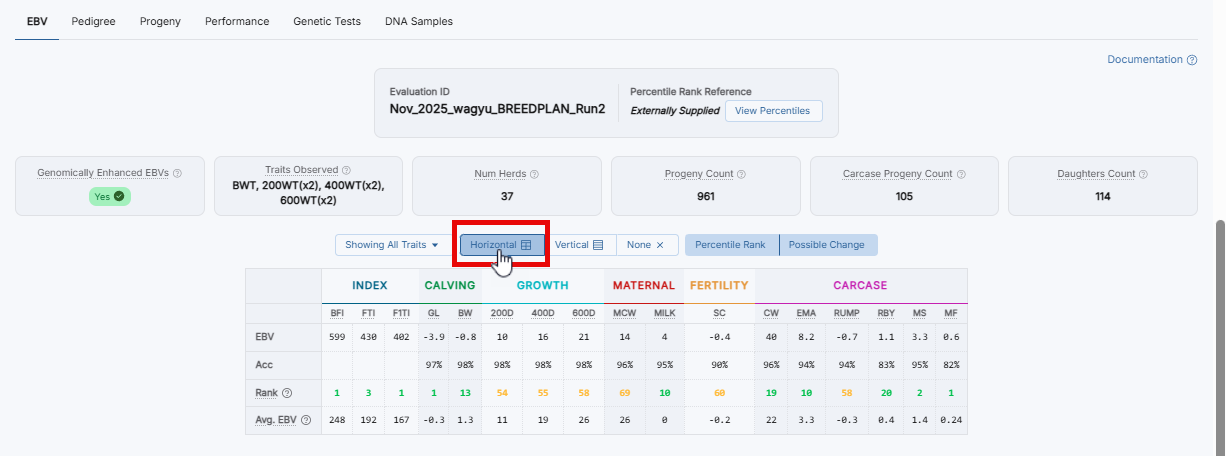
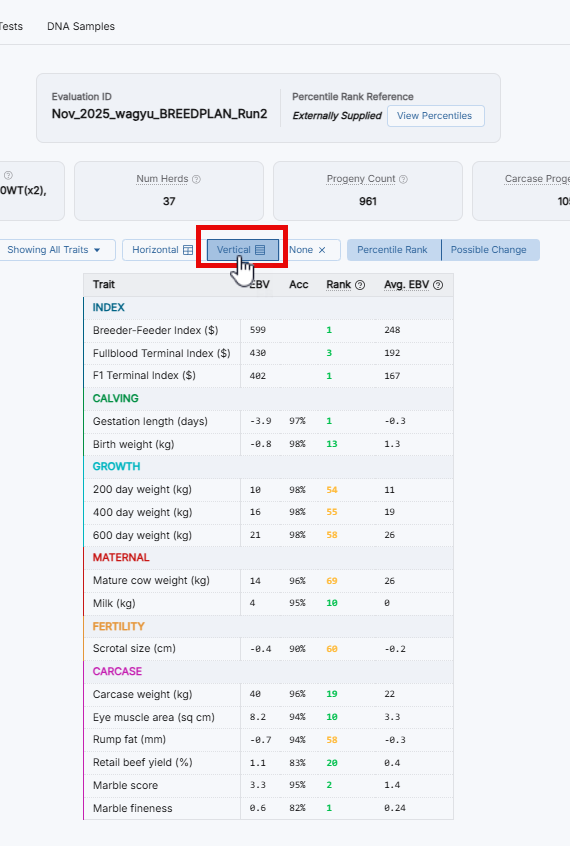
The first display is the tabular view as displayed below. This can be toggled to a horizontal view, vertical view, or hidden. It can also be filtered to only display specific traits by selecting the traits in the “Showing All Traits” drop-down menu. These filtered traits will reflect across the tabular, percentile rank and possible change graphs.
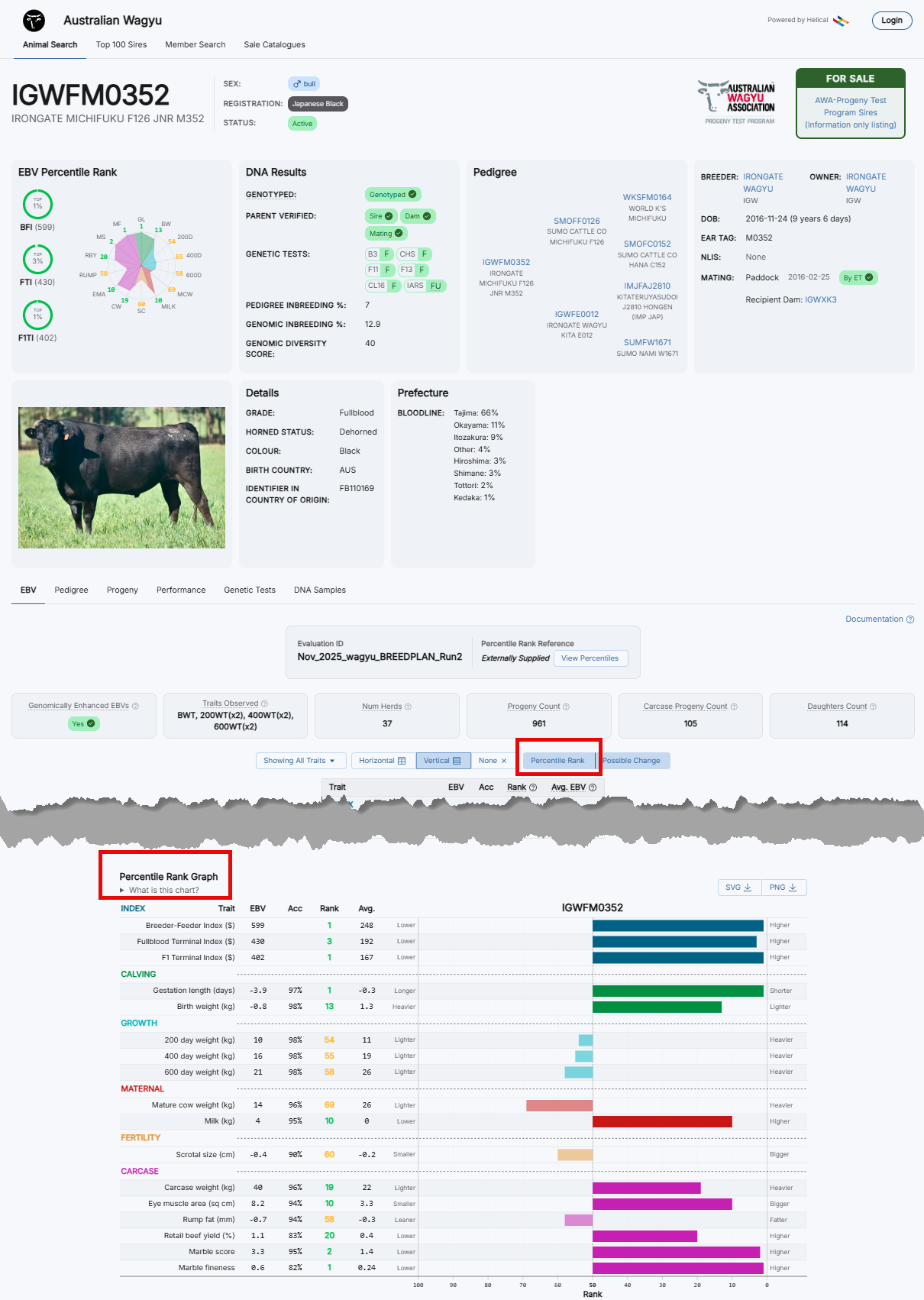
The second display you will see is the “Percentile Rank Graph” display. Again, this can be turned off by clicking the “Percentile Rank” box and can be filtered to show selected traits.
To read more about this graph you can click the drop down under the graph header.
This graph can also be exported as an image if required by clicking on either the “SVG” or “PNG” button above the graph, dependant on what image format you require.
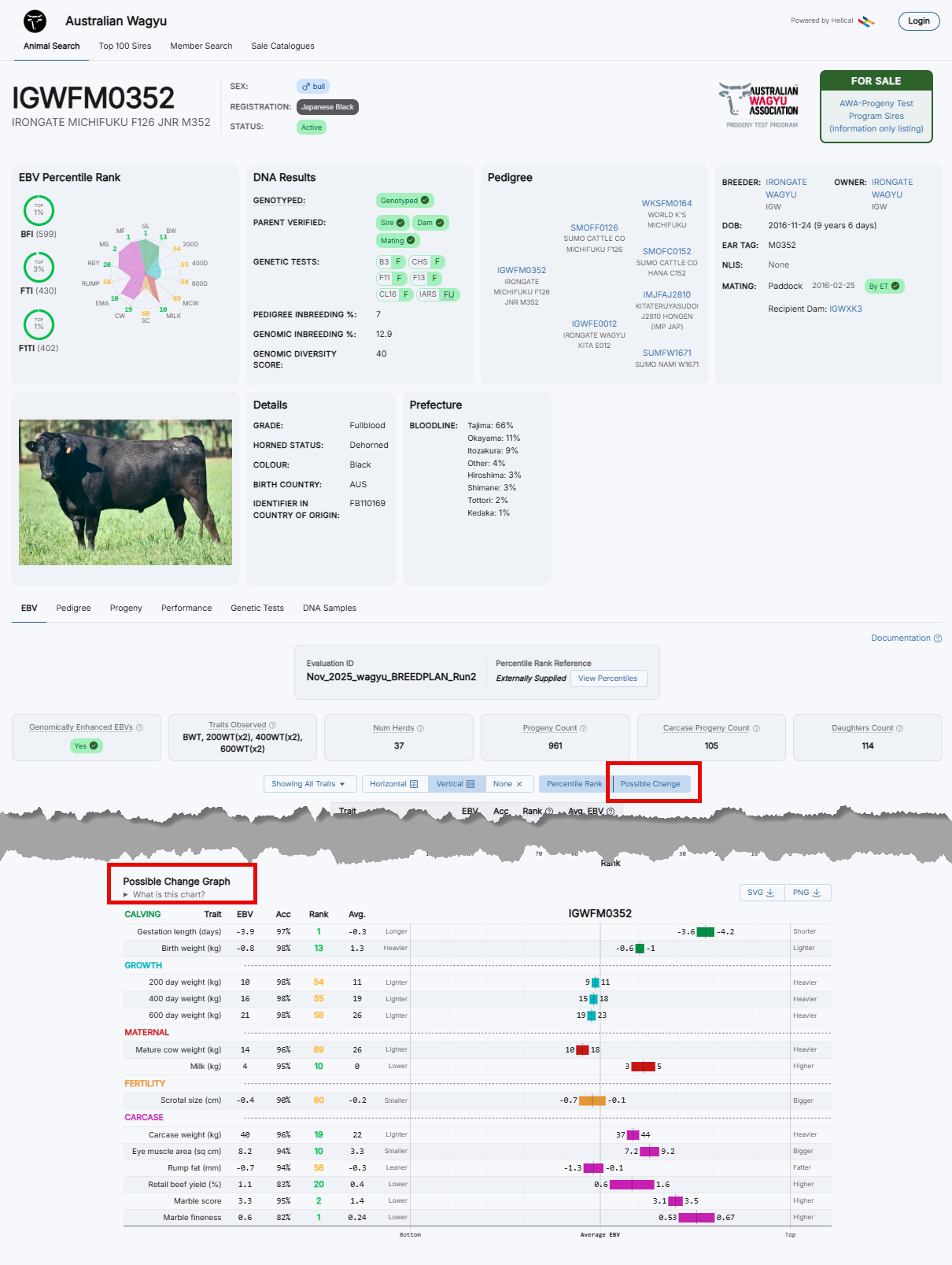
The third display you will see is the “Possible Change Graph” display. Again, this can be turned off by clicking the “Possible Change” box and can be filtered to show selected traits.
To read more about this graph you can click the drop down under the graph header.
This graph can also be exported as an image if required by clicking on either the “SVG” or “PNG” button above the graph, dependant on what image format you require.
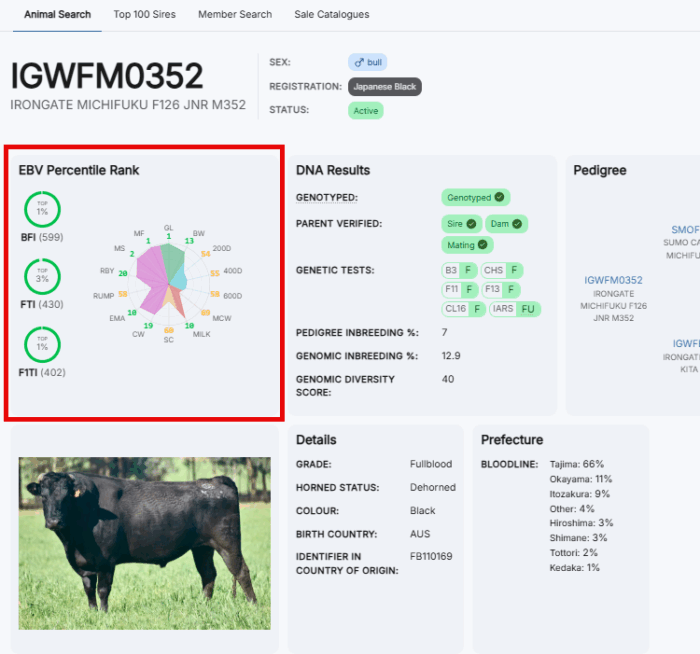
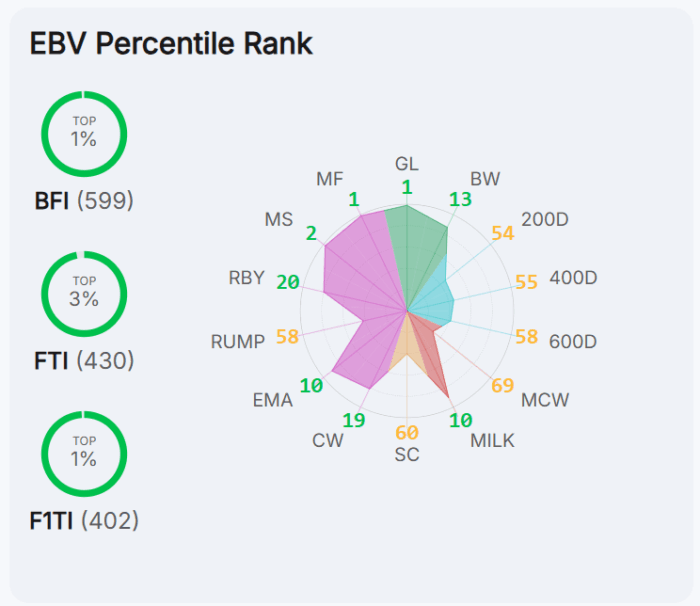
There is also an additional EBV display now at the top of the animal details page – the radar graph. This demonstrates the percentile tanking of the animal for the EBVs within the radar graph and shows the percentile rank in the green circles for the Indexes.
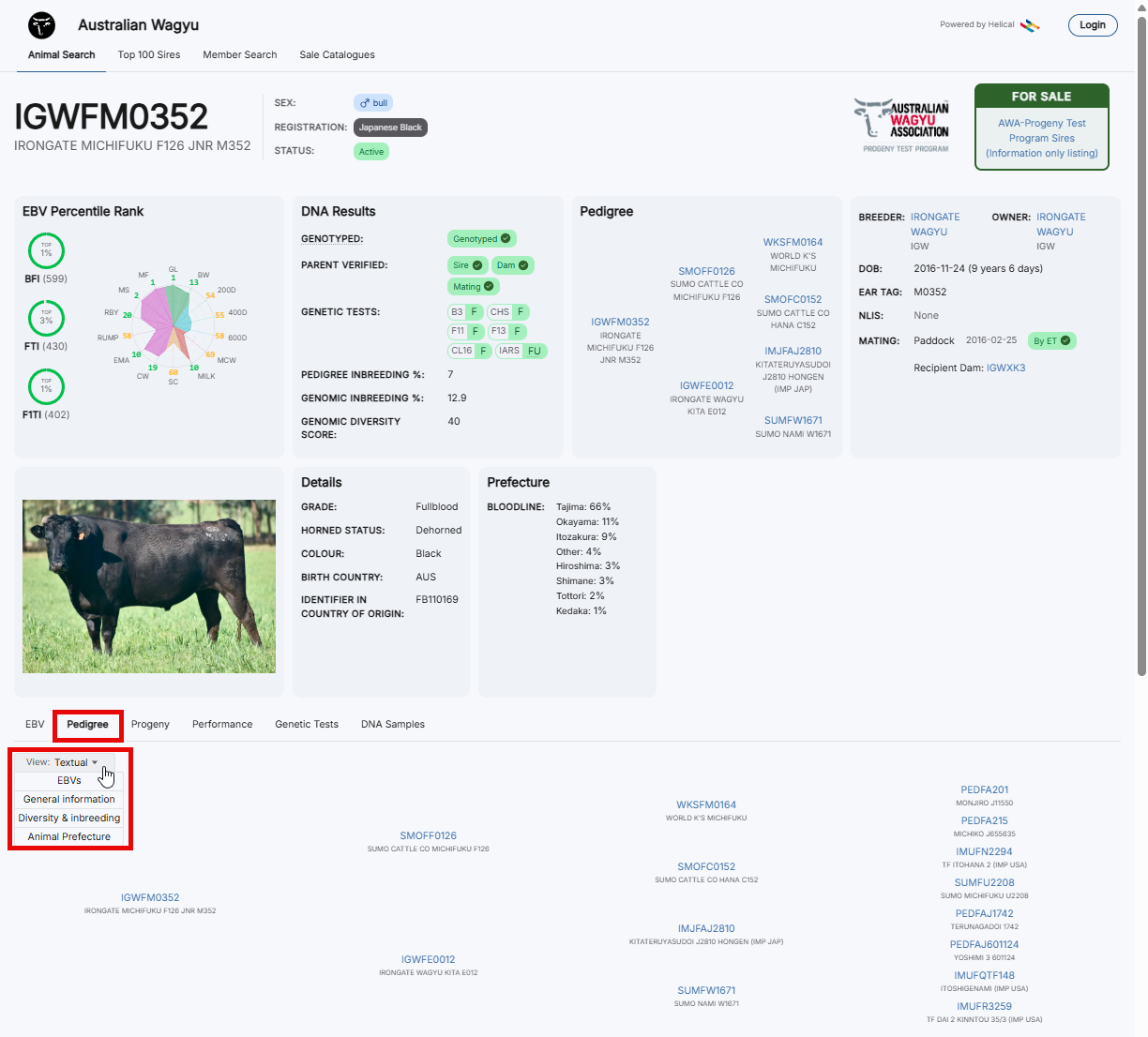
In the Pedigree tab, there are a number of different displays available by switching the “View” drop-down menu.
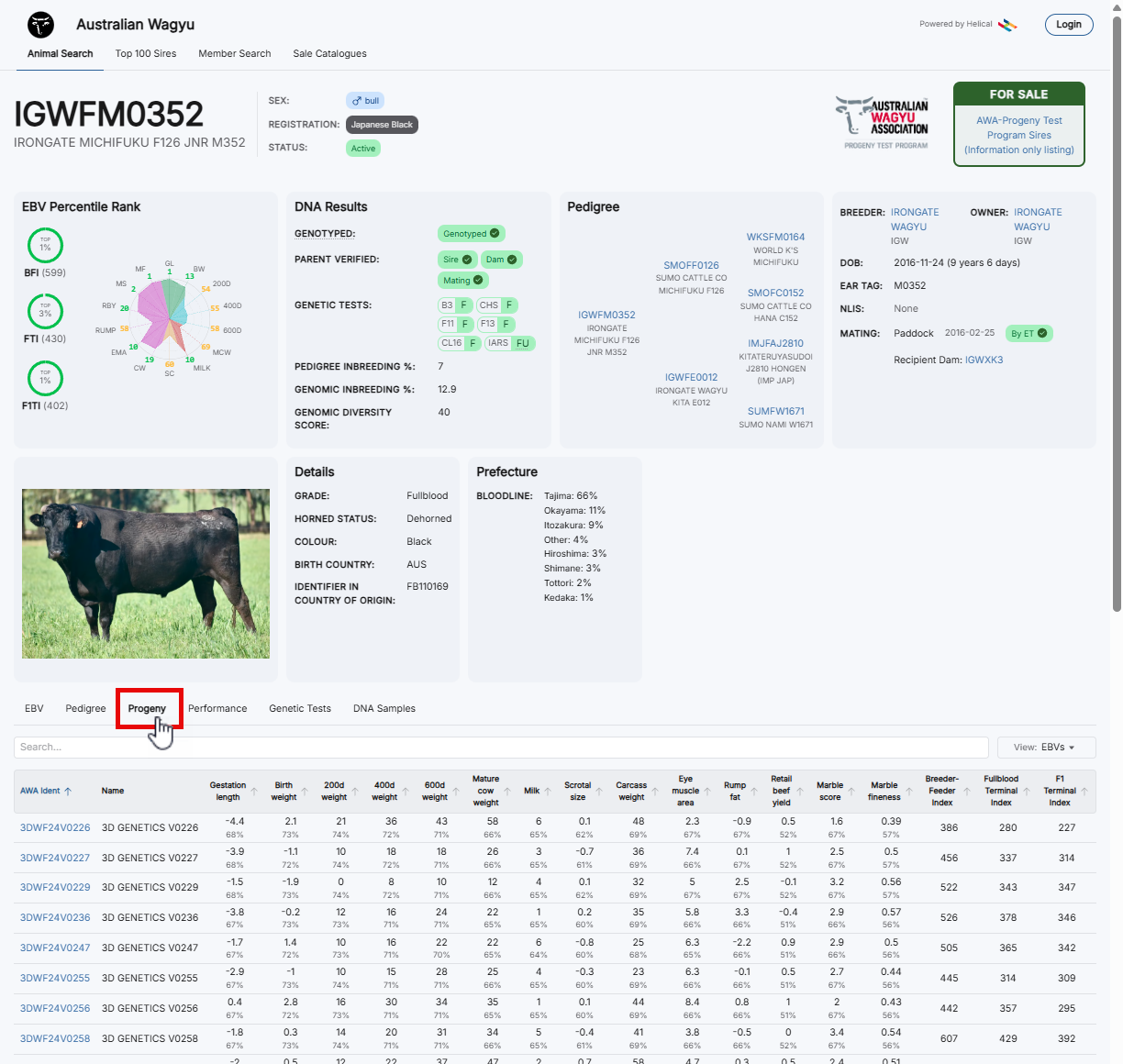
The “Progeny” tab will display all registered progeny of the animal.
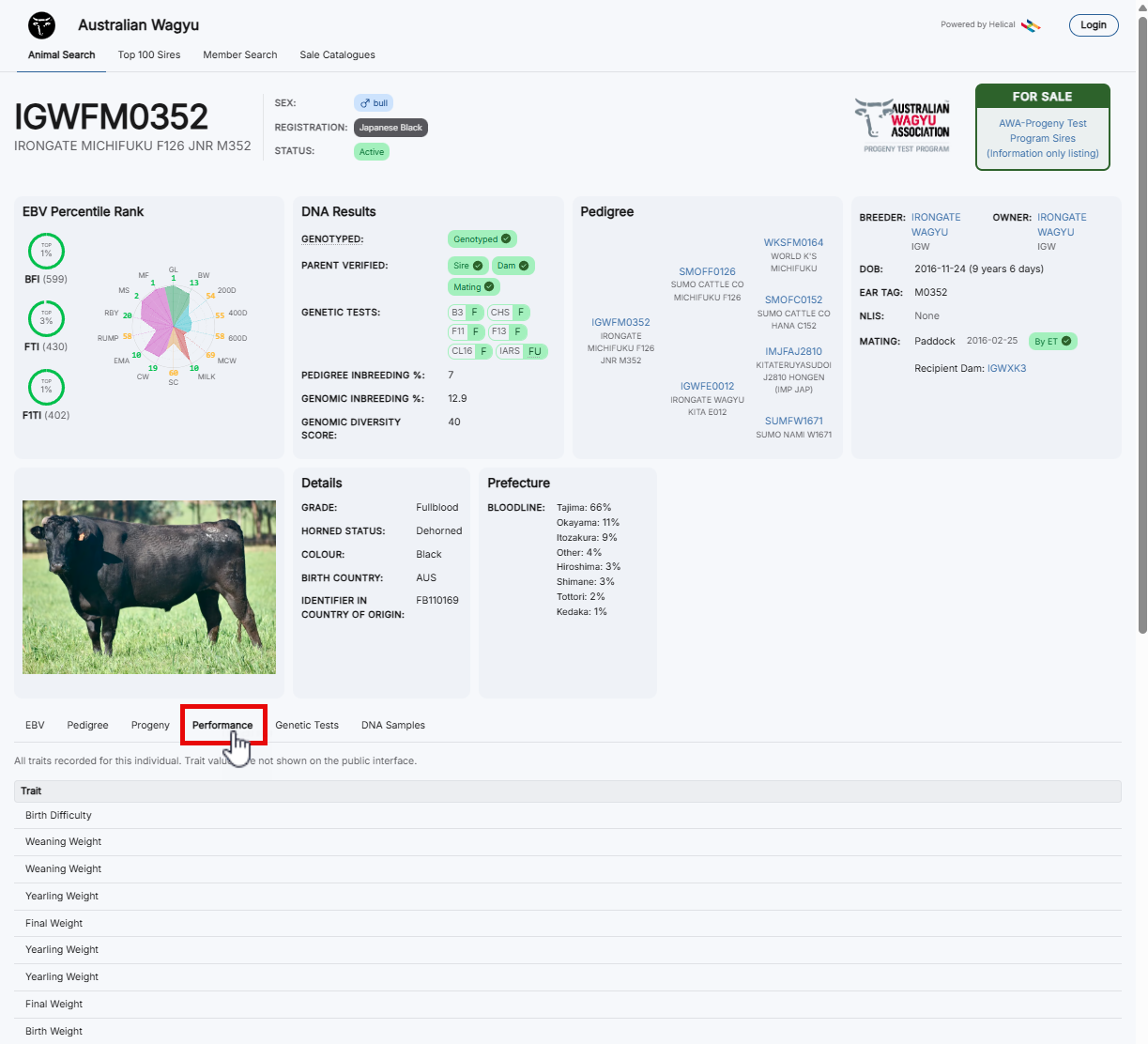
The “Performance” tab will display any performance recording if it has been completed on the animal.
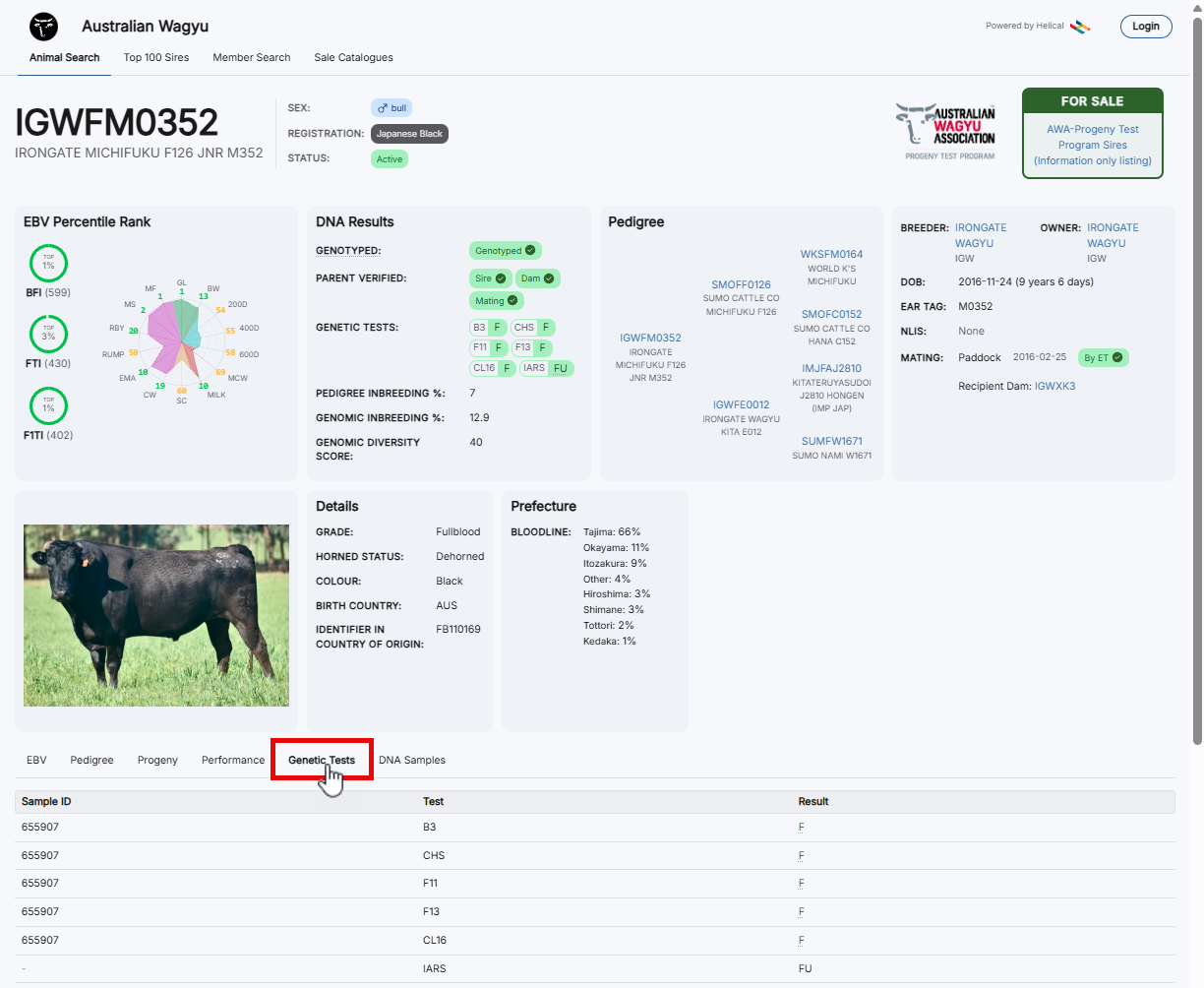
The “Genetic Tests” tab will display any additional DNA testing if it have been completed on the animal.
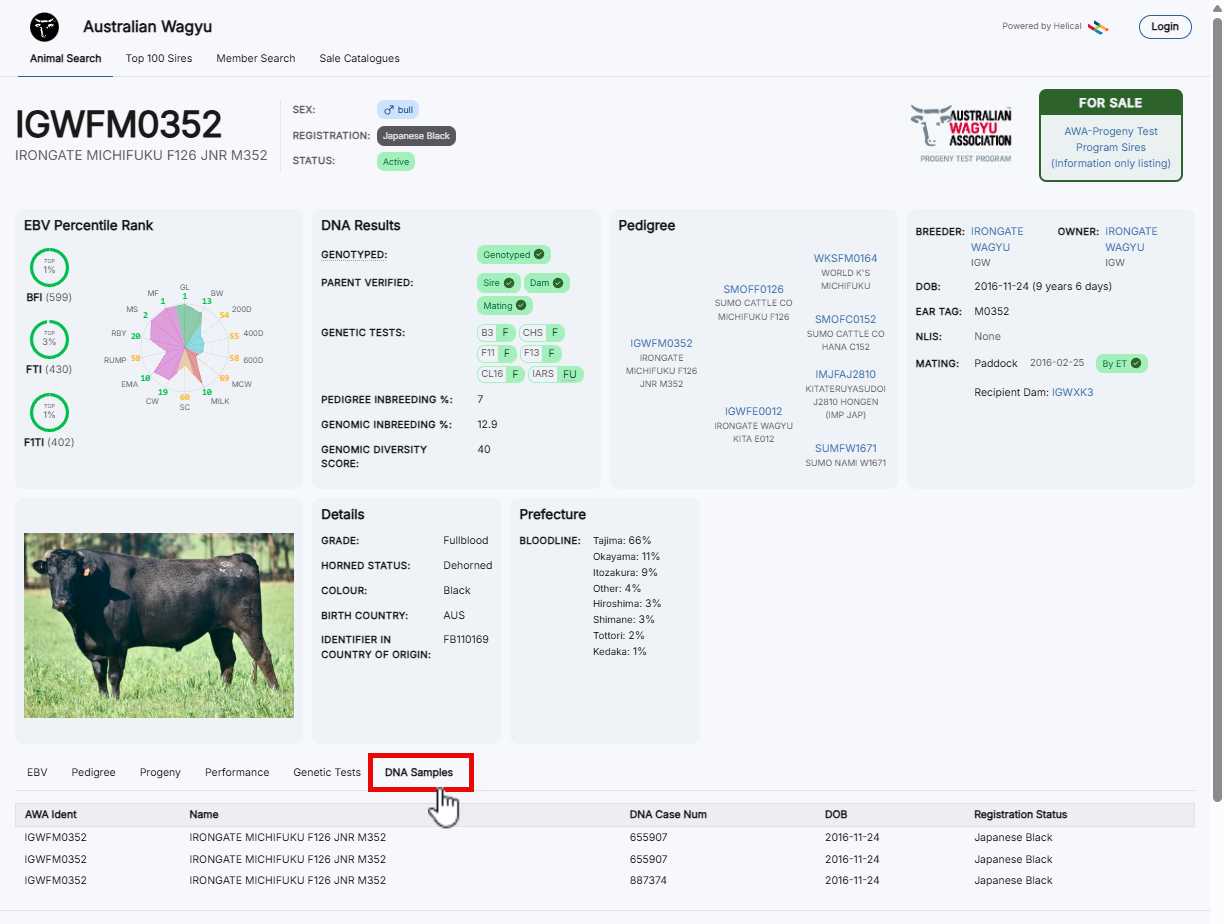
The “DNA Samples” tab will show any DNA case numbers assigned to that animal.
Member Search
To search for a member, you can click on the “Member Search” tab at the top of the public database page.
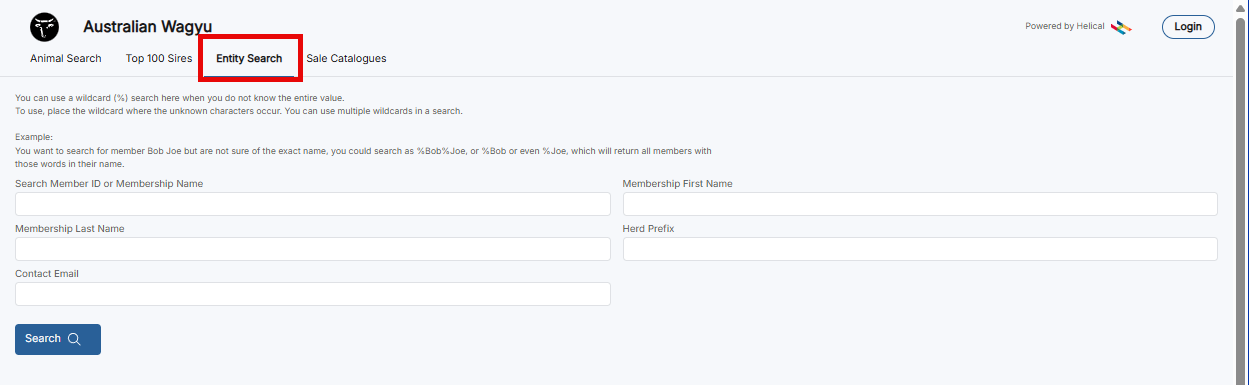
The Member Search page works in a very similar way to the animal search with a wildcard function available to assist with your searches.
Sale Catalogues
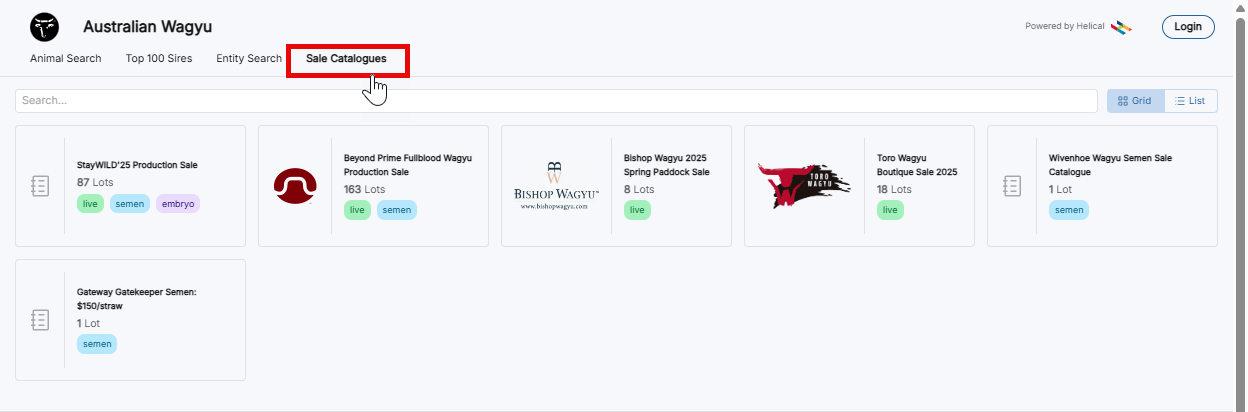
To view active sales catalogues, click on the “Sale Catalogues” tab at the top of the page.
The catalogues will display with tabs as to whether there are live lots, semen lots, embryo lots, or a combination contained.
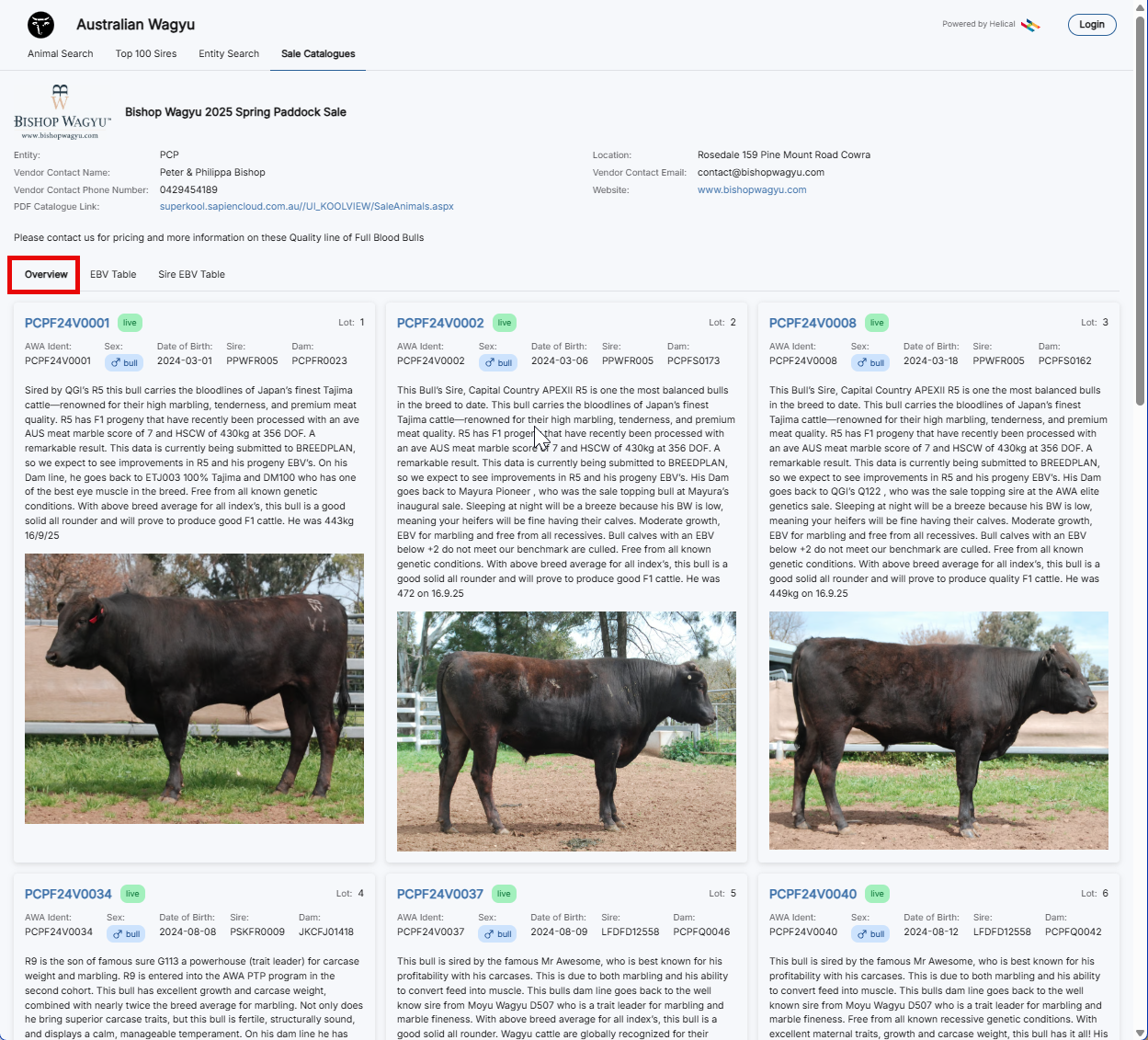
Once you click into the sale, you will see a display of all lots (“Overview” tab) included along with contact details for the vendor and selling agents
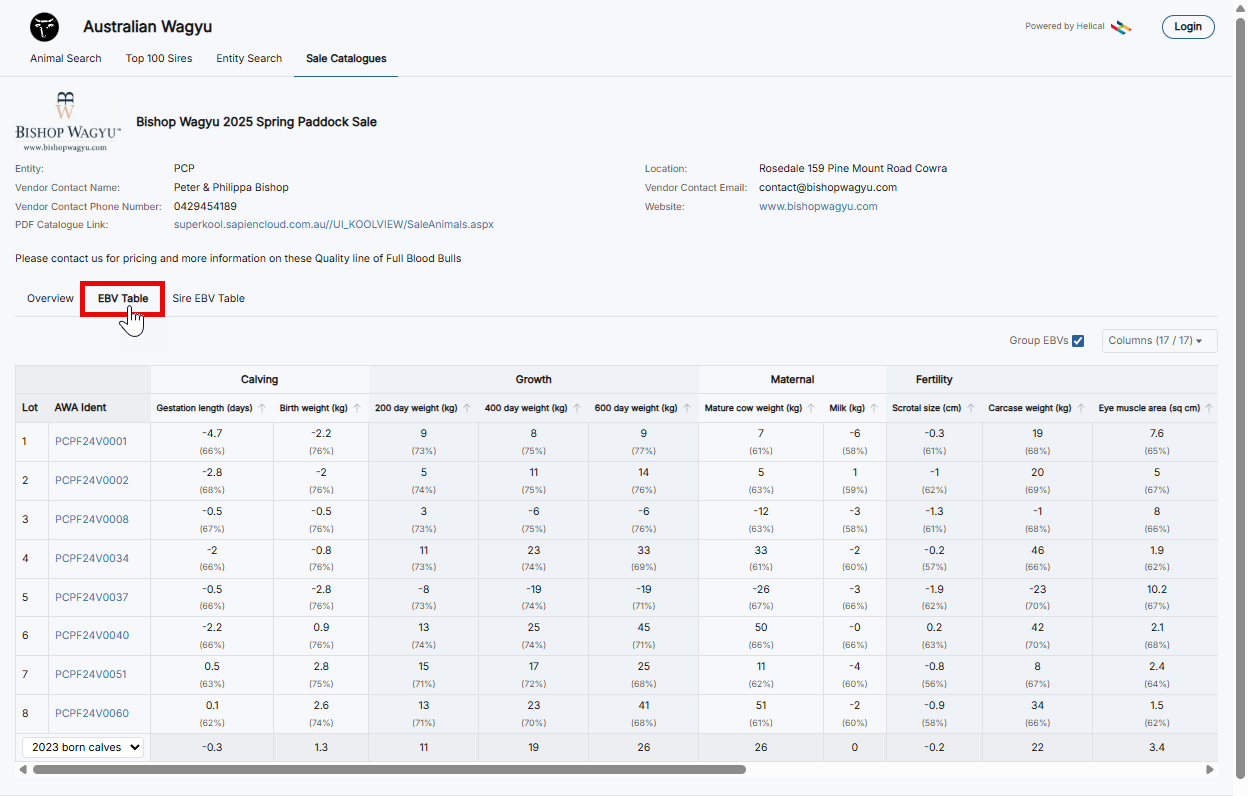
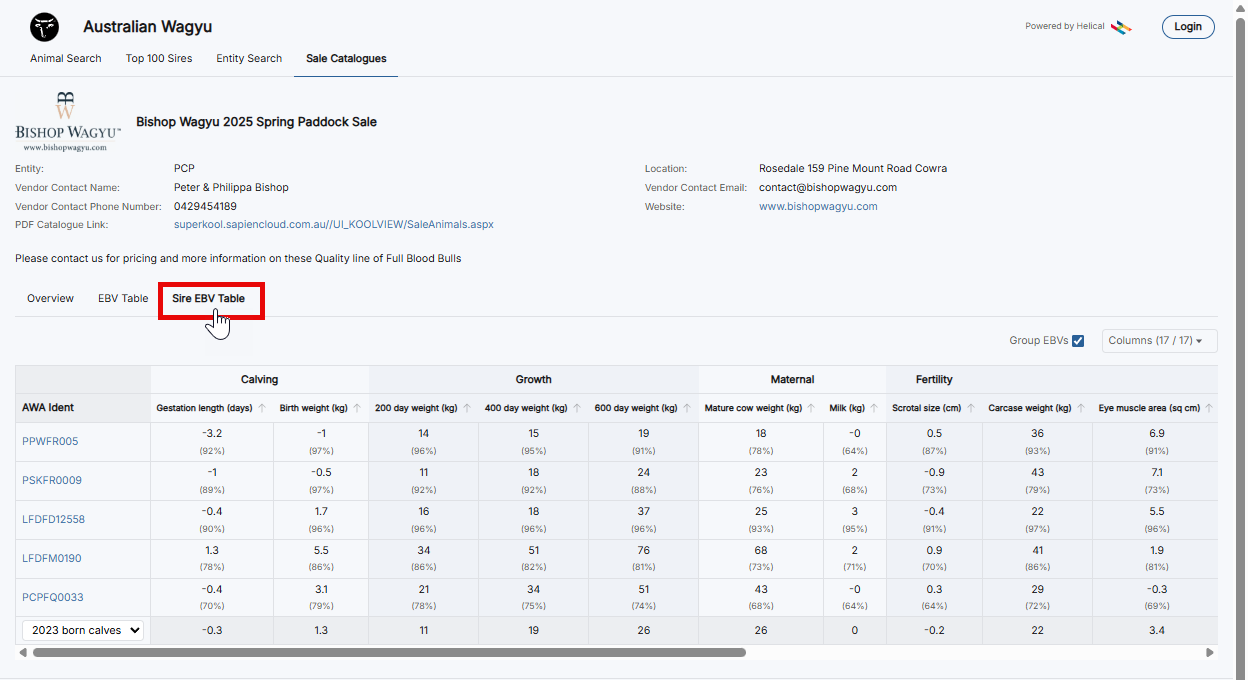
To see EBVs for the animals within the sale, click on the “EBV Table” tab, or to see the EBVs for the sires of the animals, click on the “Sire EBV Table” tab.
Top 100 Sires
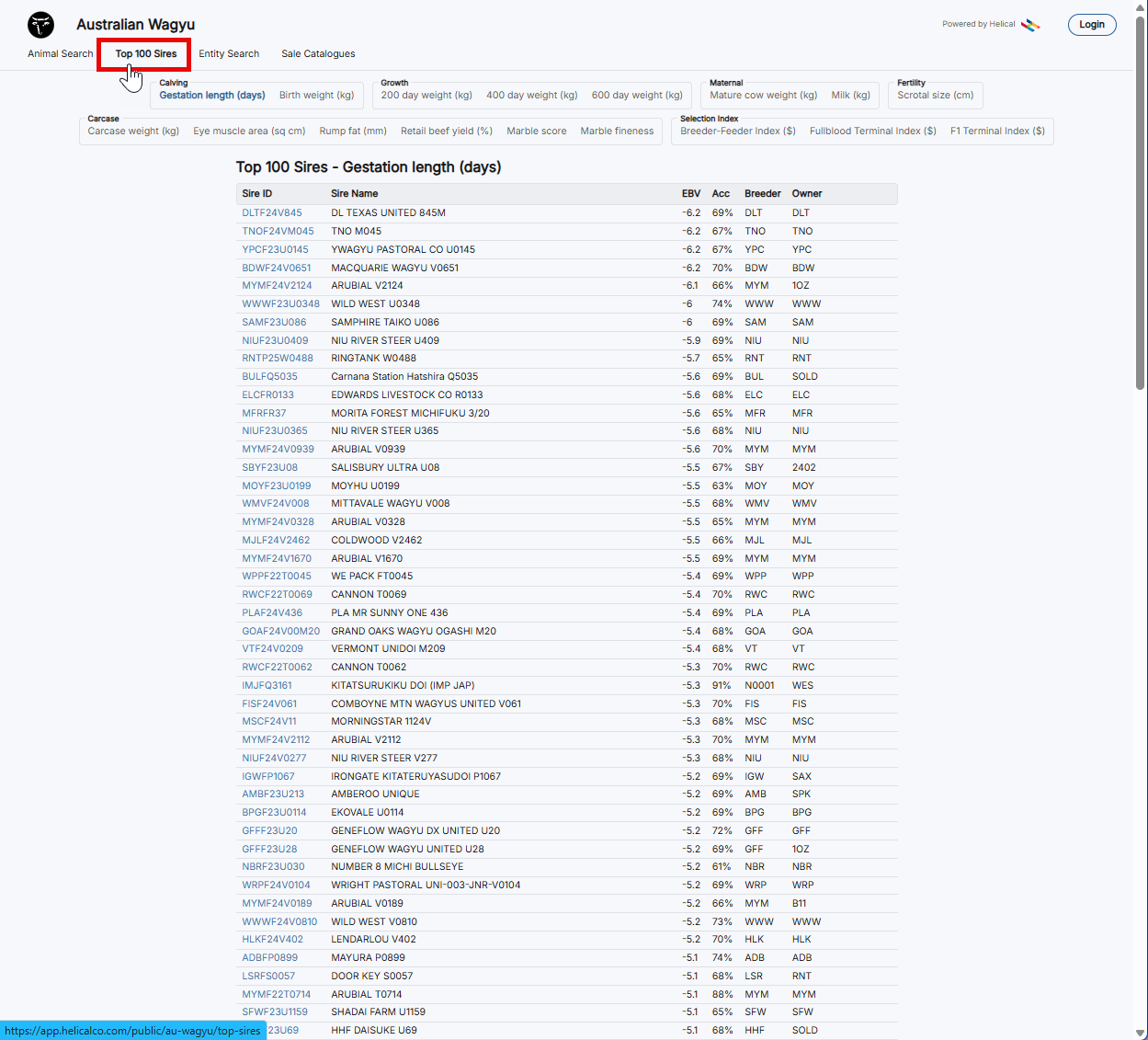
When you click on this tab you will be able to view the top 100 males in the breed for each trait and index.