Introduction to the Helical pre-filled registration forms and registration form templates
Through Helical, there are now several options to submit animal registrations. These include the Pre-filled registration form, the registration form available to download from the AWA website and Herd recording system extracts (IE: Stockbook/Herdmaster).
To learn how to access, download, and complete your pre-filled registration forms or forms downloaded from the AWA website, please refer to the respective how-to fact sheet for “Accessing and Completing the Pre-filled Registration Template” and “Accessing and completing the Registration form template from the AWA website.”
Detailed instructions on how to import your animal registration data can be found in this factsheet.
Accessing and downloading the pre-filled registration template and AWA downloadable registration form
Pre-filled registration forms
For any animals that have parentage results reported to you, you will now also find a pre-filled registration form included as an attachment that is generated by Helical. These pre-filled registration templates can also be downloaded directly out of Helical for any unregistered animals.
Please navigate to the how-to for, “Accessing and Completing the Pre-Filled Registration Template” for more information on how to access, download and complete this form.
AWA downloaded registration forms
A registration form can be found and downloaded under “Forms and Guides” on the AWA website.
Please navigate to the how-to fact sheet for, “Accessing and Completing the Registration form template from the AWA website: for more information on how to access, download and complete this form.
Herd recording Software .csv export files (IE: Stockbook)
Some herd recording software companies have now implemented updates to allow for a .csv registration file to be extracted that is compatible to copy and paste directly into the Helical registration import.
If your herd recording software doesn’t have this capability, we are more than happy to work with them to create compatible files and imports.
Navigating to the Helical database and importing your registration form back into Helical.
Navigate to the Helical database. A quick link can be found on the AWA website (www.wagyu.og.au) under the “AWA database” drop down menu.

If you are not already logged into Helical, you will need to log in. If you are unsure on how to login, or are not set-up as a user, please refer to the “Login Information” and “User and Policies Information” for detailed instructions. If you are still having difficulty, please contact the AWA MSO team directly on (02) 8880 7700, (682)418-4774 for international members, or email [email protected].
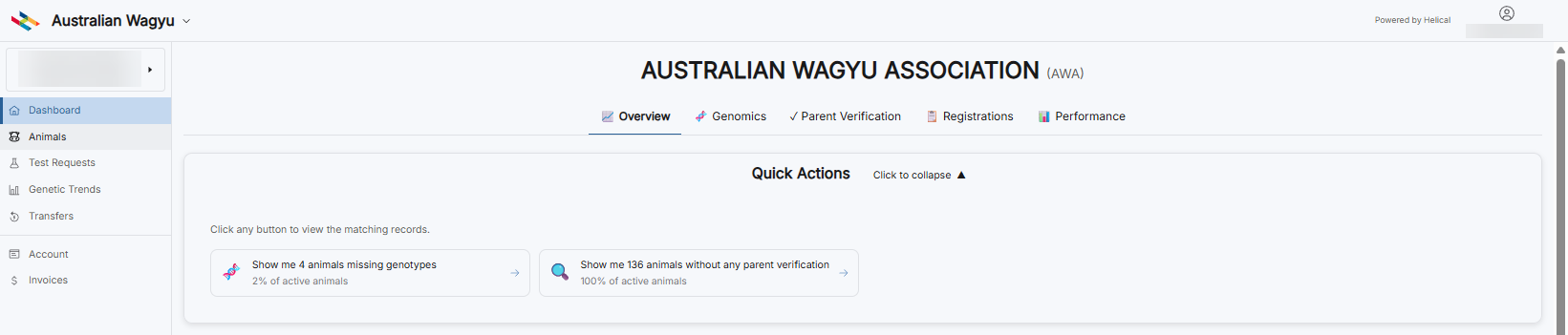
Once you are logged into Helical, you should have a member dashboard display as per below. Select the “Import Data” tab from the side-bar menu.
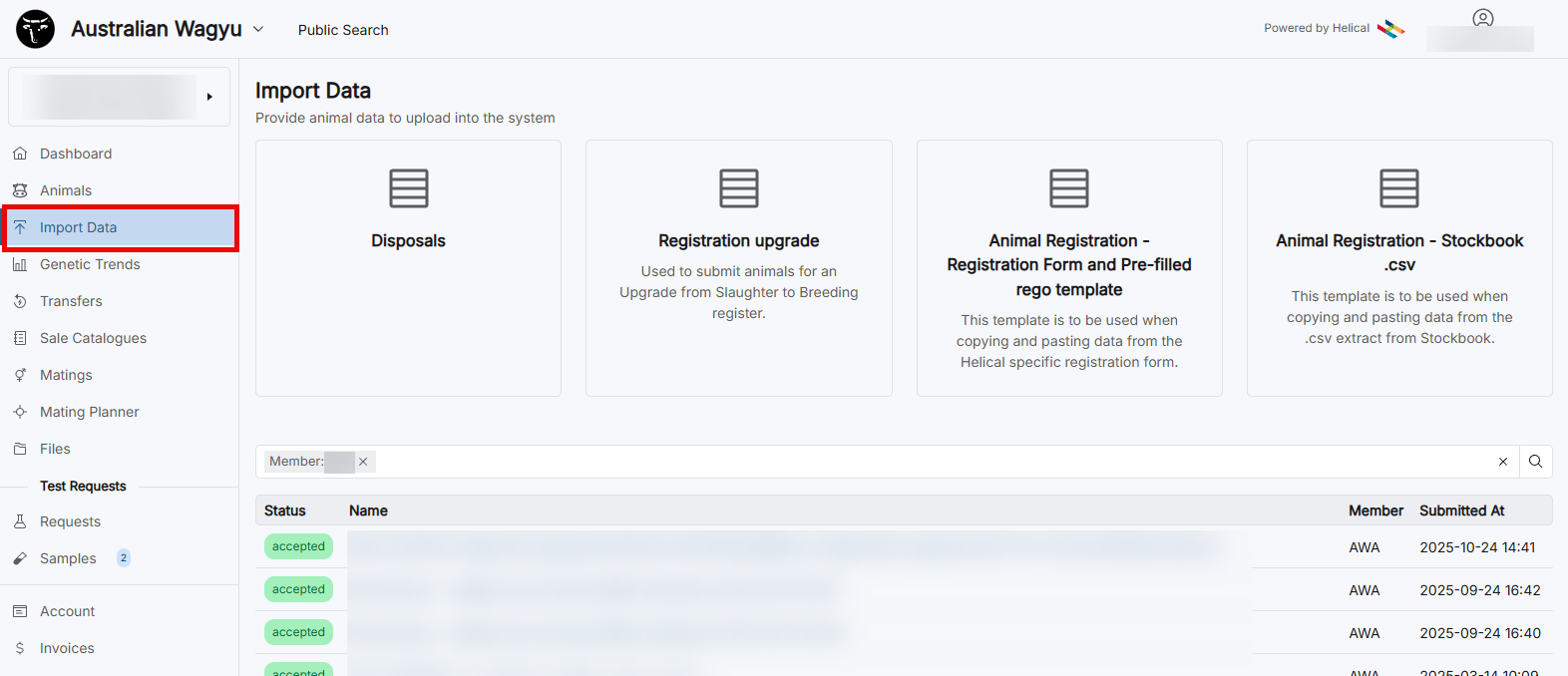
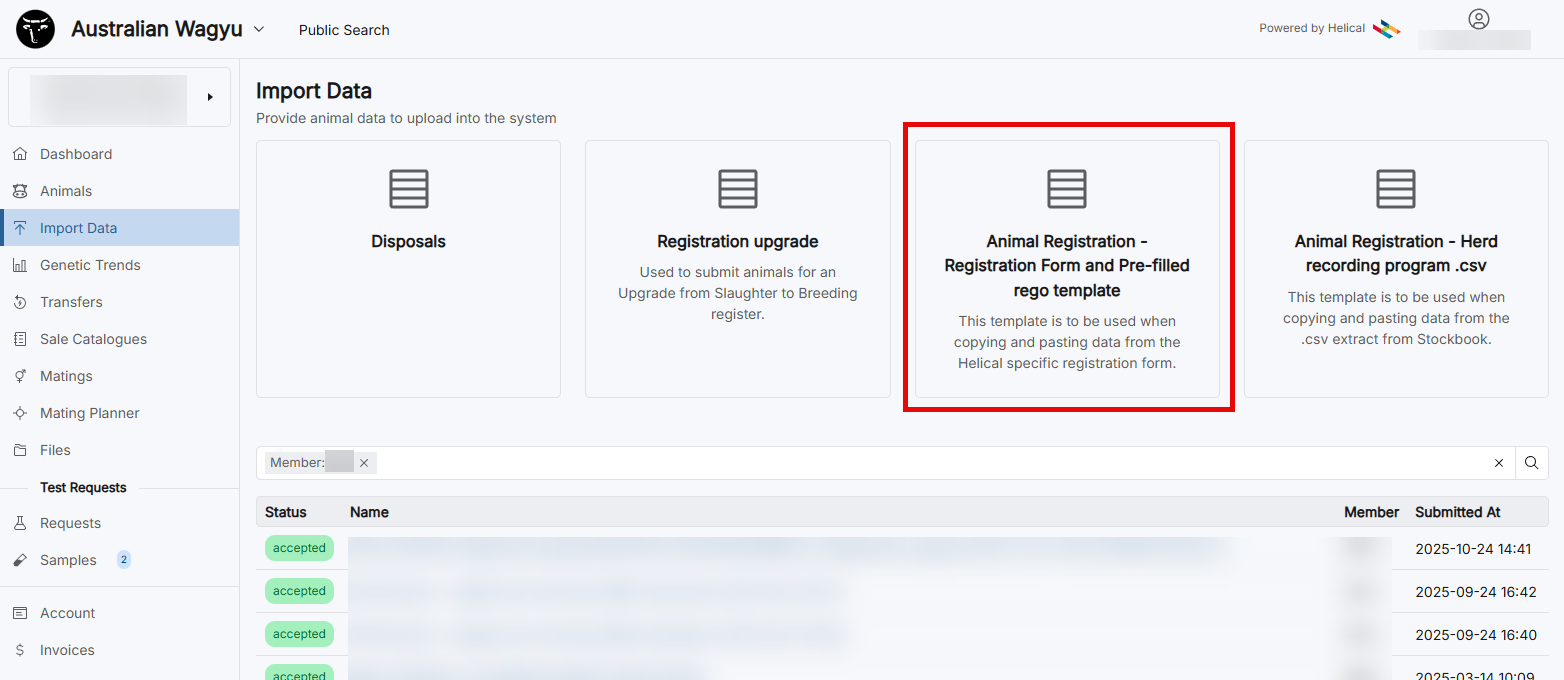
For registering using the registration form or pre-filed rego template data, select “Animal Registration – Registration Form and Pre-filled rego template” data import button.
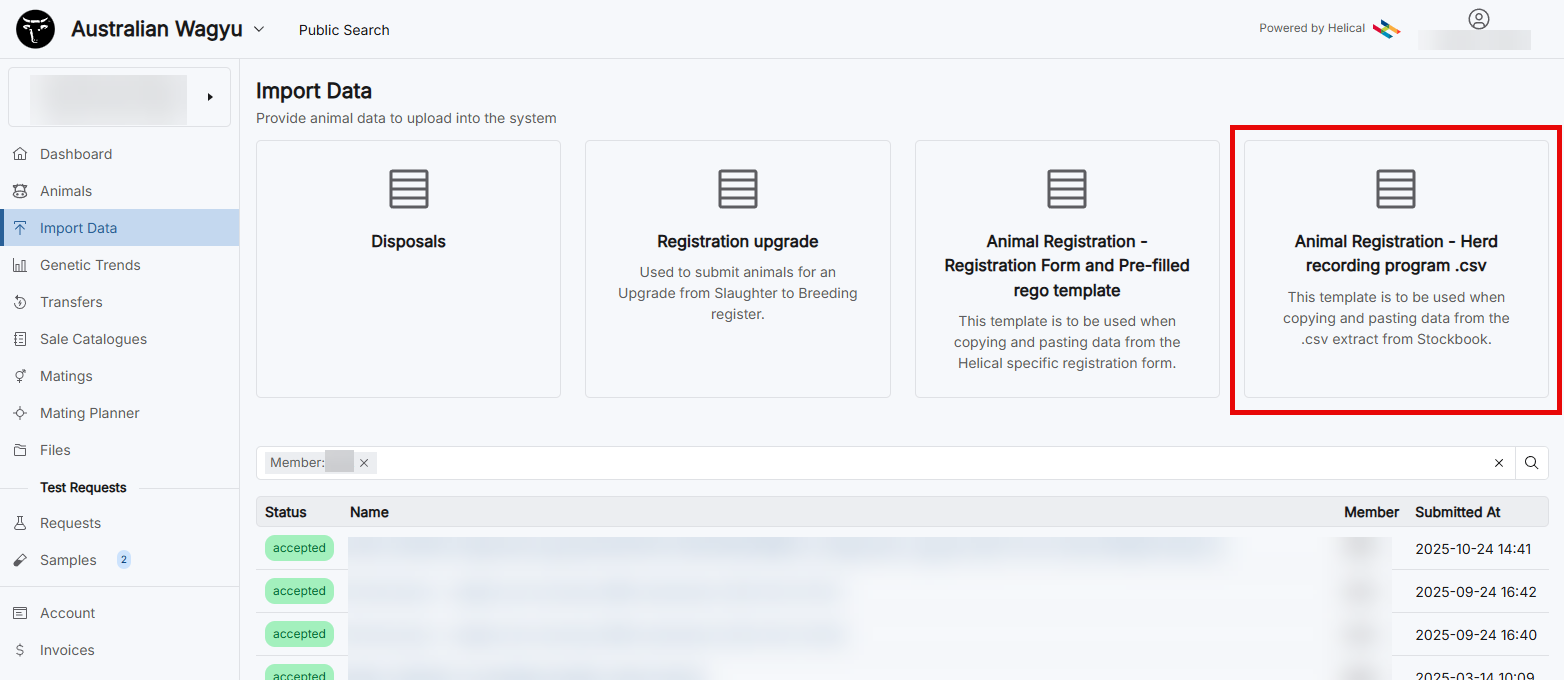
For registering using .csv exports from your Herd recording program, select the “Animal Registration – Herd recording program .csv” data import button.
This will bring up an import screen.
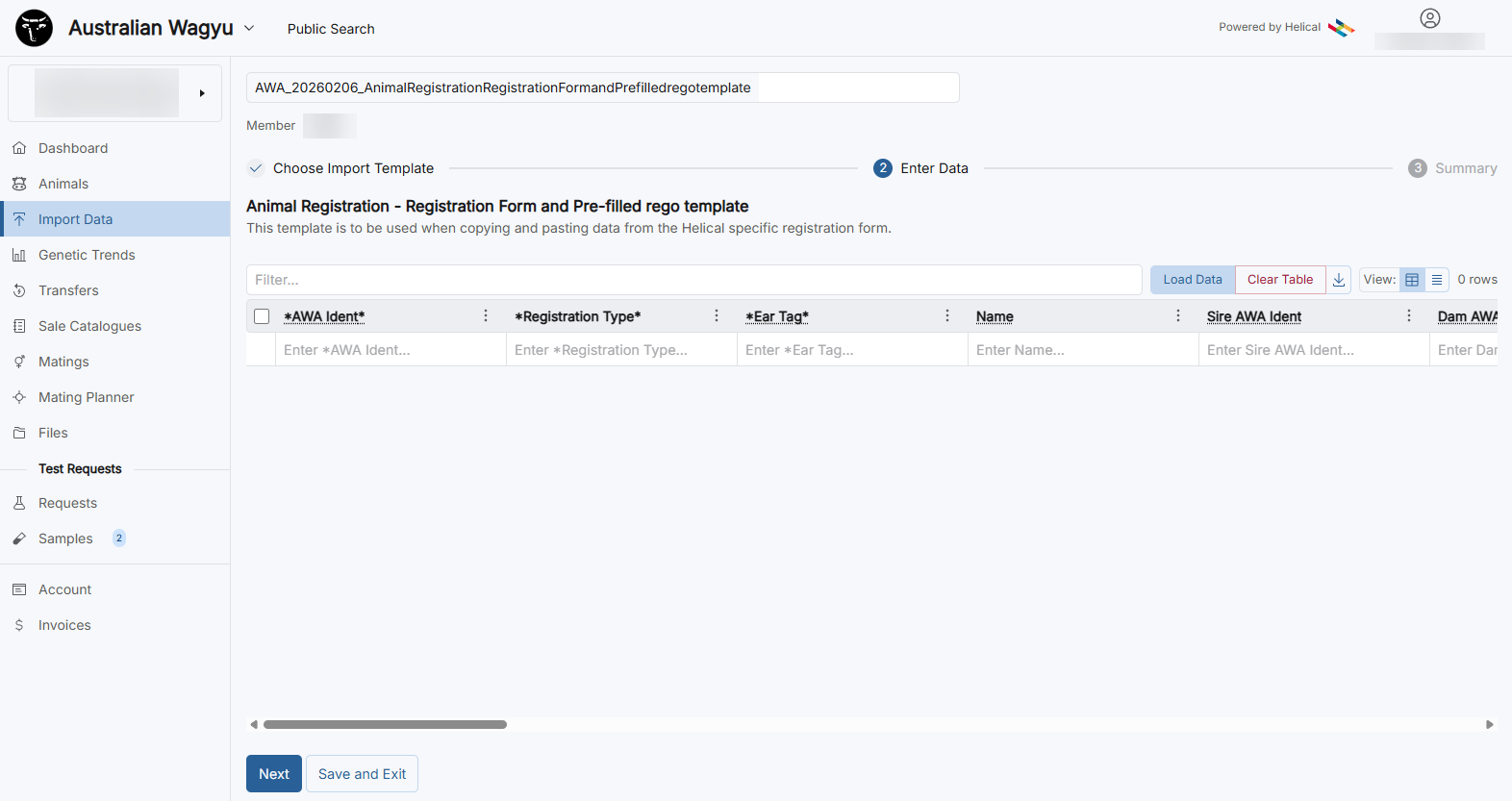
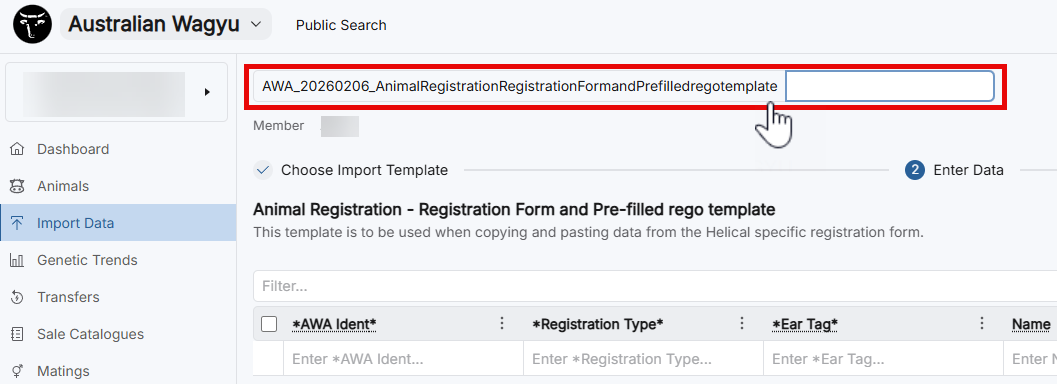
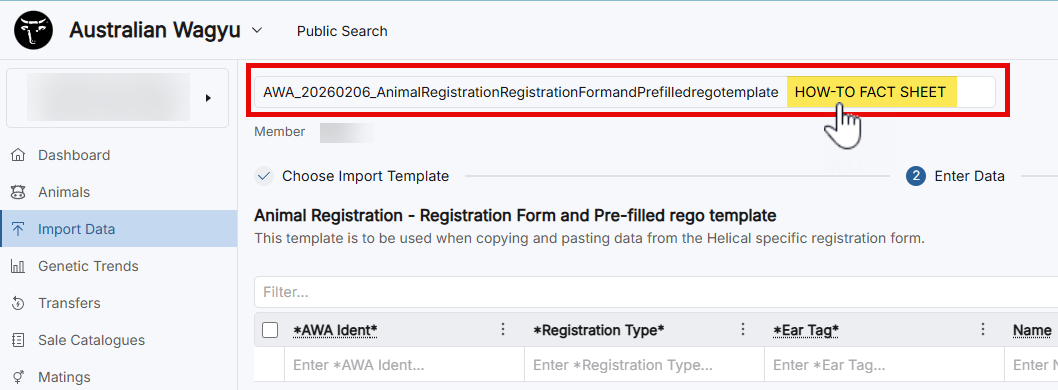
For ease of finding your import at a later date or if you need to contact the AWA about the import, we strongly suggest adding a description to the end of the auto-populated name field.
Loading the data from your registration form template
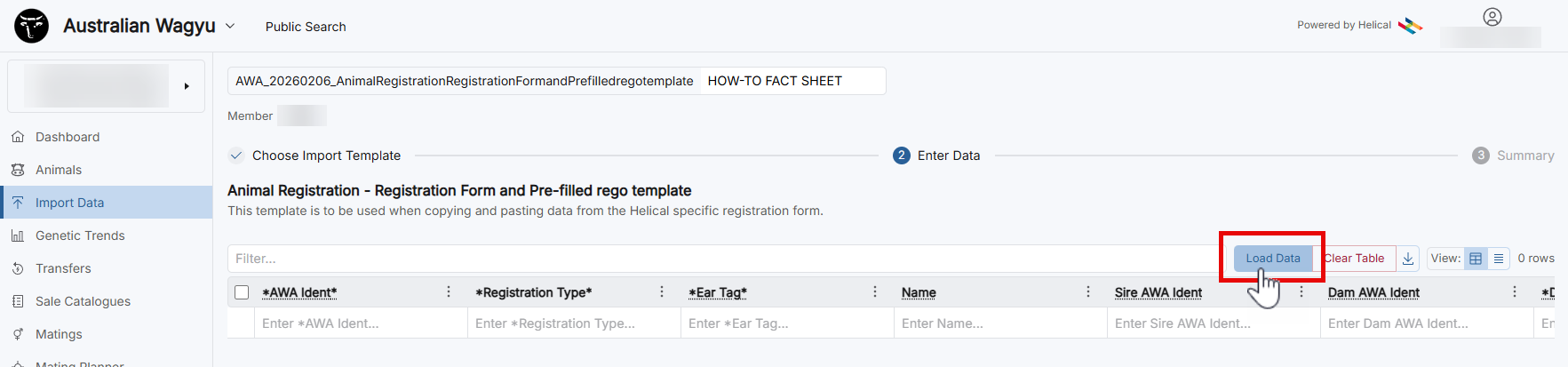
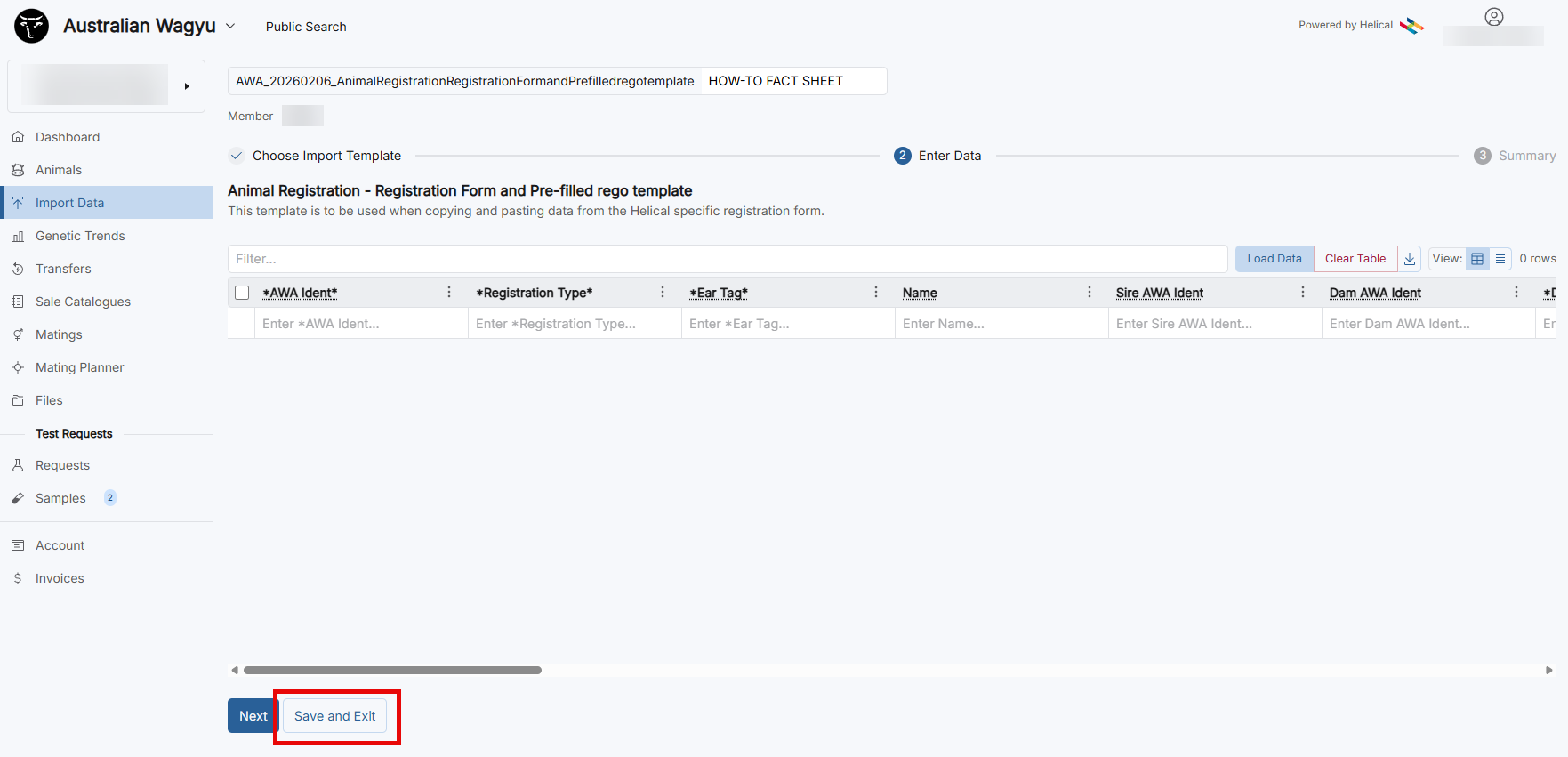
Once you have named your import, you will need to select “Load Data” to import the information from your registration template.
NOTE: At any point in this process, you can select the “Save and Exit” button to Save your registrations and come back to finish them later.
If you exit this screen without selecting this button, the data you have input will not be saved.
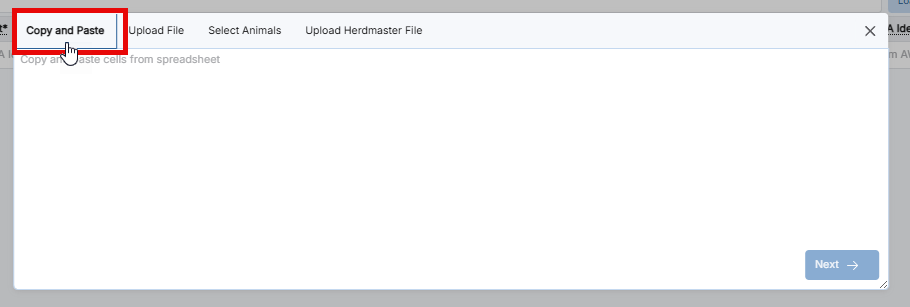
Import options include Copy and Paste from a file, Upload a .csv file, Select animals from your membership of upload a Herdmaster .dat file.
To load data from your Animal registration form, the copy and paste option is the easiest way to do it.
Click the “Copy and Paste” tab option at the top of the pop-up box. This should be the default tab that the pop-up box opens to.
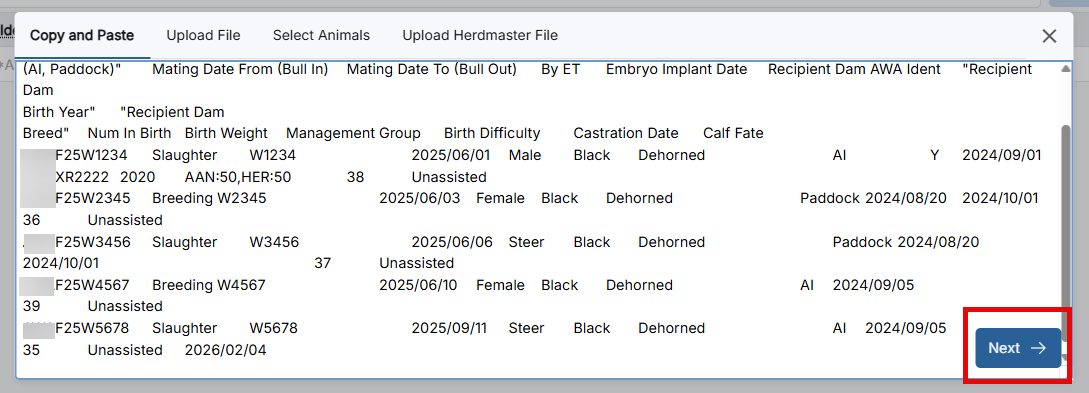
Copy the data from your animal registration file. This is demonstrated by the red outlined data in the screenshots below
TIP: Be sure to include the header row to assist with easier column allocation in the next step.
Pre-filled registration template:

Registration form from the website:

Paste into the box. Then click “Next”.
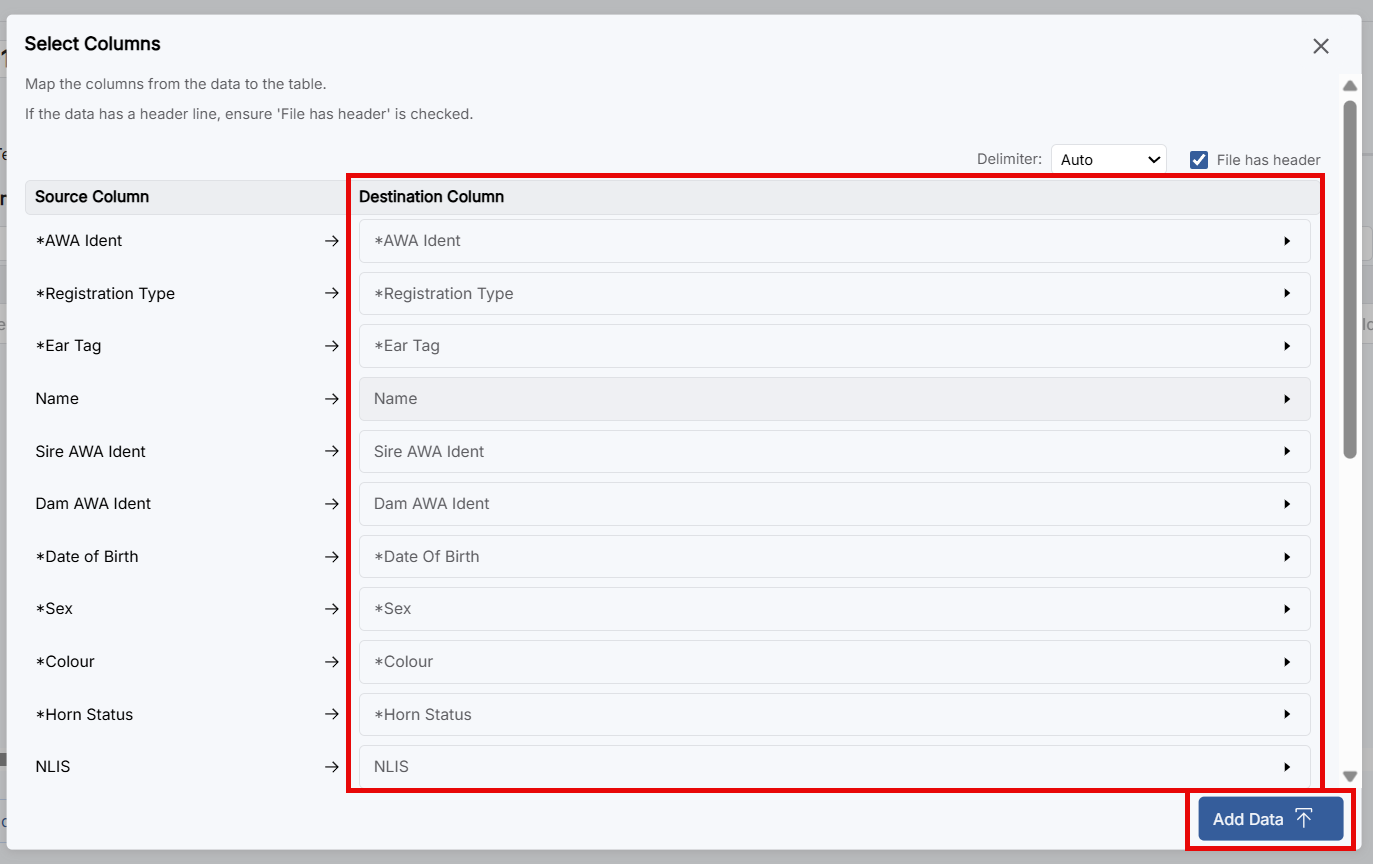
Check that the “Destination Column” (IE: what information is in that column of data) is correct to what the data is in each column.
If you have included the header from the Pre-filled Rego Template, this should all be automatically selected.
If there are columns that are missing data, you can select the associated column from the drop down-menu under “Destination Column”.
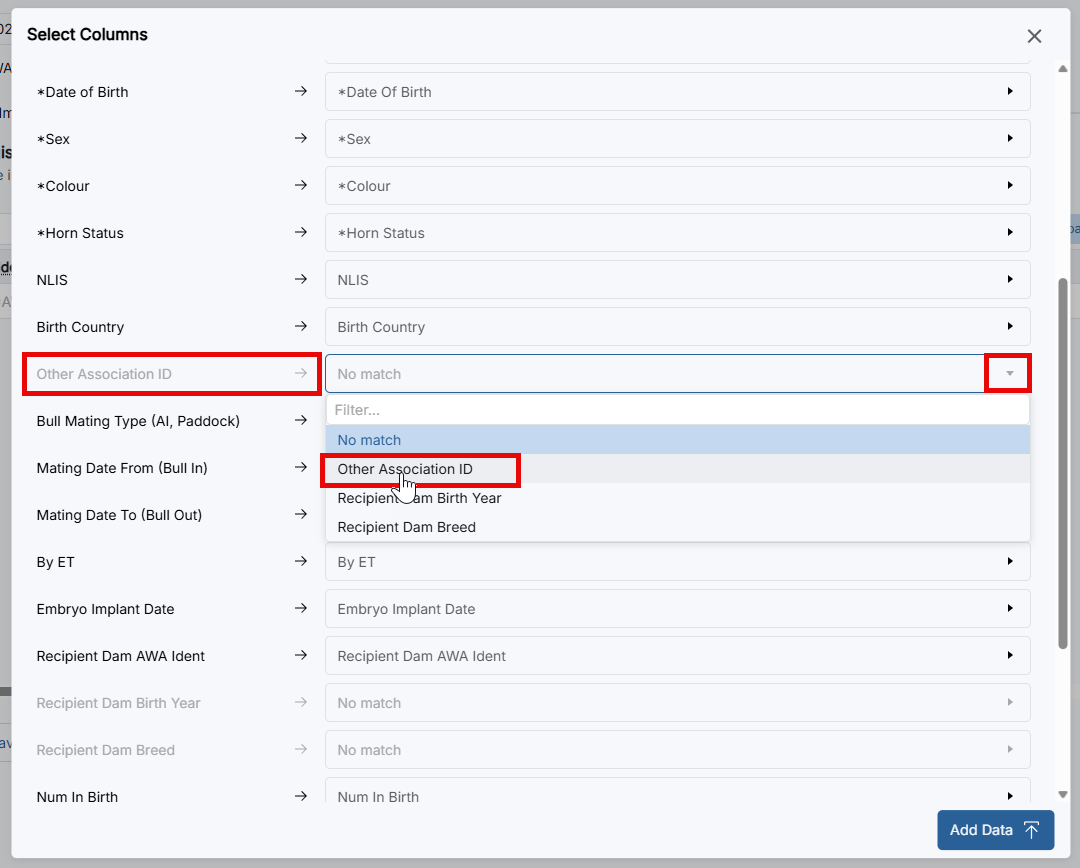
Once you have confirmed “Source Data” and the “Destination Column” correlate, click “Add Data”. This will populate the animals and their associated information that you pasted in into the registration import information table.
Once you have added your data, the populated table should look similar to the below:
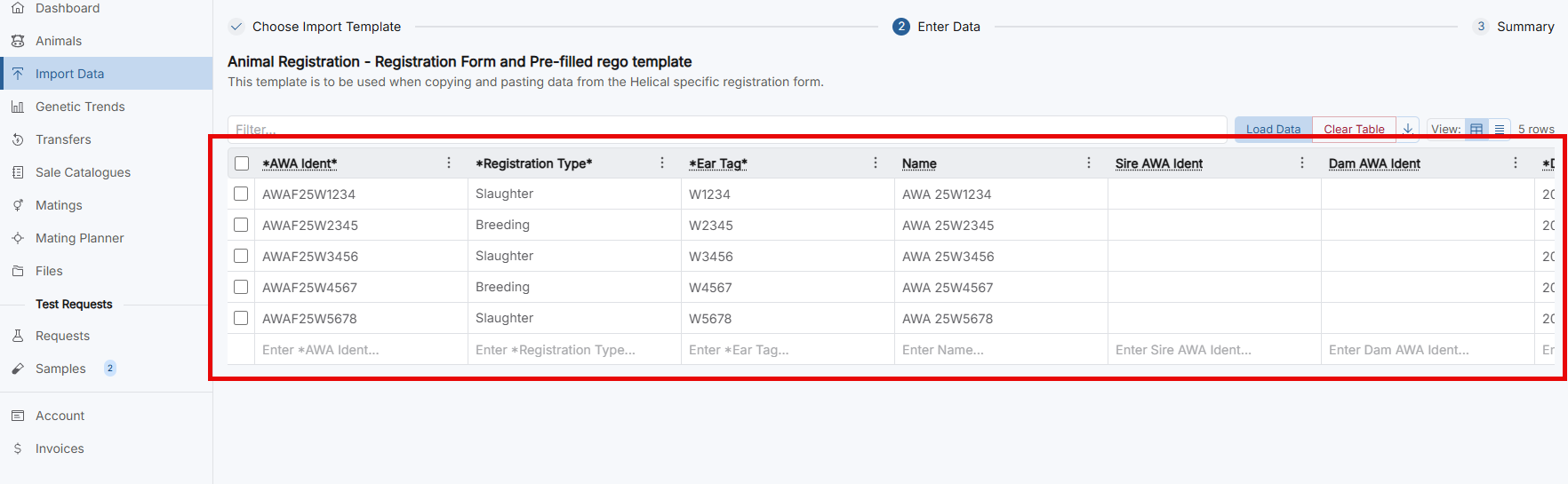
Note: The animals in this example don’t have parentage results, hence the sire and dam fields are not populated. These will be automatically populated in your pre-filled registration template once parentage has been completed. If completing a registration template downloaded from the AWA website, you will need to populate these as well.
If there are any errors in the data it will flag as “show XX errors” as outlined in the below screenshot the data with errors will be outlined in a red box.
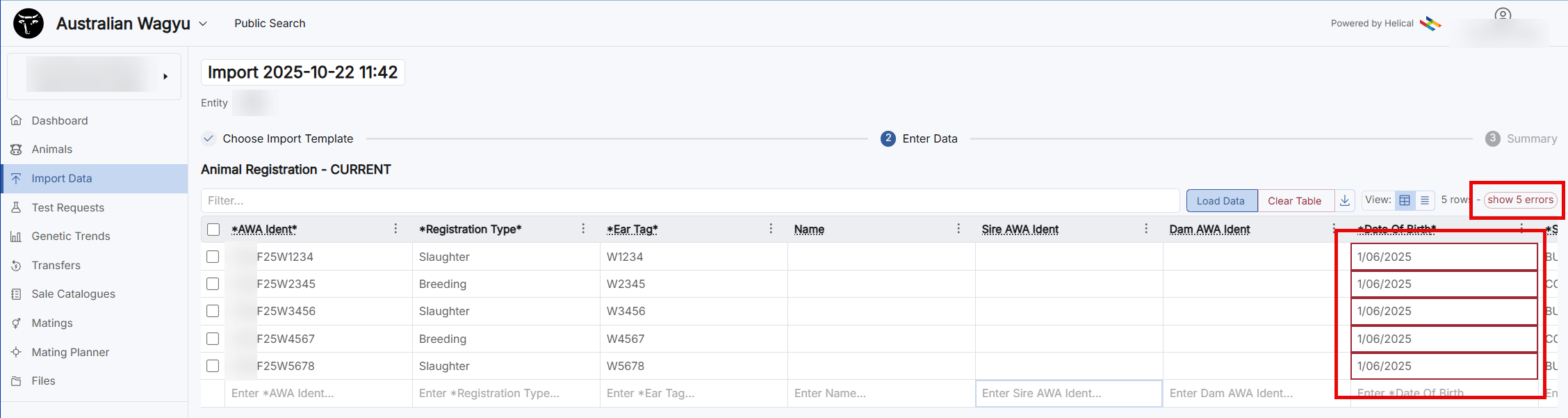
In this example there are two types of errors being flagged. The data with errors is flagging that :
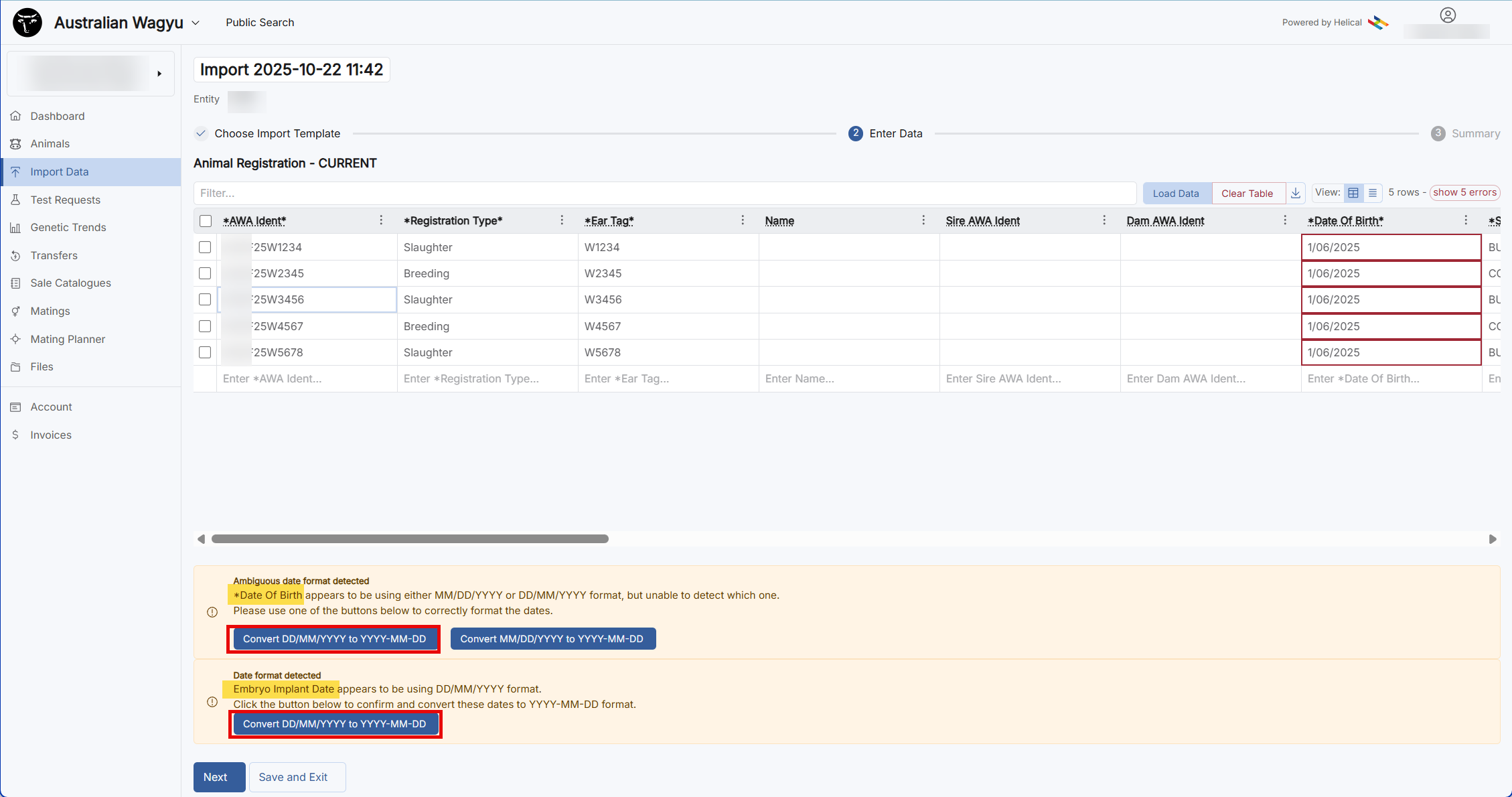
a) those dates are ambiguous (IE: could be 1stJune or 6thJanuary) and
b) the dates are in the wrong format.
If not submitted in the YYYY-MM-DD format select the correct date format change for each set of dates. In this example, our dates were entered as DD-MM-YYYY, so we would select the blue button stating, “Convert DD-MM-YYYY to YYYY-MM-DD”.
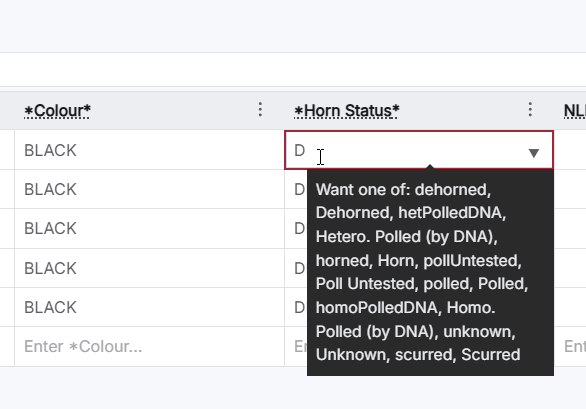
TIP: If you have errors and are unsure on what the format of the data should be in that field, you can hover over the field, and a pop-up box will display to advise what the accepted data is for that field
Once any errors in the data are amended, click “Next.”
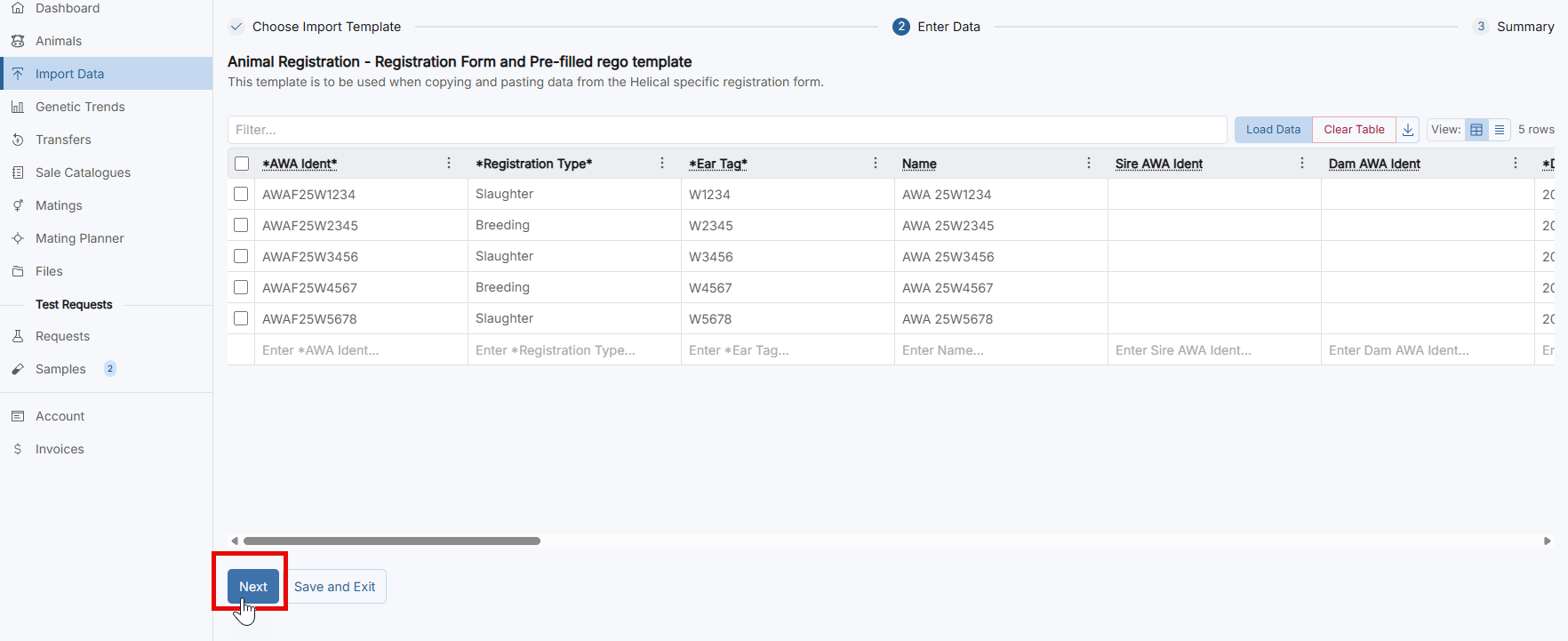
NOTE: We would strongly recommend that you click “Save and Exit” either before navigating to the next page or immediately after clicking to the next page. This will ensure that what you have entered is saved to that point as it is not automatically saved.
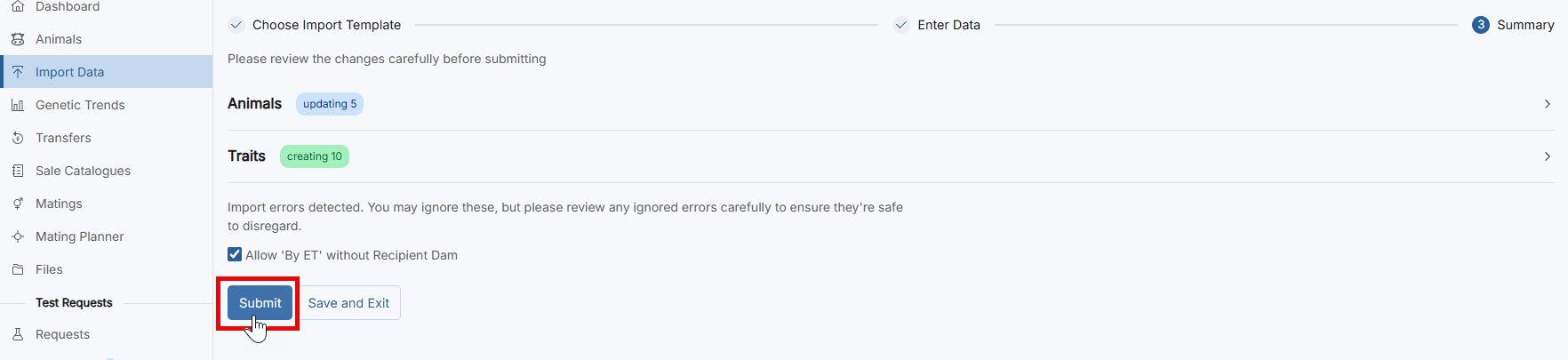
You should then see a page similar to the one shown below. This should flag any errors detected in the data, what fields are being updated, and a summary of any trait data submitted(birth weight and difficulty).
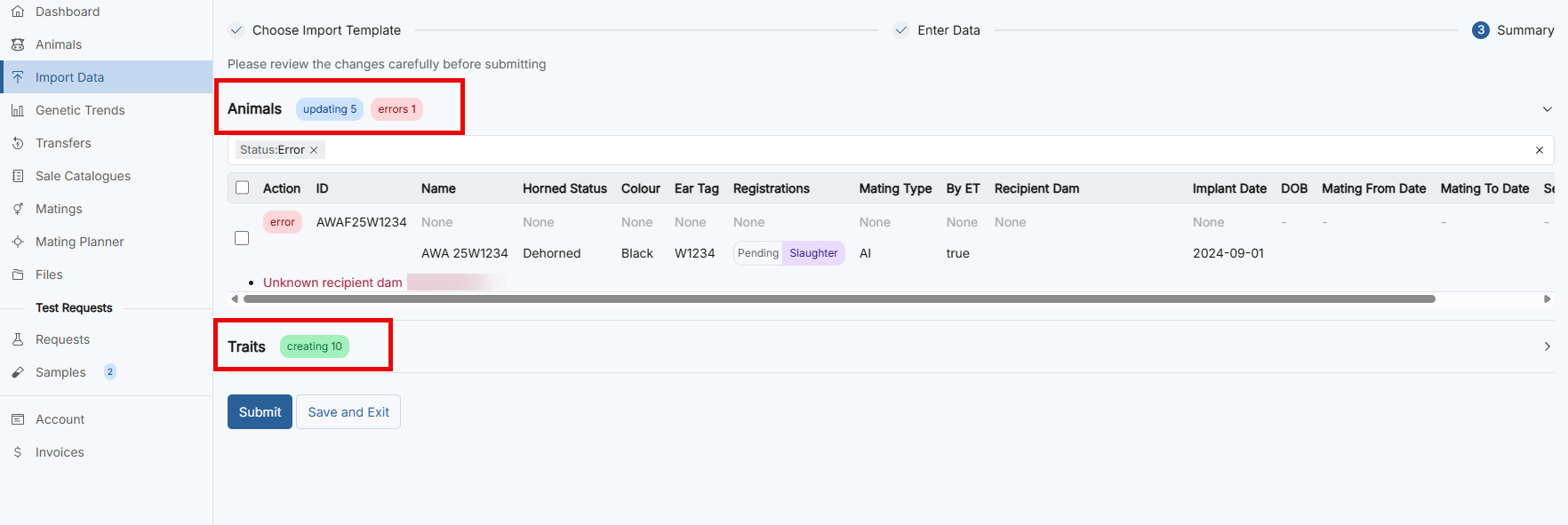
If there are errors in your data, you will need to either amend these or remove the animal before you can proceed.
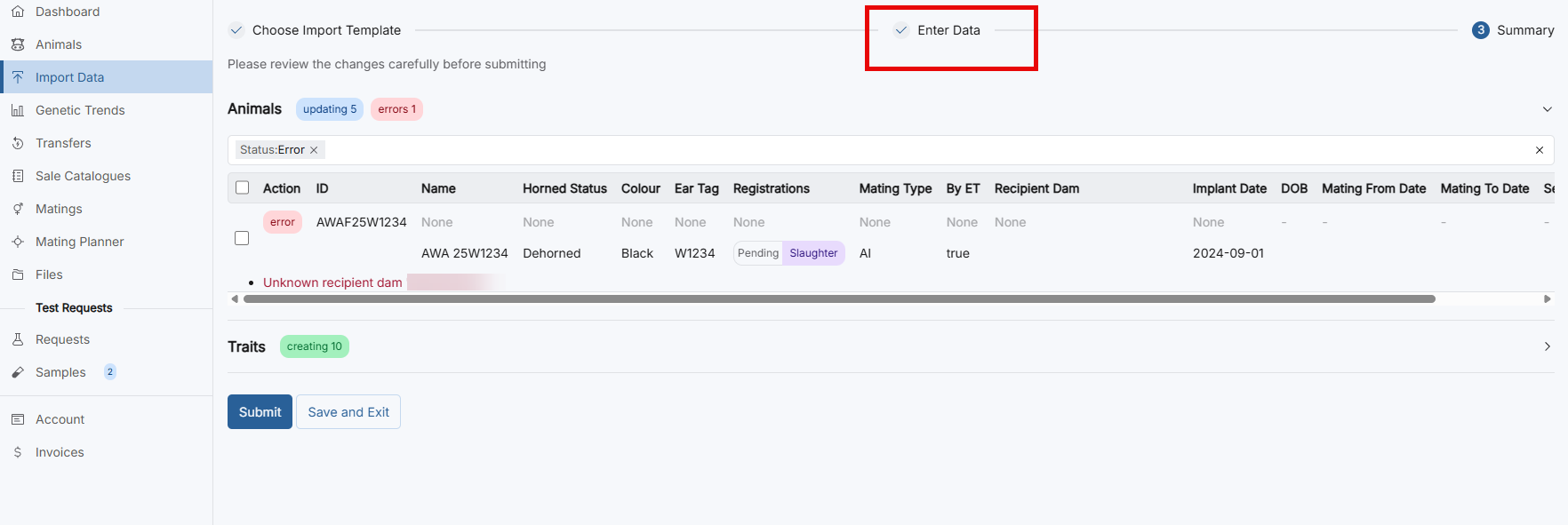
To amend the errors you can click the “Enter Data” button on the progress bar and then amend the details on that animal.
Note: Using the back arrow of your browser will exit out of the import rather than taking you to the “Enter Data” screen to amend animal details. Progress on your import will be lost unless it was previously saved using the “Save and Exit” button.
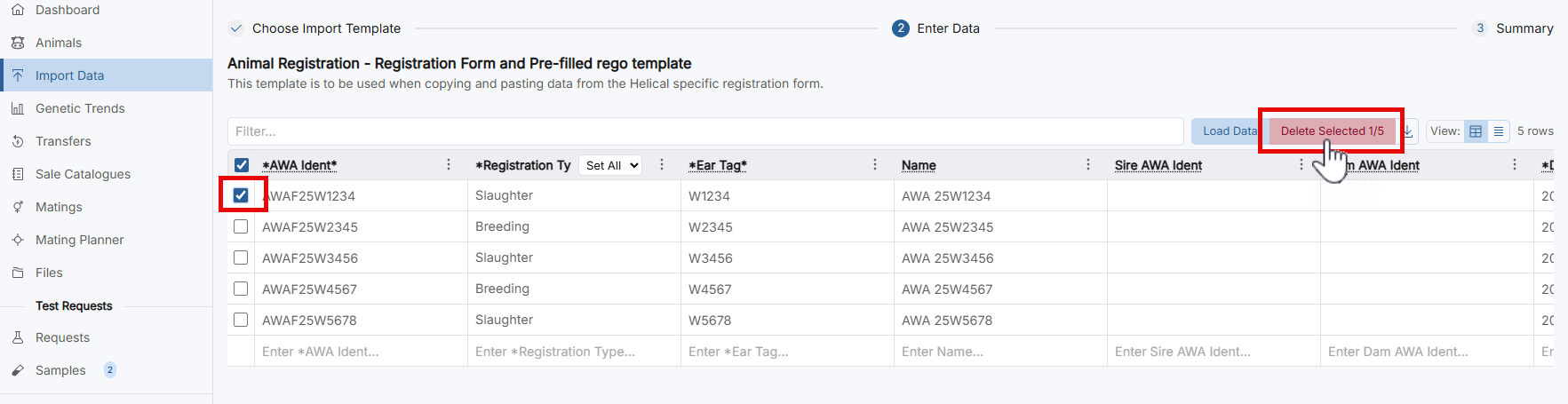
If you wish to delete the animal and work on it another time, you can select the tick box next to it and click “delete”.
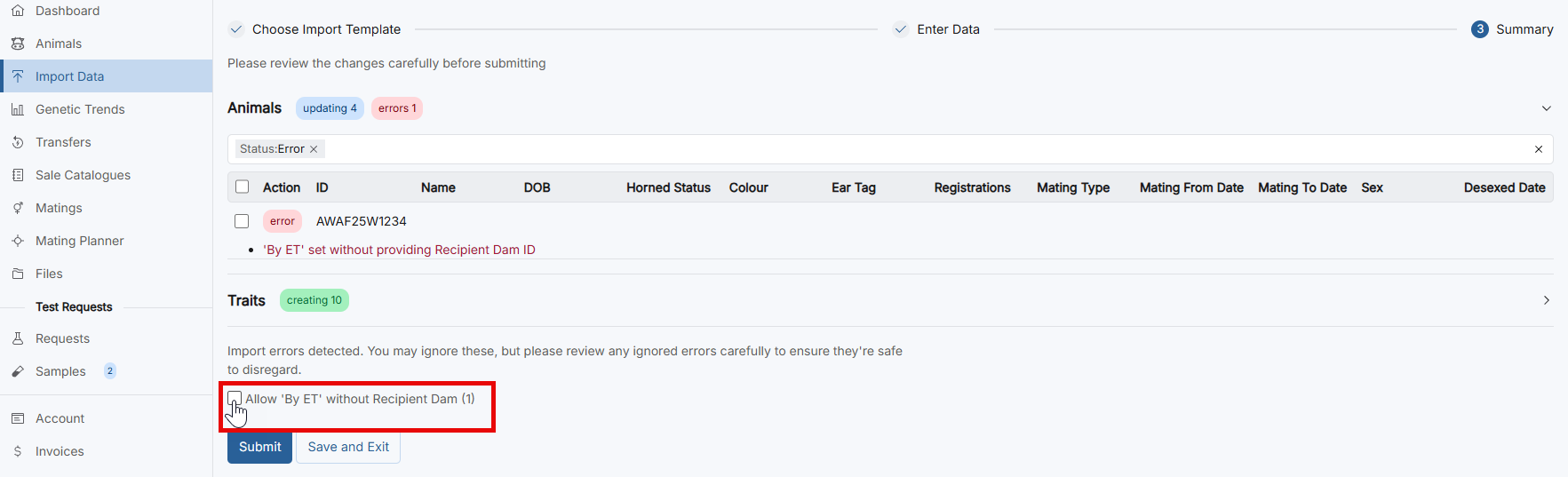
If you have ET animals, that you don’t have recipient dam details recorded for you will get an error as per below. While recording recipient dam details is incredibly beneficial to the genetic analysis, you can proceed without by clicking the tick box next to “Allow ‘By ET’ without Recipient Dam”.
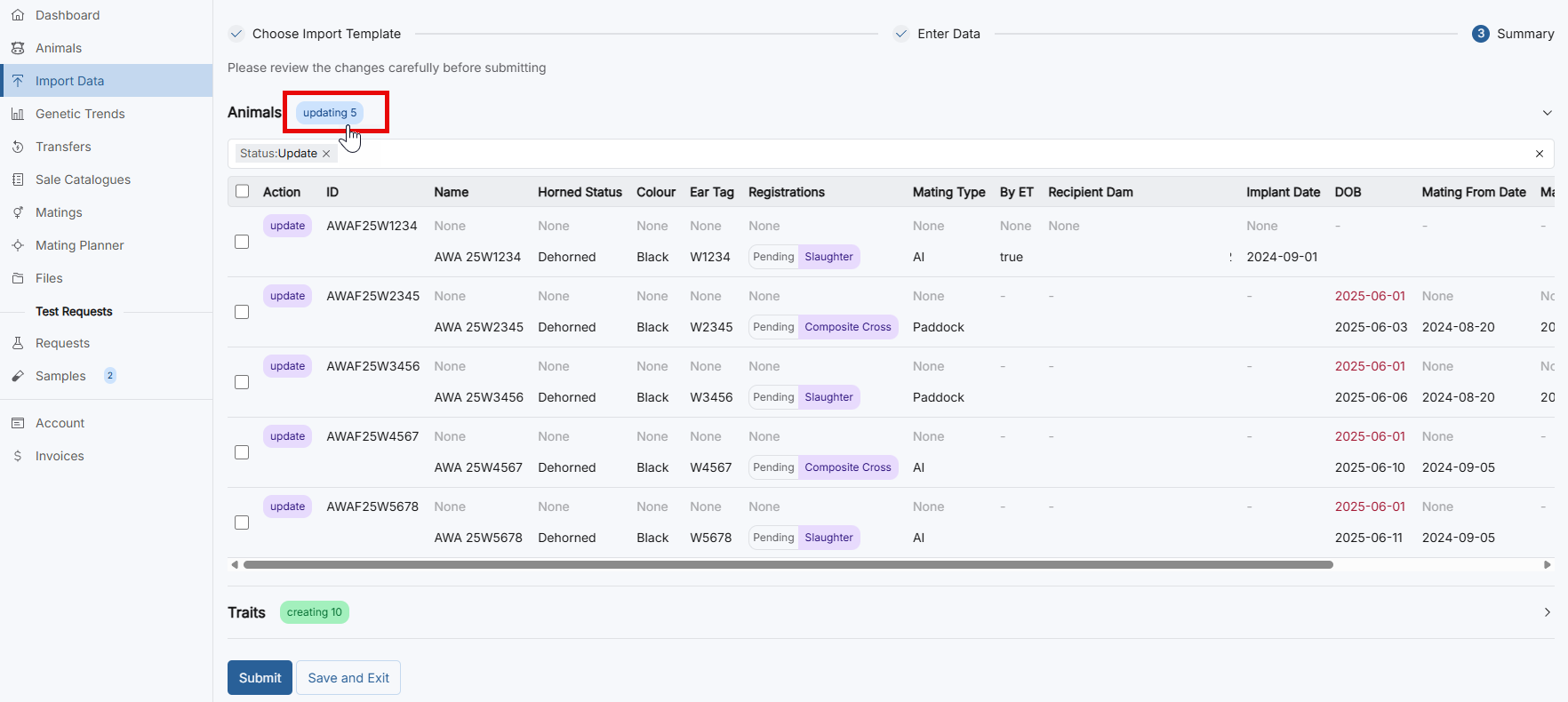
Once you have amended or removed animals with errors it is a good idea to check over the information that is being updated on each animal.
You can do this by clicking on the blue “updating” tag as outlined below.
This will show you information for fields that are being updated – the top line shows what the current field displays, and the bottom line shows what the field is being updated to. It is very important to double check any that have a changing sex or ID field in particular.
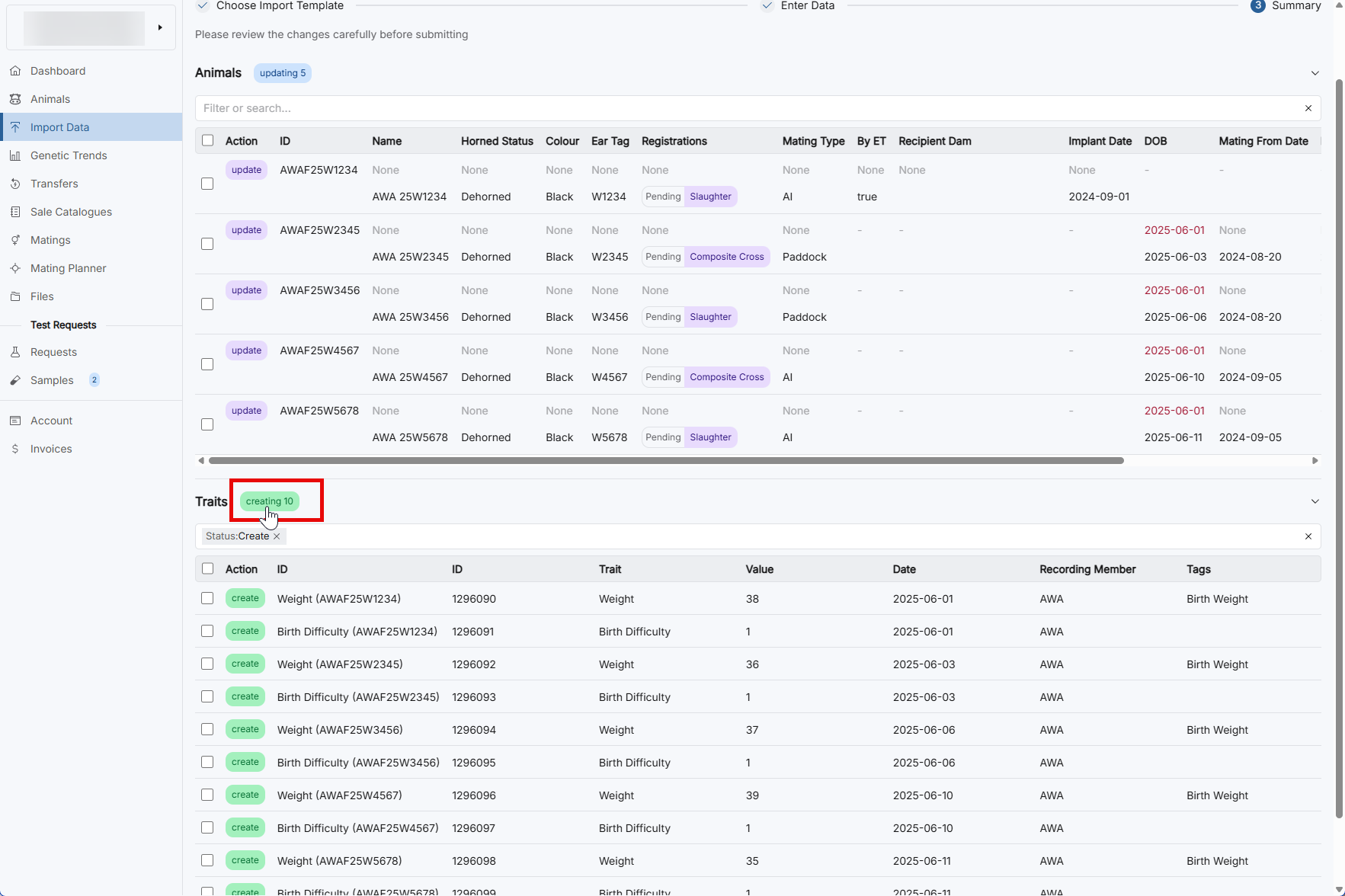
If you click on the green “creating” tag displayed by “Traits”, you can also check over the trait data (for registrations this will be birth weight and birthing difficulty) if supplied.
Once you are happy with all the data, select “Submit”.
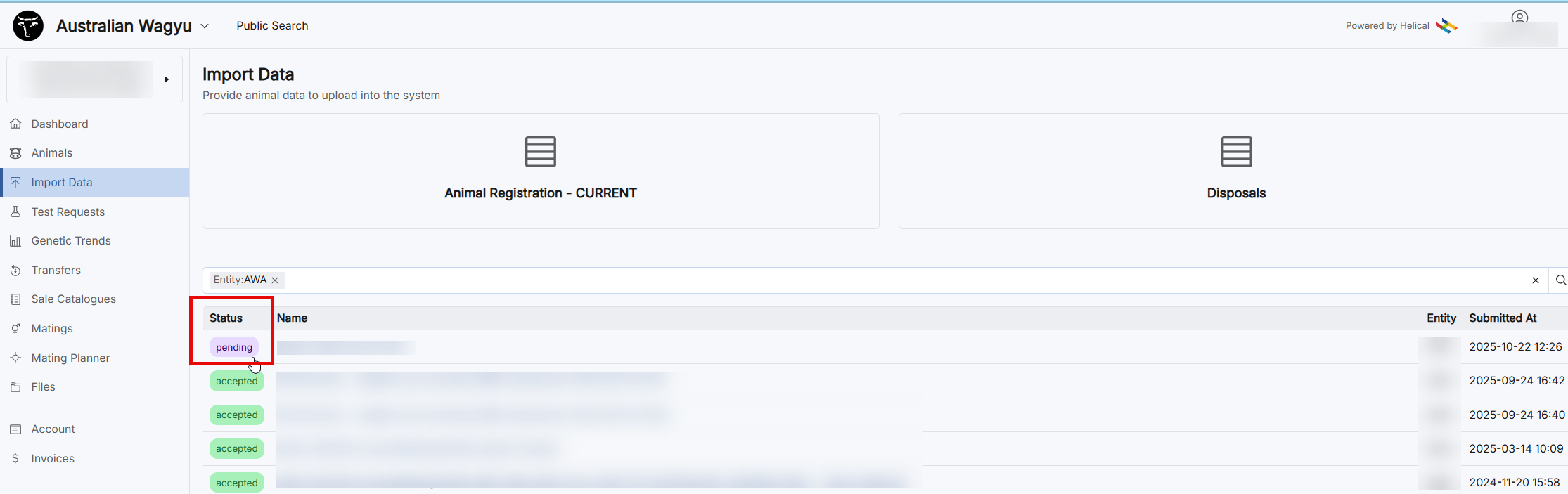
This will now list the import as “Pending” until it has been reviewed and loaded by the MSO team. Once the MSO team have loaded this, they will work through the associated registrations and advise of any issues that arise once the validations of the data are completed.
Alternate animal data selection options within the animal registration import.
There are several alternate methods of selecting and entering data for animal registrations – Uploading a file, selecting animals from your ownership or uploading a Herdmaster file.
The below instructions will guide you through using these alternate methods. Once the data is loaded via one of these methods, please refer to instructions from point 4.4 to work through errors and submitting the data.
Upload a file
Files must be in .csv format to be loaded into the “Upload File” tab.
To load, click on the “Upload File” tab and then either drag and drop the .csv file from where you have saved it, or click on the “Click to select from file explorer” to search for a .csv file on your computer.
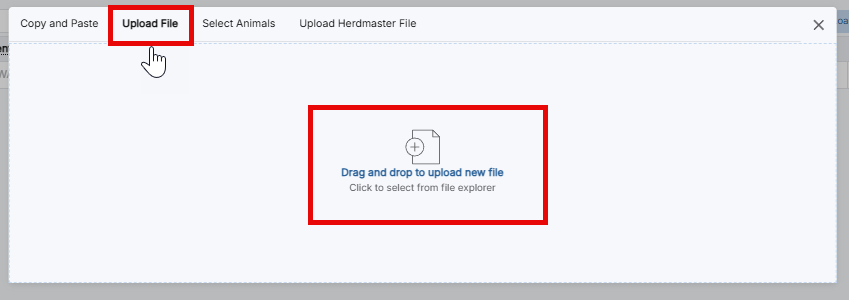
Once the data is loaded via one of these methods please refer to instructions above to work through errors and submitting the data.
Select animals from within your ownership.
Click the “Select Animals” tab option at the top of the pop-up box.
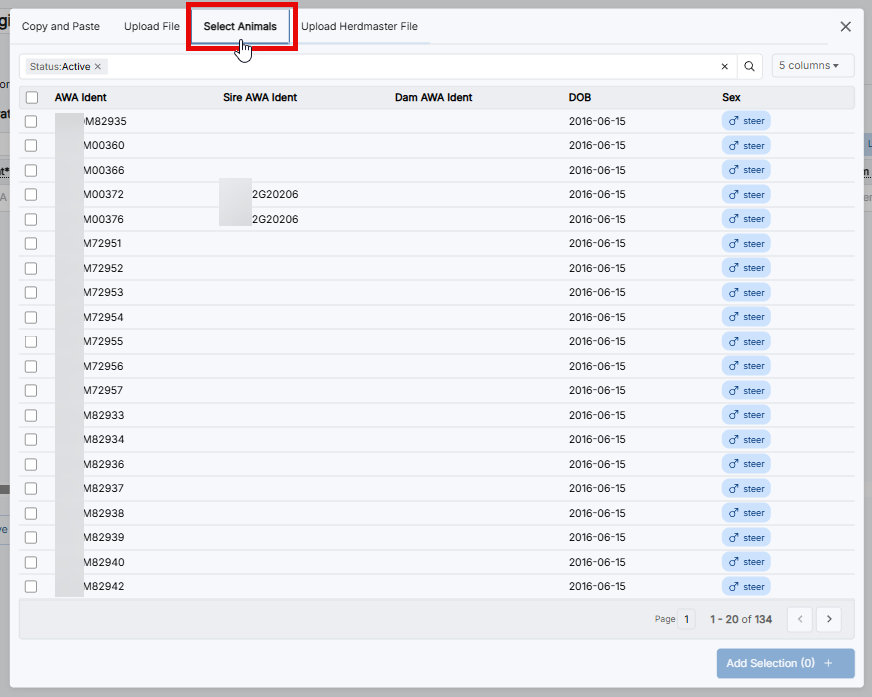
To narrow down your options of animals to select from, you can add in additional filters in the filter bar, or you can search for the animal by its registered ID. Please note you will need to filter by “Unregistered” as shown below to see only your unregistered animals, as this view defaults to your entire active herd.
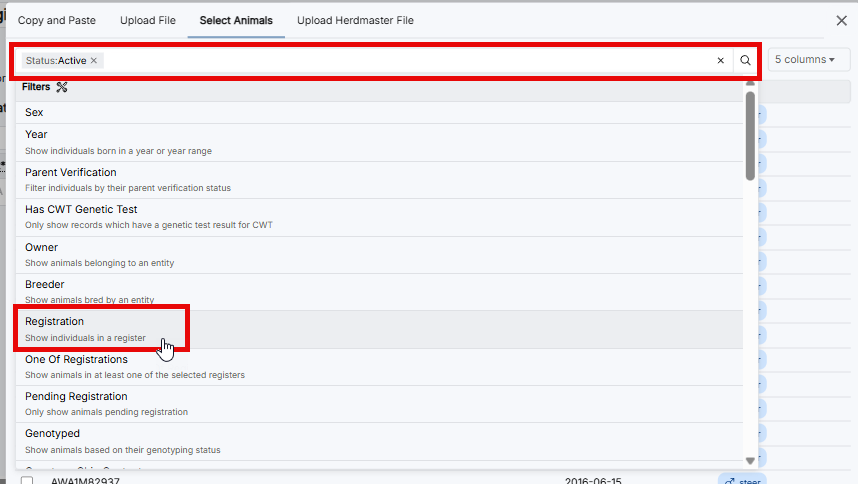
Note: For international animals who’s DNA was sent from another association, you will need to change the “Active” filter to “Unknown” in order to be able to see those animals.
Select the animals by clicking on the tick box next to the ID – you can select multiple animals within this screen, even if you clear or change the information in the filter bar. The number selected will display in parenthesis on the “Add Selection” button .
Once you are happy with the selection, click “Add selection”.
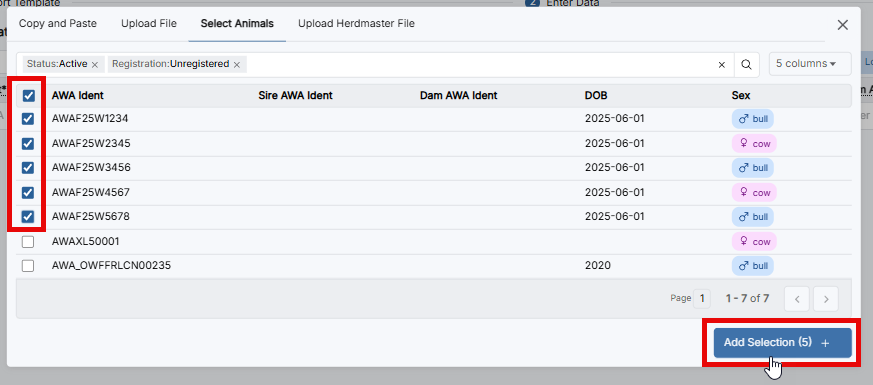
NOTE: You can remove animals after adding them to the registration table or choose to add more as required even if you click “Add Selection” here.
Once the data is loaded via one of these methods please refer to instructions above to work through errors and submitting the data.
Upload Herdmaster File
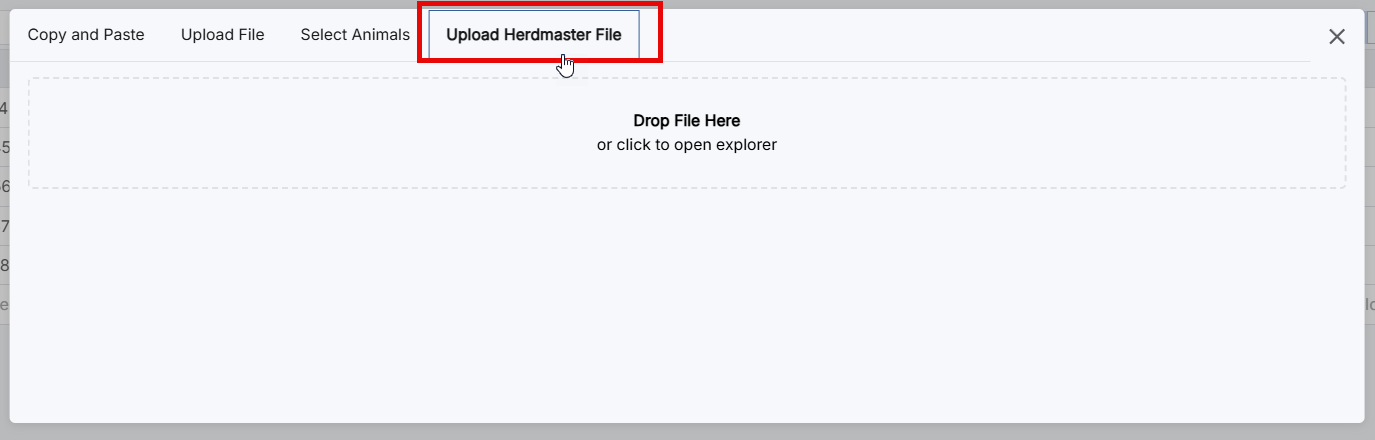
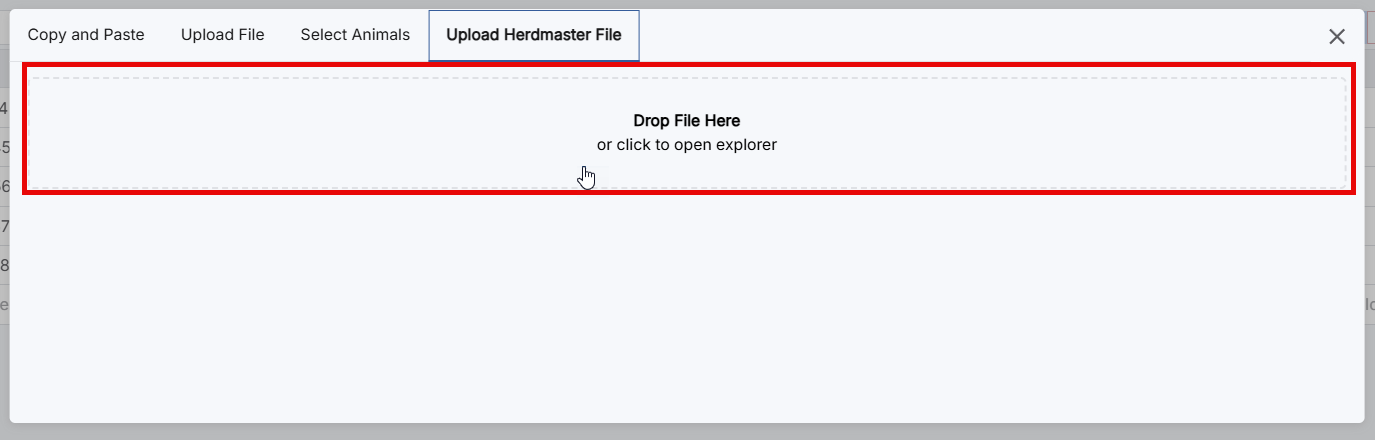
Click on the “Upload Herdmaster File” tab, then drag and drop the exported .zip file onto the “Drop File Here” box. Additionally, you can click on the “click to open explorer” to search for the file on your computer.
Please note that this is specific to Herdmaster files ONLY. All other Herd recording program files should be exported in .csv format and loaded via the copy and paste or upload file methods.
Once the data is loaded via one of these methods please refer to instructions from above to work through errors and submitting the data.