Submitting a Test Request for Stored (C-Banked) Samples

Submitting a Test Request for Stored (C-Banked) Samples

When extra samples are received by the lab, the lab will store (c-bank) these samples. Members can now submit a DNA test request for any animals that have a stored sample recorded. Follow the steps below to complete your submission to test a stored sample.

This factsheet will cover how to Submit a test request in Helical for a sample that is stored at the lab.

Starting a New Test Request Submission

Follow the standard process of creating a DNA test request in Helical.  Please reference the “Submitting a DNA Test Request” guide in the “Forms and Guides” section of the AWA website if you need additional guidance on starting your test request.
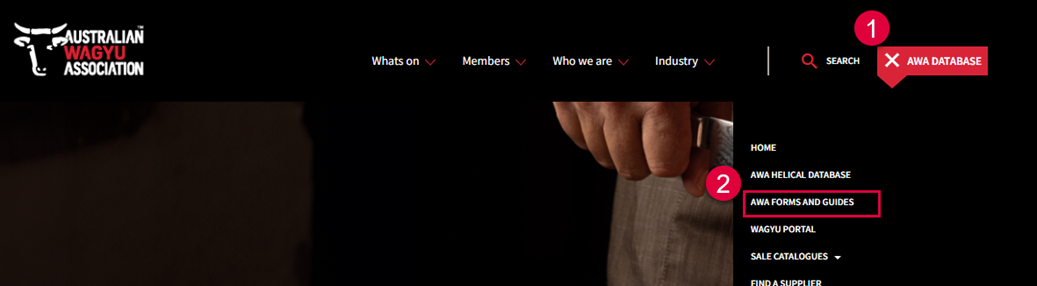
Stored DNA test request 1

*Please note that it is not necessary to fill out the “DNA test request template” form mentioned in the “Submitting a DNA Test Request” reference guide.  This step can be skipped when submitting a request for a stored sample as information regarding the sample is already stored in Helical.  As you will see further in this guide, any missing information required to successfully submit your test request (i.e. animal ID, potential parents, testing profile) will be filled in after you have selected your stored sample, outlined in the next section.

Selecting the Stored Sample for Testing

If following the guide above, you will navigate through step by step to step  (selecting the “Load Data” button).  If you have not used the guide, at this point you will have started your new test request, selected the “Request Type” (the lab through which you are testing), and are ready to fill in your sample information into the blank table as pictured below.

Select “Requests” from the menu on the left and then select the blue “New Test Request” button and fill out the necessary lab information.
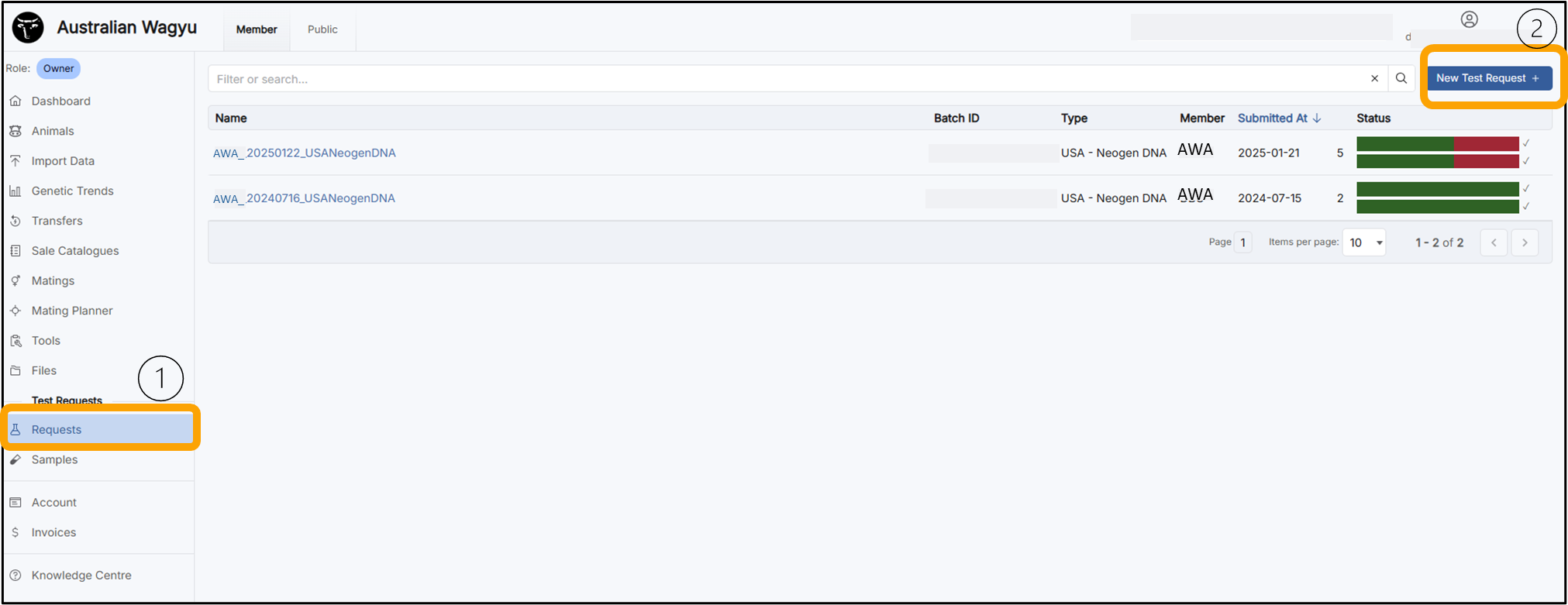
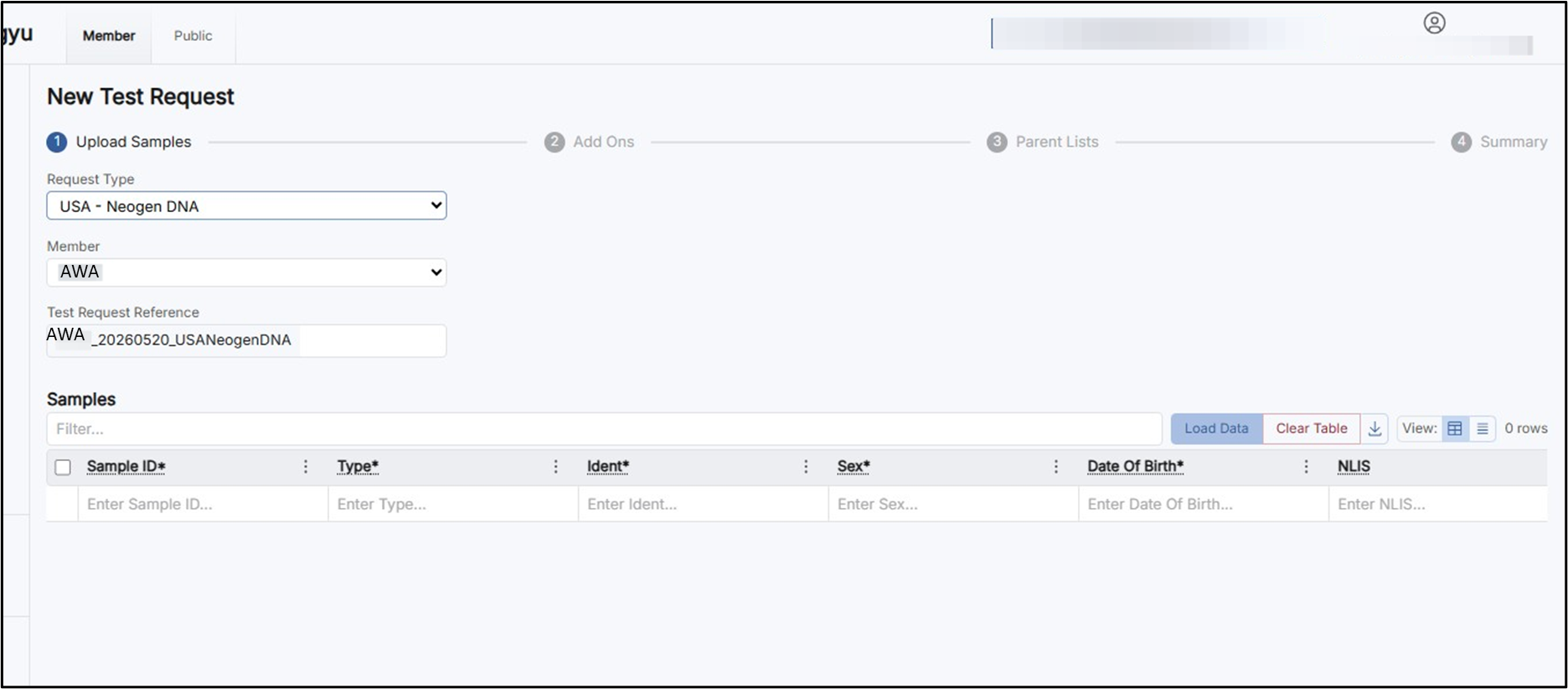
Stored DNA test request 2

Stored DNA test request 3


Next you will click on the blue “Load Data” button.
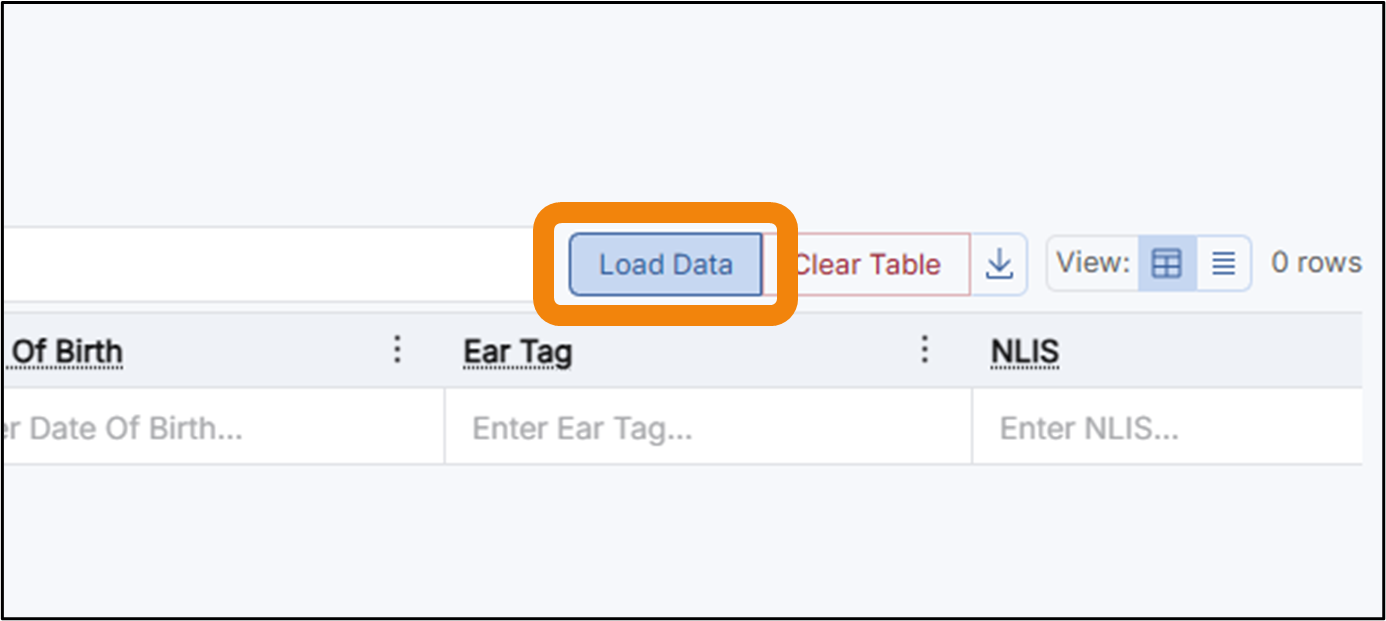
Stored DNA test request 4

Once you have selected “Load Data” a new window will pop up. You will need to select the “Stored Samples” tab.
Stored DNA test request 8

*Please note that it is also important to check that the lab you have selected to test through is the same lab that the sample is stored at. You can view what lab the sample is stored at in this window under the column header “Storage Lab” on the right-hand side.
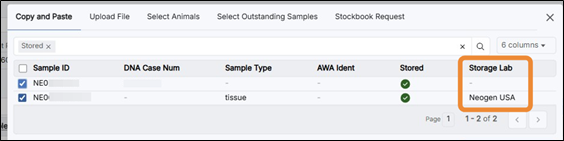
Stored DNA test request 6

Select the checkboxes for the stored samples you wish to test, and then click the blue “Add Selection” button to add the stored sample to your test request.
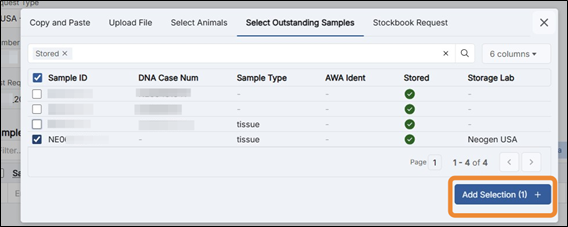
Stored DNA test request 7

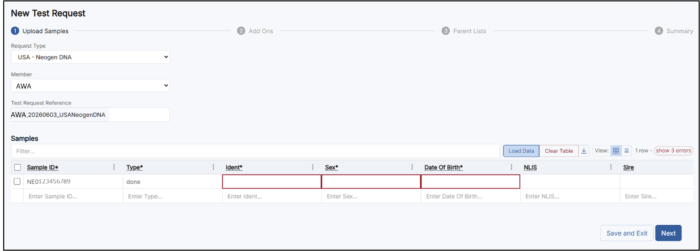
Proceed with filling out the remaining sample information required for the test request submission as outlined in the “Submitting a DNA Test Request” guide.  If not using the guide, you will continue by filling in any missing information outlined in red and hitting the blue “Next” button at the bottom of the screen.
IMPORTANT NOTICE - Terms & Conditions


It is a condition of use of this database that you accept these terms and conditions. 

It is important that you appreciate when accessing the Australian Wagyu Association Limited (AWA) database (which may be hosted on an external website) that the information contained on the AWA database, including but not limited to pedigree, DNA information, Wagyu Breeding Values (WBVs) and Index values (together called Database Information), is based on data supplied by AWA members and/or third parties. 

Whilst sincere effort is made to ensure the Database Information is accurate and complete, to the extent permitted by law, AWA, its officers and employees, shall not be responsible for its use or interpretation, and you use the Database Information at your own risk. Please be aware of the following limitations of the Database Information.  

Regarding WBVs and Index values, it is important to appreciate, and you need to be aware that: 

  • WBVs are derived using genetic evaluation technology developed for the AWA, using information contained within the AWA database and parameters derived from it.
  • WBVs are estimates of genetic potential of individual animals and may change with addition of new data or with new parameters.
  • WBVs are genetic merit estimates only and may not reflect the raw animal phenotype.
  • WBVs can only be directly compared to other WBVs calculated in the same AWA genetic analysis.

Regarding pedigree and DNA testing results submitted to the AWA, it is important to appreciate, and you need to be aware that: 

  • Animals whose registration identifiers start with PED are Pedigree Recorded Animals. What this means is that the details which AWA used to register the animal were obtained from a Recognised Wagyu Registry Organisation – in other words a Wagyu breed association based outside of Australia. AWA has not independently verified the information with respect to the animal or the details recorded about the animal. You should read AWA’s by-laws which set out details regarding the definition of a Pedigree Recorded Animal. 
  • Pedigree and DNA data submitted and supplied to AWA may have errors in it which cannot be detected without further DNA testing. 
  • Technology may have advanced since a particular test was undertaken so that genetic issues or inaccuracies which were previously not detectable are now able to be detected by current testing technology (i.e. if the animal was tested again with current technology). 
  • AWA estimates that less than 1% of the pedigree entries, ownership or breeding details in the AWA Herdbook may have errors or which may be misleading. For this reason, users ought to consider if they need to obtain independent testing of the relevant animal (if possible) to ensure that the data is accurate. 

Regarding prefectural content, it is important to appreciate, and you need to be aware that: 

  • Prefectural content is based on the estimation of prefectural origin from Japanese breeding records of 201 foundation sires and 168 foundation dams. As genotype-based parent verification is not used in Japan, and full Japanese registration certificates are not available for all foundation animals, exact prefectural composition for these sires and dams cannot be validated. 
  • The calculation of prefectural content for Australian Herdbook animals relies on the accuracy of pedigree records and DNA samples provided by AWA members.   

Regarding DNA testing and genetic condition results submitted to the AWA, it is important to appreciate, and you need to be aware that: 

  • As genetic testing results are provided by independent DNA testing laboratories at the request of AWA members, AWA relies solely on the accuracy of the reporting of genetic testing as completed by the laboratories. 
  • AWA uses GeneProb software to calculate the likelihood of pedigree animals being a carrier of genetic conditions.  This likelihood is an estimate based on the available genetic testing results. 

If you consider that you do not understand or appreciate the nature and/or implications of the data provided on this website or the WBVs of a particular animal, then AWA strongly recommends that you seek expert advice.  Note there is substantial technical information and articles on the Wagyu website to assist our members. 

AWA’s liability for any loss or damage, consequential or otherwise, suffered or incurred by you or your related business, arising directly or indirectly from your use of Database Information, to the extent permitted by law, is limited to AWA providing you with a refund for the fees paid for the service (if any), or AWA re-performing the service, where possible, at the election of AWA.  

AWA administers this database in good faith to support AWA members and the industry. AWA does not represent or warrant that the animals recorded in this database, or animals breed from them, will achieve any particular genetic or phenotype performance.


THIS DISCLAIMER HAS BEEN UPDATED AS OF 03/02/2026, PLEASE ENSURE YOU HAVE READ IT IN DETAIL