Using Animal ID List for Animal Searches and Samples
Creating an Animal ID List
Members can now search for a specific group of animals by uploading a CSV file containing a list of Animal IDs. Each Animal ID must include the animal’s full Association ID.
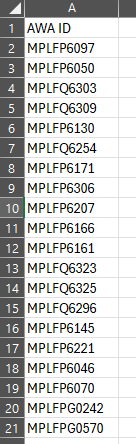
Selecting Animals Using an Animal ID List
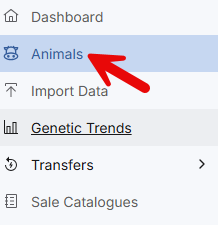
Navigate to the Animals tab from the Dashboard menu.
Drag and drop your CSV file onto the Animal List page.
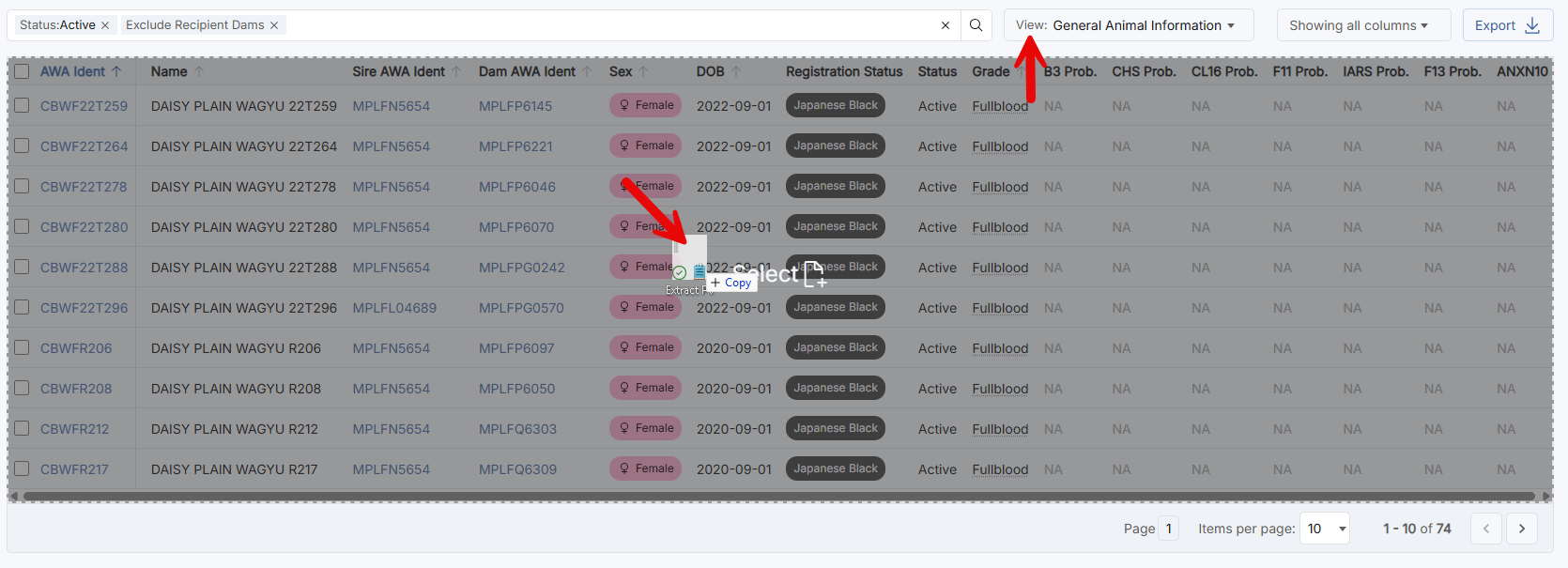
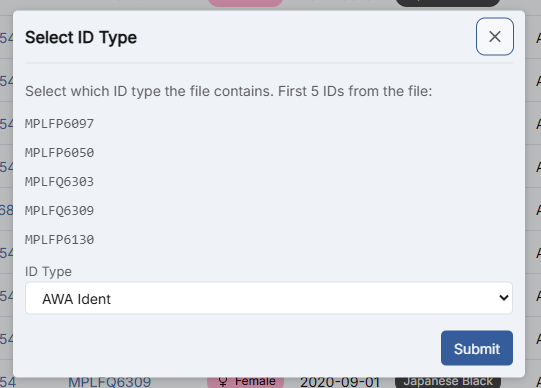
Helical will automatically identify and select all animals contained in the file, provided the Animal IDs are valid.
Extracting Information
Once the animals have been selected, a pop-up box will appear at the bottom of the page.
Confirm the number of animals selected.
Choose the required view (as seen in image 3 above).
Export the selected animals to a CSV file containing the information you need.

Sample Searches
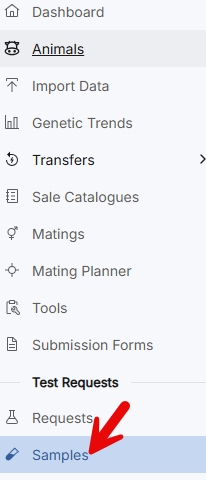
This feature can also be used on the Samples tab by uploading a list containing:
- AWA Animal ID
- DNA Case ID
- Sample ID
Saving Animal Searches and Animal Lists
Helical now allows members to save animal searches for future use.
For example, you may use the search function to identify a group such as registered 2024-born males.
Saving a search
Perform your search and select the required animals.
In the pop-up box at the bottom of the page, click Add to Animal List.
Enter a name for the list, such as 2024 Registered Male List.
Save the list for future access.

Accessing Saved Lists
To access a saved list:
Open the Animal Search tab.
Select Animal Lists.
Choose the saved list you wish to view.

Managing Saved Lists
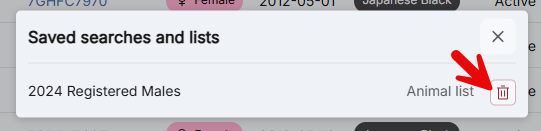
If you no longer need a saved list:
Open Animal Lists.
Click Manage.
Remove any lists you no longer wish to keep.
These new features provide a faster and more efficient way to communicate with members, locate groups of animals, extract data, and manage frequently used searches within Helical.
Overdue Performance Indicators
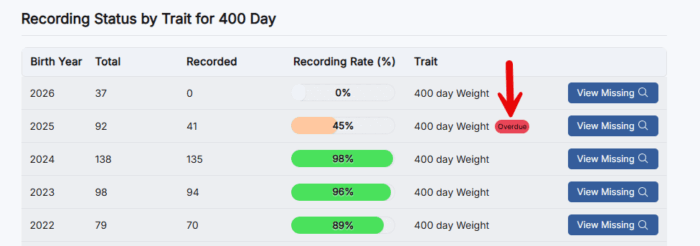
An Overdue indicator will now appear in the Performance Dashboard for any trait with an expected recording age where the required data has not been submitted.
The indicator is displayed against the relevant year in the year selection dropdown, making it easier to identify incomplete recording periods.
Members can use this feature to quickly review outstanding performance records, identify missing data, and ensure their records remain up to date.
Viewing Overdue Performance Indicators:
Click on the performance tab on the dashboard.
Select a trait, for example 400 Day Weights.
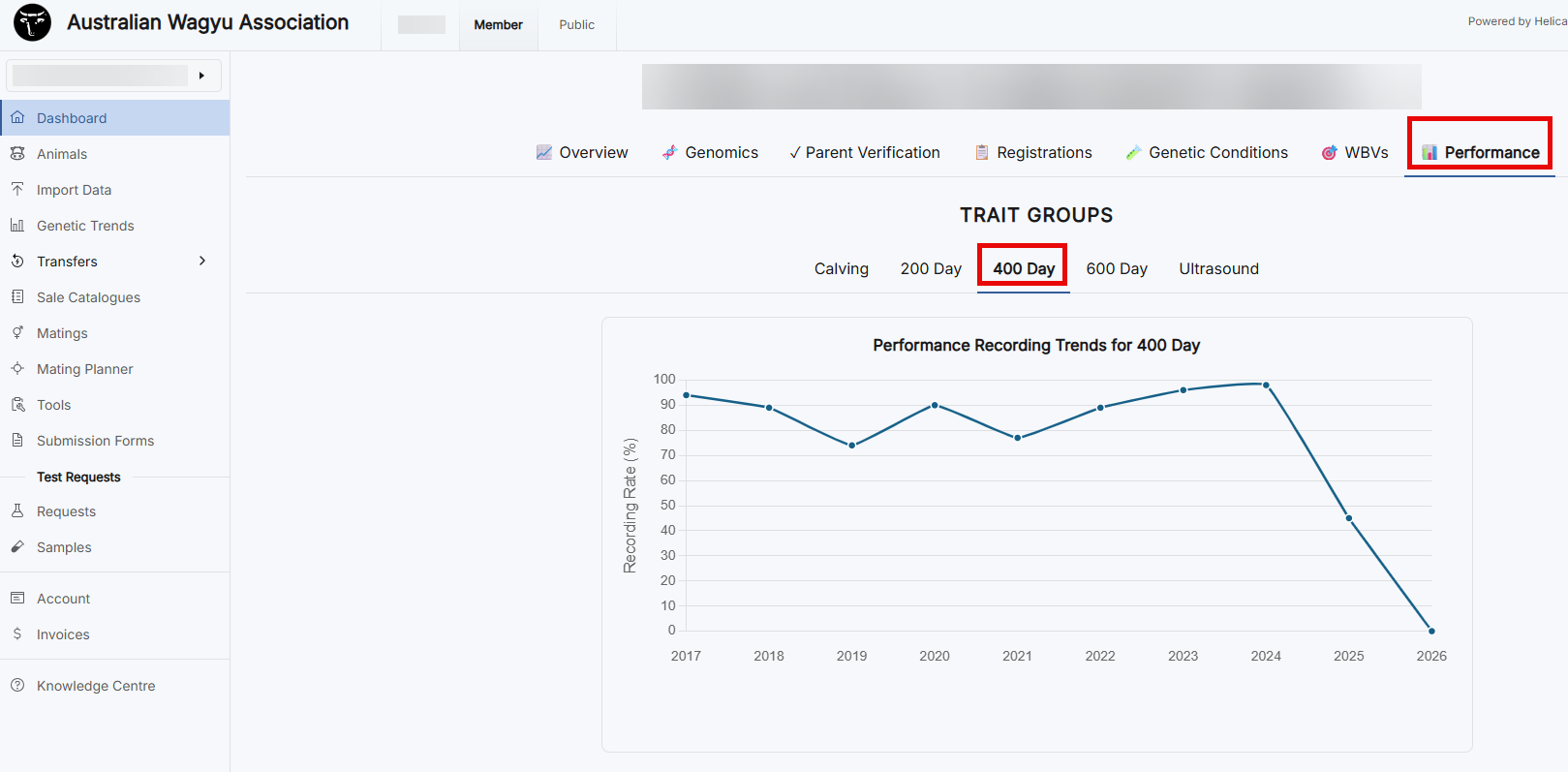
Scroll below the graph to the year group section.
If records are overdue, an Overdue indicator will appear beside the relevant animal year group, as shown in the image below.
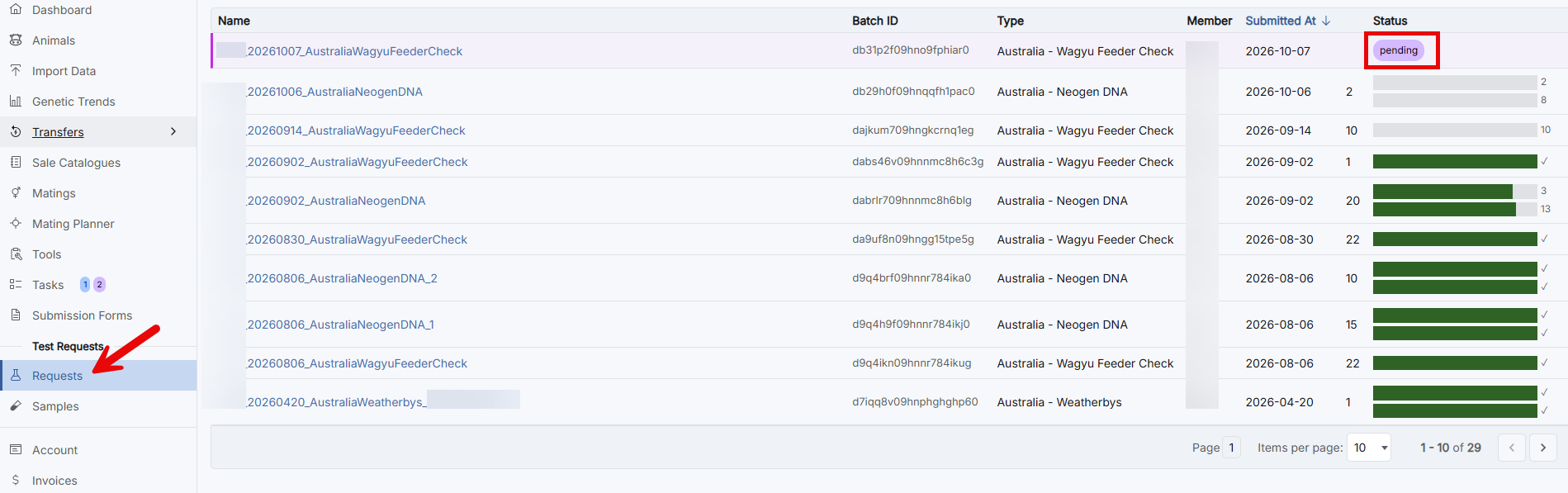
Members can delete a pending test request
Members can delete a pending DNA test request submitted to Helical if they need too. However, if the submission has been approved by the Member Services team, they will need to contact the office directly to discuss the situation.
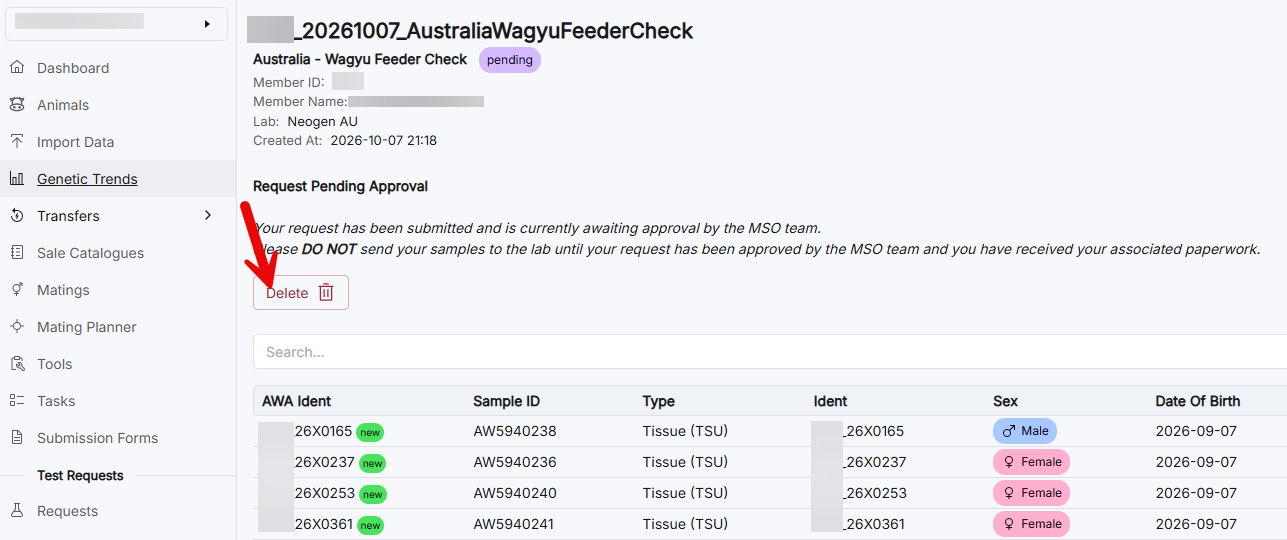
Deleting the request
Click on the request listed in the menu items.
Select the pending request you wish to delete.
Then select the delete button.
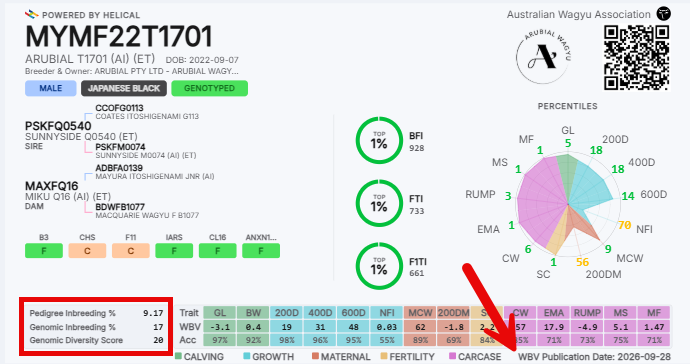
Share Cards – Update
The AWA has updated the share cards to display:
- WBV Publication Date
- Inbreeding and diversity values.
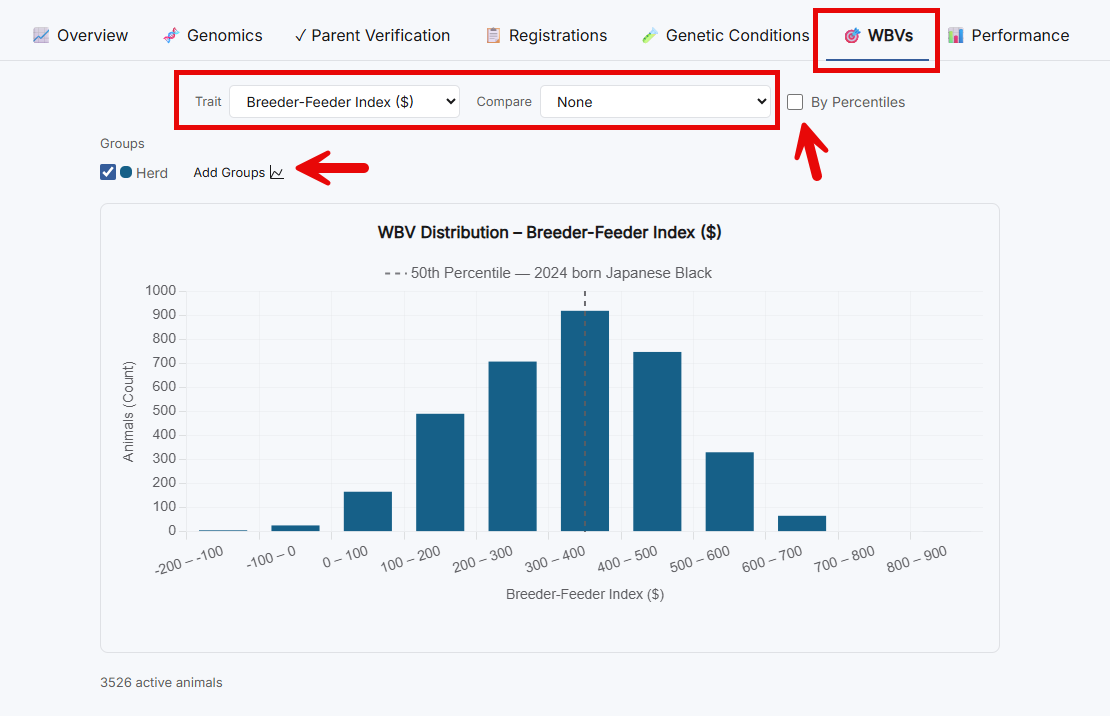
WBV Selection – Member Dashboard
The WBV tab on the Member Dashboard includes a range of interactive tools that allow members to explore and analyse their breeding data. Members can:
- Select the trait displayed in the chart.
- Trait comparison
- View data using percentile bands
- Add animal groups
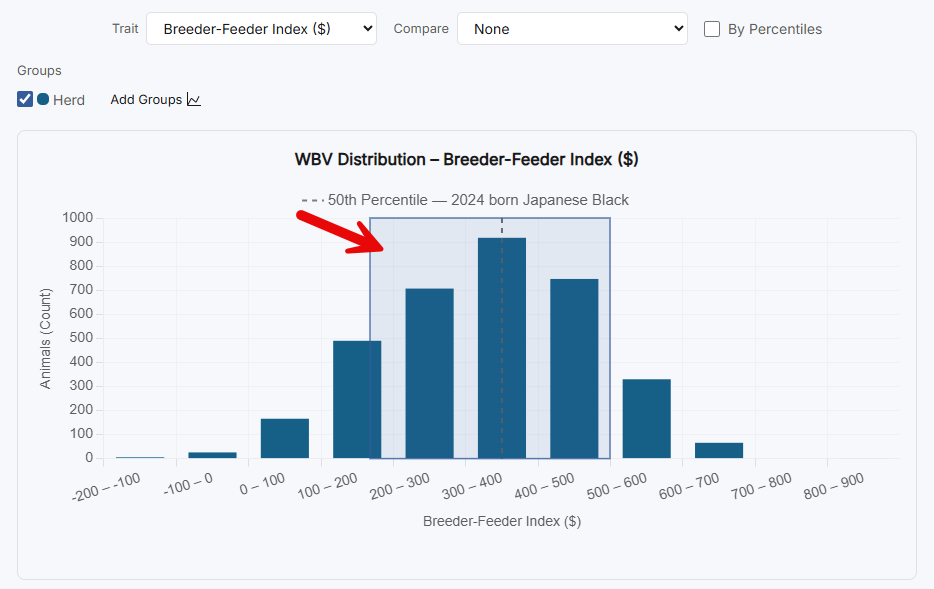
The Newest Enhancement: Selecting and viewing Animals within a part of the WBV Chart.
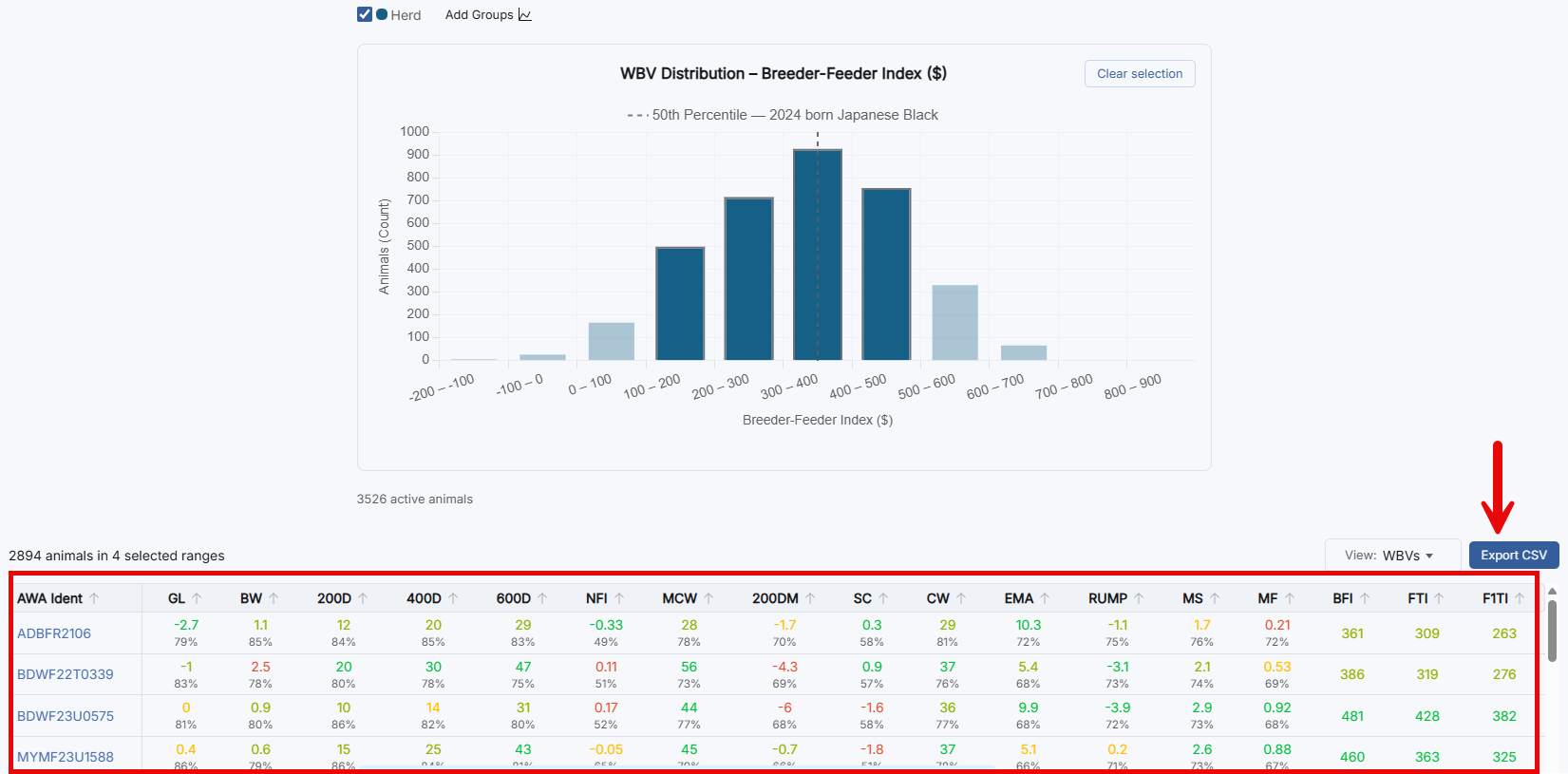
Members can now select and view animals directly within the WBV chart.
By clicking and dragging over a section of the chart, members can highlight a group of animals based on their trait values. Once selected, the animals within that range will automatically be displayed in a WBV results table below the chart.
This feature makes it easier to identify animals within a specific performance range, compare groups, and access the underlying data behind the chart results.
See the images below for an example of selecting and viewing animals within the WBV chart.
Set columns in imports
To make data entry faster and more efficient, members can now populate an entire column with the same value using the Set Column feature. This can also be achieved by selecting all animals and using Set All.
This feature is particularly useful for fields where the same value applies to multiple records, such as:
- Sex
- Coat Colour
- Horn Status
Using Set Column
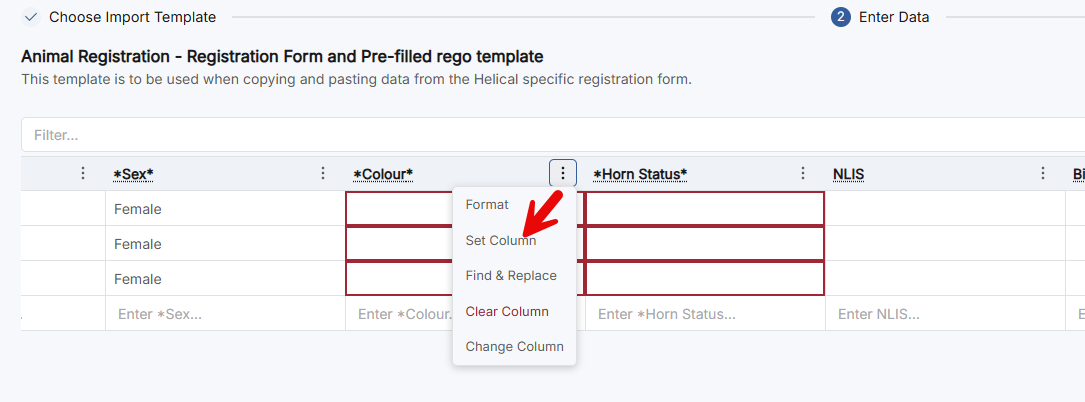
Click the three dots at the top of the required column to open the menu.
Select ‘Set Column’
Choose the value you wish to apply to the entire column. In the example below, all animals are being assigned the coat colour Black.
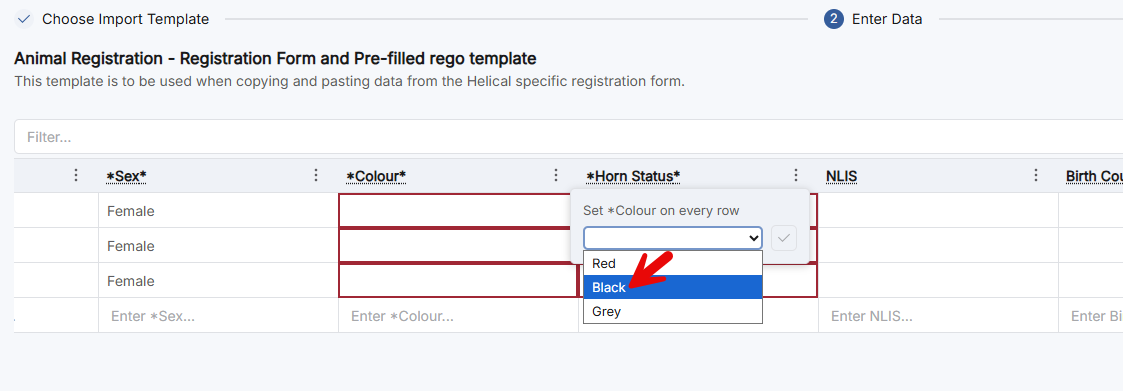
Tick the checkbox to confirm your selection.
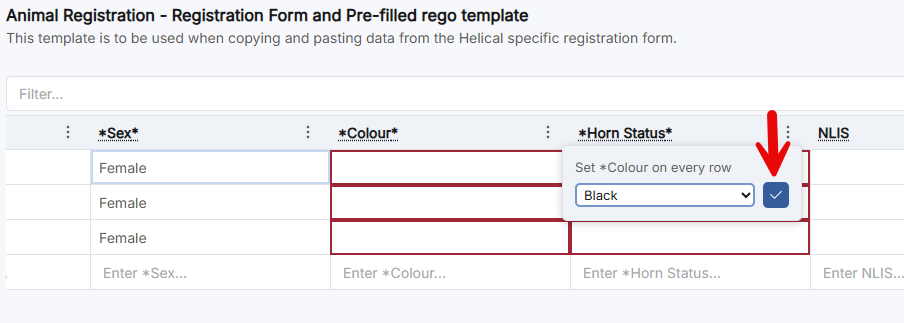
All cells within that column will automatically be updated with the selected value.
Alternative Example – using Select All:
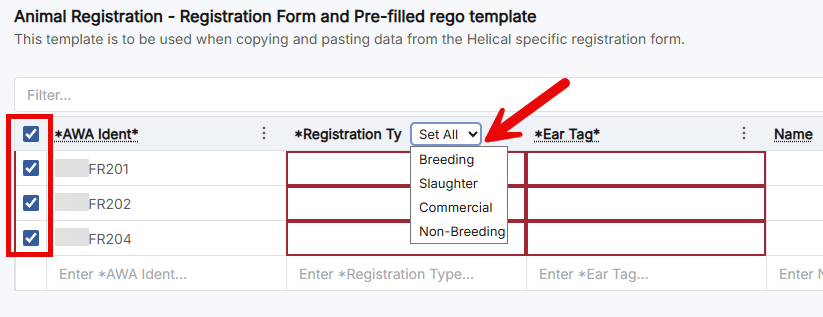
Change Column
If a column has been assigned to the wrong field during import, you can use Change Column to update the mapping. For example, if a column has been assigned to ‘Sex’ instead of ‘Date of Birth’, simply select Change Column and choose the correct field without restarting the import.
This enhancement reduces manual data entry and helps improve the speed and accuracy of importing animal records.
Animal Notes for Members
Members can now add their own private notes on animals.
Go to notes, as seen below.
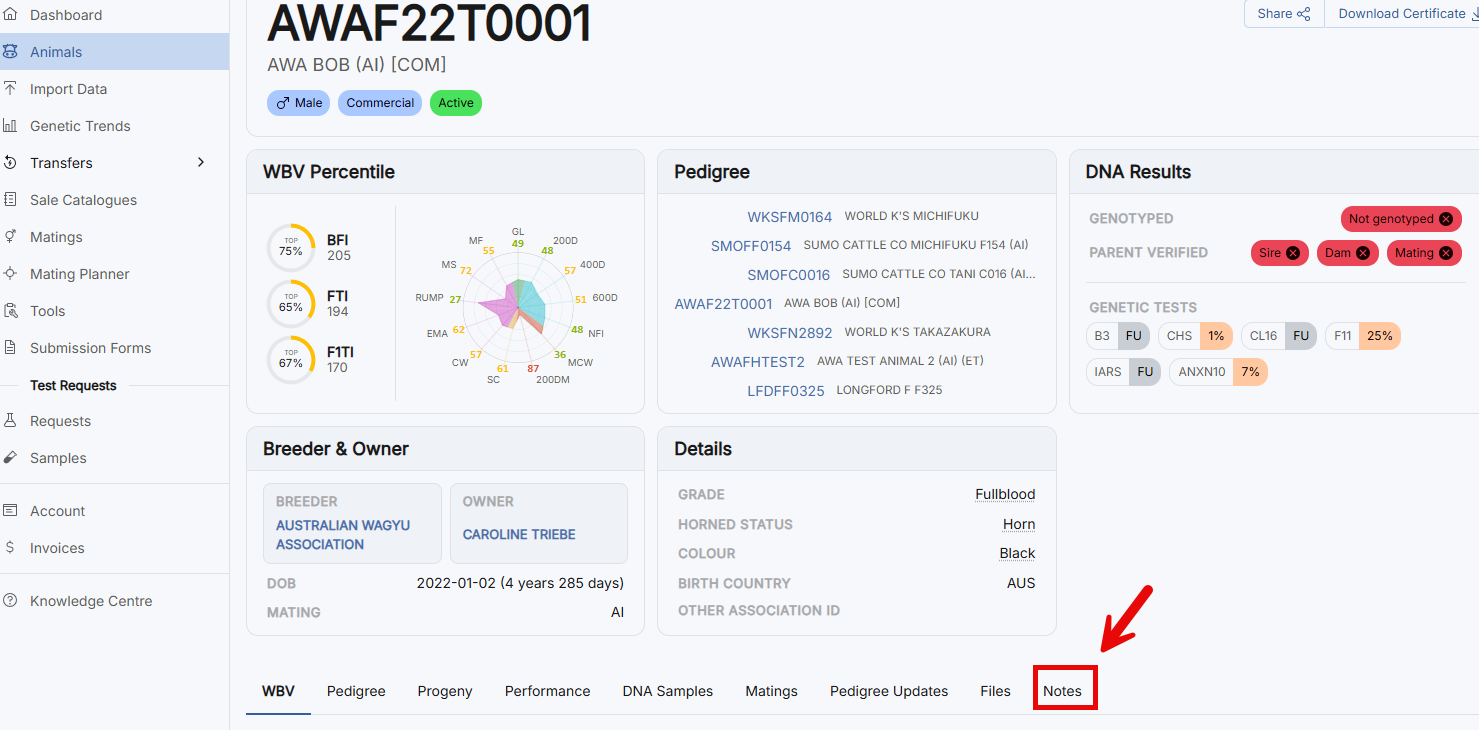
Write notes as necessary in the text box and add it to the animal. This note can be edited or deleted at any time.